Archive
SkyScan Micro-CT Scanning
[edit]Settings Suggestions for SkyScan bone scanning
[edit]email, forwarded from Phil Salmon, phil.salmon@skyscan.be
- Here are some guidelines for scanning bone. You will in due course be able to fine tune the scan settings for your own samples.
- Get the best magnification that you can, but have at least most of your object perimeter contained within the borders of your field of view. Technically it is possible to scan an internal region at high magnification with much of the object outside the field, but in practice this decreases the signal/noise ratio. For example if you are interested primarily in trabecular bone, it is OK if some small parts of the cortical perimeter move out of the field during scanning.
- N.B. Always check your object at several angles before launching the scan - e.g. 45, 90,135, 180 degree views, to check that it is rotating as symmetrically as possible).
- Voltage: What species bone are you studying? If it is anything larger than a rat I should stay with the maximum 100 kV unless you have very small samples and require maximum resolution. For mouse bones a general range is 50-68 kV. Remember that you will need to make a new background or "flat field" correction when you change tube voltage or current.
- Current: Again for large bones leave this at maximum. However for small samples you could make use of the smaller source spot size option. If your machine is the 100kV 1072, then at full voltage and current (power=10W) the spot size is 8 um.
- However, when the power falls below 4W the spot size decreases to 5um (this happens automatically). If the sample x-ray absorption is still OK at a setting with power < 4W, you will get optimum spatial resolution.
- Exposure time. Exposure time is set automatically.
- Frame averaging and step size. As you increase frame averaging and decrease rotation step, resolution will increase but so will scan time. So use the maximum values that time allows.
- Filter. I always use 1mm Al for bone, even small mouse samples. "Filter 2 and 3" actually contain no filter. So your options are 1mm Al or no filter.
- Some notes on dataset reconstruction:
- Set beam hardening and ring artifact reduction on the minimum settings that are visibly necessary.
- Set smoothing to minimum or off.
- Set the “cross-section to image�? upper limit just a little above the top end of the grey spectrum of the sample to optimise contrast in the reconstructed images. I usually put the lower limit halfway down the upper slope of the peak of background - some background will facilitate dataset thresholding (see next comment).
- You can use the threshold module in the program 3d-calculator to get the optimum thresholding to binary images.
- Download this from here if you don’t have it yet.
Corrections for Ring Artifacts and Filter Use
[edit]email, forwarded from Alexander Sasov, sasov@skyscan.be
- If ring artifacts appear only when you scan with a filter, you should acquire new flat-field reference for that particular filter and save it. Possible reasons for the rings are switching to another voltage or current or exposure, some particles in the filter surface, cracks or just small changes in the x-ray spectrum of the source, which normally appear in several years of usage.
- Normally one should acquire new flat-field references t wice per year or in the case of the appearance of strong ring artifacts. Another reason to acquire new flat-field references is a system operation with new voltage/current/exposure. Don't forget to save new flat-field references directly after acquisition.
Specimen Holders
[edit]email, forwarded from SkyScan
- Scanning area for one scan in 1072-instrument can be max.20mm in diameter and 18-19mm in length. Also possible to scan the big objects up to 38mm in diameter with twice scanning time. Object can move +/-10mm for positioning of scanning area or to scan up to 30-35mm in length by several partial scans with automatic connection to one continuous set of cross sections.
- Physical object length may be up to 45-50mm, but only 30-35mm can be scanned.
How To Section 2 - VMS Commands
[edit]Tables
[edit]Table 1 - Login and Software
[edit]| xuct | login password |
| eve, lse, e | text editors |
| spa corelut | spawn a process |
| uct | main program |
| uct_evaluation | |
| uct_3d | |
| uct_backup | |
| aix C0000104.AIM | examine an AIM |
| aio 13 | AIM filtrations (list of procedures) |
| sap | 2d AIM viewing tool |
| sap -s aimfile.aim | Opens the given AIM in sap. |
| pwindow /nowait | capture a window as TIF, GIF, etc. |
| viza /nowait | 3d viewer (requires mcubes result) |
| mcubes | marching cubes |
help arg |
|
sh sym arg |
|
| aimod | to alter the dim, pos, el_size_mm, etc of an aim. Use ‘e’ to end input parameters. |
Table 2 - Commands and Aliases
[edit]| ds | directory, with file sizes |
| dh | directory, with whole path |
| dh0 | for all the files in lower directories beginning with ‘0’. |
| - | to continue command to next line |
| sh sym dd | shows symbol value {executable, path} |
| sh log ud | shows a logical value {path} |
| dec | delete file (with confirmation) |
| del | delete file (no confirmation) |
| decisq | delete ISQ file |
| sh dev ud (sdud) | report disk space (38881940 blocks equals ~19GB) |
| sdur | report disk space on measurement disk |
| onjane | set display to jane (jane.ethz.ch) |
| onblund | set display to blund (blund.ethz.ch) |
| cd scratch | view scratch directory (e.g. see MEASUREMENT_233.LOG;1) |
| sh que *reco* | show reconstruction queue (also, sq *reco*) |
| sh que *meas* | show measurement queue |
| sh que *eval* | show evaluation queue |
| del /entry=# | delete a process off queue (use see to view entry numbers) |
| tp0 | tape drive for backups |
| sh dev tp0 /full | shows all information about tape drive (including if somebody has mounted it). |
| purge filename | deletes all files except for the latest version. |
| v1 filename | renames the latest version to version 1. |
| dsg | type from project directory (ur) to get a report of disk space used by all projects. |
| term | opens a new terminal (new blund terminal). |
| sb 1217 | show batch info after you know the process id from the see command. |
| sb 1217/cont | shows the continuous cpu usage. Type e to exit. |
| qm | In a busy terminal, type qm s "this is done" to send a mail to myself. |
| qmm | Type qmm s “this is done” to put a mail on measurement queue (m). |
| qme | Type qme s “this is done”
to put a mail on evaluation queue (e). |
| qmr | Type qmr s “this is done”
to put a mail on reconstruction queue (r). |
| beep | Makes a beep sound! |
| se ipl | To look at just the jobs with IPL in the job name. |
| read_meas | Takes a measurement number and reports info on it (i.e. backup tape name etc). |
| sh que /all *$mou* | Show printer queue. |
| sm | show memory |
| monitor/interval=1processes/topcpu | Every 1 second update the cpu usage. Use ctrl-Z to quit.
Type monitor/interval=1 processes/topcpu |
| ss | show current system processes |
| show proc | to see who is user |
stop jobname |
to kill a process |
| onlocal | make display on the local machine
(i.e. if you’re at blund, display is at blund). or SET DISP/CREATE/TRANSPORT=TCPIP/NODE=SCAPULA.EE.ETHZ.CH |
| dk40 | sets disk to DISK40 |
| dk50 | sets disk to DISK50 |
| help lex | returns the possible lexical commands
for script files (e.g. F$SEARCH) |
| move files | rename myfiles*.* [.TEMP] |
| move files | rename myfiles*.* [-], rename myfiles*.* [-.-] |
| see | see current processes (show entry/by=executing /full) |
| se ipl/full | see ipl processes on queue |
| ss | show system processes |
stop <proc id> |
kill a system process (i.e. stop UCT_LUT7BB8) |
| move | move or rename a file |
| copy | duplicate file |
| rename | move/copy files |
| rename test.dir [-] | to move up |
| rename test.dir [.models] | change name to models |
| more | view file contents |
| ud *224 0 | goto DISK40:[DATA.UCT.00000224.00000404] |
| lo | logout |
| ur | goto DISK40:[DATA.UCT.PROJECTS] |
| or | goto OBL projects |
| ret | return to previous directory |
| tup | check utility processing |
| v1 | reduces to newest file |
| dd | directory, with dates |
| d | refresh |
Table 3 - File Definitions
[edit]| RSQ | raw image file (contains projection data), created with scan |
| ISQ | reconstructed file (contains slice data), created from RSQ |
| AIM | discretized CT results, extracted from ISQ. |
| RAW | raw data (RSQ) |
| IMA | image data (AIM, ISQ, GOBJ). |
Table 4 - Reconstruction and Batch Jobs
[edit]| fan_reko_all [] 9.6 | reconstruct ISQ from RSQ in directory [] with a reconstruction angle of 9.6 (righthand-rule). |
| fan_reko 9.6 [] 22 10 | reconstruct ISQ from RSQ, angle 9.6,
directory [], first slice number, number of slices (optional queue name). Must reconstruct at least 2 slices. Get reconstruction angle from uct_evaluation (atan). |
| fan_reco | interactive reconstruction of single slices from RSQ data. |
| subut MEASUREMENT_92.COM;1 /que=BLUND_MEASURE submeas #sample | |
| submit a batch job | |
Table 5 - Directory and File Organization
[edit]| data | DISK40:[DATA.UCT.00000224.00000404] C0000274.ISQ;1 {after reconstructing all slices} |
| projects | DISK40:[DATA.UCT.PROJECTS.JAX] 00000216.DIR;1
00000217.DIR;1 {more data files as above, etc.}
DOC.DIR;1
|
Table 6 - AIO Procedures
[edit]|
AIO Procedures |
1. Different mathematical procedures. 2. Different mask procedures. 3. Exchange a slice with another slice in the AIM. 4. Reduce an AIM with cardinal reduction factors. 5. Calculate the relative positions of two AIMs. 6. Thresholding an AIM. 7. Thresholding and inverting an AIM. 8. Fill AIM with ramp function. 9. Calculate morphometric parameters from AIM. 10. Convert BID image to AIM with only one slice. 11. Mirror slices in AIM. 12. Interleaf slices in AIM. 13. Gaussian filtration of AIM. 14. Read single slice in AIM and convert to BID image. 15. Select AIM subimage (or MINIMAL). 16. SIBA bone remodeling module. 17. Flip, flop or flup AIM. 18. Convert AIM from YZ or XZ to XY representation. 19. Segmentation of AIM using region growing. 20. Segmentation of AIM using local thresholding. 21. Select cylindrical subvolume from AIM. 22. Calculate fist and second area moments from AIM. |
Table 7 - EVE Editor Commands
[edit]| gold key | <PF1> |
| copy | <PF1><Remove> on VMS |
| paste | <Insert Here> on VMS or
<ctrl><insert> on PC |
| cut | <Remove> on VMS or
<delete> on PC |
| learn | <CTRL><K> |
| stop | <CTRL><R> (then give a key
sequence such as <CTRL><Q>) |
| repeat | <PF1><#><(CTRL-Q)>
(the CTRL-Q depends on the given key sequence). |
| find next | <PF3> |
| enter search string | <PF1><PF3> |
| replace string | <PF1><S> |
| margins | Mouse click bottom of window type: set
right 999 |
| kill line | <PF4> |
| kill word | - (minus key on number pad) |
| advance next line | 0 (zero on number pad) |
| select text | <CTRL><SPACE> |
Further reference at DISK1:[RAM.EDIT]TPU.ACCEL where some of Ralph’s definitions are described. |
|
Project How To's
[edit]How To: Set up a new project
[edit]- Step 1: Make directories
- In DISK40:[DATA.UCT.PROJECTS] make a directory HERZOG.
- Make COM, LOG, DOC directories. DOC can have IMG. IMG can have 2D and 3D.
- Step 2: Copy files
- Copy some of the COM files from another project. Especially EVAL.COM and EVALUATION.COM.
- EVAL.COM is the main file that calls EVALUATION.COM
- Step 3: Create a symbol
- Go to:
cd DISK1:[UCT] - Edit:
eve LOGIN.COM - Add logical
HERZOGin alphabetical order. - Add
EVAL_HERZOG :== @UCT-DATA-R:[HERZOG.COM]EVAL.COM HERZOG - Type
rulogto update the symbols.
- Go to:
How To: Process a project
[edit]- Record specimens to be scanned on a project sheet.
- Scan
- Create directory in projects: COM, LOG, MODELS, DOC
- Create EVAL.COM
- Do evaluation (will move the output AIMs to the projects directory)
- Backup RSQs.
- Rename the AIMs and place in MODELS.
- Backup AIMs fromUD (measurement disk). Note that we don’t backup ISQs. These can be made again from the RSQs and take much more disk space than the AIMs that have been cutout from them.
- Generate 2D images.
How To: Evaluate a project (PRE)
[edit]- This is done in 2 steps: AIM extraction, AIM filtration.
- Run the evaluation as user XUCT so that enough memory can be allocated for the job. To login as xuct on blund, type
blund(see HowTo:). EVAL_HERZOG G 245(runs the evaluation, with option G, on sample 245).- When
uct_evaluationtool pops up, clickcancelto get sample 245. - Select the <evaluation 3D> button, select <ROI>, then <start evaluation>.
- Then
exit. - To look at the latest
UCT_EVALUATION.LOG, go tocd scratch - Once the AIM has been successfully extracted (it’ll be located in the measurement directory), start the second part of the analysis by typing:
EVAL_HERZOG SE 245orEVAL_HERZOG 245. With no options defaults to GSE, and since option G is already processed, it skips to optionsSE.
- - Option
Sstarts SAP with which the user can check that the AIM captures the data of interest. - - Once you exit from SAP, the file is Gaussian filtered (option
Ein script), renamed to the PROJECTS directory, and the original ISQ file in the measurement directory is deleted.
- Once the two steps of evaluation are finished, the filtered aims should be renamed to meaningful project names (see renaming HowTo's).
- If anything goes wrong in the evaluation, goto the LOG directory in the HERZOG project to see the problem.
How To: Evaluate a project (POST)
[edit]- This is done typically once the original data has been pre-processed (i.e., cutout and filtered).
- Create a script file with the exact name:
SUBMIT_ALL_IPL.COM
- - This file usually contains references to various steps in the evaluation such as trabecular morphological evaluation, cortical evaluation, mask generation, etc. These might be named
TRAB,CORT,MASKor, if all three steps are to be performed, useALL.
- Create an IPL procedure file (as opposed to interactive use of IPL). Remember to use the two dots (..) after the IPL procedure! This file might be named
IPL_TRAB_SUBMIT_ALL.COMfor example. One of these files is necessary for each of the possible evaluations (trab, cort, mask). - Test the procedures by submitting only one job.
- - From the
COMdirectory, typeSAI TRAB NORMAL-01. This will submit the file that contains the stringNORMAL-01to be evaluated using the IPL procedure thatTRABrefers to in theSUBMIT_ALL_IPL.COMfile.
- Submit the project for evaluation using
SAI ALL. Or, if only one part of the evaluation is to be performedSAI TRAB. - Look in the
LOGdirectory for the results from the evaluation.
How To: Measure reconstruction angle and align an image axially
[edit]- The ISQ generated from the RSQ can be re-aligned axially.
- Measure the reconstruction angle:
- - Start
uct_evaluationand load the ISQ image. - - Launch
corelutfromuct_evaluation(<lut>,<modify>,<option cursor>,<position>). - - Click
<draw line>and<show>. - -
<shift>to draw line,<mb2>to store line (don’t forget to uncheck the show line button). - - View reconstruction angle in corelut window. Follow right-hand rule.
- Generate a new ISQ with:
fan_reko_all [directory] -12.6
How To: Rename the AIMs from the data base and move to MODELS
[edit]- Do this from the COM directory of the particular project:
ur michigan - Type:
r2m 404 421(these are the measurement numbers). Makes a file called REN2MODELS.COM. - if you want to rename also GOBJ + THRES + FILT aims, type
r2m ALL (+meas #) - Edit the COM file. Change xx.yy to MICHIGAN (capitals). Change “right�? to “r�? and “left�? to “l�? so that all files are the same length.
- @REN2MODELS.COM (moves the files to the MODELS directory).
- Test that the AIMs were properly moved to the MODELS directory by typing:
dh0(tests no files in 000... from projects directory). - Delete the empty directories:
dec0
- Do this from the COM directory of the particular project:
How To: Create 2D or 3D images
[edit]- Always rename the images from their system-given name to a meaningful project name.
- Manually, start
corelut. Set colormap to black and white (#2).
- Option 1: Manual
- Start
sapandpwindows.
- Start
- Option 2: Automatic
- Generate an SAP.COM file using
@ut:create_sap-pw.comor “csp�? - Edit SAP.COM. Then start with
@SAP.COM XY. - Make XY, YZ and XZ 2d images, and some detail images. Always close
pwindowsbeforesap. The next AIM will be automatically loaded. - Always save as TIFFs. Powerpoint is able to make invisible background with TIFFs only.
- Rename the TIFF files to TIF (one ‘F’) so that programs such as Adobe Photoshop will recognize the files.
- Look at TIFFs using
xv filenameori disp filename(image magick).
- Generate an SAP.COM file using
How To: Compile LOG files from IPL evaluation
[edit]- Concatenate the log files into one long file and place it in the log directory.
- -
app/new ipl_trab*.log [-.doc]calgary_bear_trab.log
- In the doc directory, use the tabulating program to extract the results.
- -
taball calgary_bear(it looks for a file ending in ‘_trab’ extension).
- Instead of
taball, individual IPL evaluation results can be tabulated. Typetabto get the usage.
Tape
[edit]How To: Tape is allocated to another user
[edit]- Before using tape, test with
sh dev tp0 /full - Status
online allocatedoroffline. Should beonlinebefore using. - If somebody else is using the tape, wait.
- If you are the one using the tape, make sure you
dismount tp0ordismount tp0/nounloadfrom the same window you mounted the tape. - If there is a serious error in getting the tape use back, then logout of blund completely (
<exit>button on CDE at top of screen) and log back (xuct). - Any currently running queued jobs, including current measurements, will not be affected by the logout.
- Before using tape, test with
How To: Deal with a full backup tape
[edit]- Option 1: From an archive script
- Wait for the script to fail after typing no for the request for volume 2 tape by the program.
- dismount tp0 to remove tape.
- Insert new tape, initialize with
uct_backup, and start script again so that it includes only those filesthat were not already backed up on the previous tape (check the measurement directories).
- Option 2: From the uct_backup utility
- Resume the operation on a new backup tape.
- To abort the
uct_backuputility, typectrl-y. It is very slow. Be patient! - Insert the new tape.
- With
uct_backup, initialize the tape. Name isRAW007(max 6 characters). - Continue backing up after mounting the new tape.
- Option 3: From
bltputility.- Type
ctrl-y.
- Type
How To: Initialize a new backup tape
[edit]- Put new tape in drive.
- Start
uct_backup - Select
<initialize>before<mount>. - An alternative to using
uct_backupis to type at the command line:init tp0 BE0007
How To: Archive (RSQ and AIM) files with a batch job
[edit]RAW= RSQ,IMA= AIM.- Create an ARCHIVE.COM file and put it in the COM directory. Always add any files that have been backed up for the project to this file so that restoration is simply a matter of changing this file.
- Automatic generation of the ARCHIVE.COM file is possible using the command:
archive
- -
start_date: copy and paste date of the first measured file (12-DEC-2001). - -
end_date: Last measured file. - -
RAW data only: N - -
*seg.aim: N
- edit the ARCHIVE.COM to include only the files that you want backed up. The version of ARCHIVE.COM can be temporarily modified at any time to:
- - archive the IMA files (AIMs).
- - restore either the IMA or RAW files from tape.
- @ARCHIVE.COM from the COM directory to execute the backup once the appropriate RAW/IMA tape is in the drive.
- Note the tape number on the project sheet.
How To: Archive the RSQ (and AIM) files with the uct_backup tool
[edit]- Step 1: Tape in drive
- Type
sh dev tp0to ensure nobody else is using the drive (should not be mounted). - Put
RAW006in drive. - Door up to insert tape.
- Door down to close.
- Wait for flashing light to stop. Indicates tape is loaded.
- Type
- Step 2: Back up utility
- Start
uct_backup - Click on
<mount>/code> - Click on file to backup in window and file type (i.e.
RSQ). - Select
<move to>(from disk to tape), or<copy to>(from tape to disk). - Check that we are moving to
tape, nottrash! - Click
<start> - Click
<yes> - Then minimize the window. Never re-open the minimized window during the backup process. It will open automatically when done.
- Note the tape label on the project sheet.
- Start
- Step 3: Remove tape
- Click on
<unmount>. - Wait for green light, then pop open the door. Done!
- Click on
HowTo: Delete a measurement
[edit]- Option 1: Permanent deletion (i.e., a failed measurement)
- Use
uct_backup
- Then
move to the trash bin. Click on the all box.
- Type
exit.
- This removes the measurement from the micro-CT database and prevents future confusion.
- Option 2: Delete a restored RSQ (i.e., a good measurement was restored from backup tape)
- Confirm that the RSQ is stored on tape (
read_meas).
- Delete the file manually (i.e.,
del SOME.RSQ).
HowTo: Archive a project
[edit]- Do this once MODELS has been created.
- In the project directory, type
bltp to remind yourself how to use the command.
- Choose an appropriate name for the SAV name. It must be 13 characters max, and must not be the same name as another sav file on the backup tape.
- Type:
bltp HERZOG HERZOG_NORMAL BE0002 (project name, SAV name, tape label).
- If only backing up the MODELS directory, type:
bltp HERZOG.MODELS HERZOG_NORMAL BE0002
- Creates a BCK directory and puts the SAV (equivalent to a tar) filename in that directory.
- Use
quick mail in the busy terminal to notify myself when the backup is complete.
- Type to dismount the tape once done:
dismount tp0
- This command does not delete anything from the disk. That is up to you to decide.
- -Usually the AIM GFILT data should be deleted to save space, but keep the thresholded AIMs as they are much smaller files.
How To: Restore a project
[edit]- Insert the backup tape into the drive.
- Check what SAV name (in the project BCK directory) includes the files that you want to restore.
- Type:
blud HERZOG_NORMAL or blud MICH_BAT01 to restore that SAV batch.
- Restored files are automatically put into their original directories.
Process
[edit]HowTo: Convert an AIM to a stack of TIFFs
[edit]- Convert AIM to BID with
aimio.
- Convert BID to TIFF with
imagemagick.
- Make a COM file to do this automatically.
HowTo: Reduce resolution of an AIM
[edit]- Use:
aio filein.aim fileout.aim 4 (4 refers to cardinal reduction factor).
- x = 1, y = 13, z = 1, no average.
HowTo: Switch the XY axis of an AIM
[edit]- Use:
aio filein.aim fileout.aim 18
- Or, use the 64 bit option available in IPL. See the utility command files (
cd ut com) for some options.
HowTo: Filter the AIM data
[edit]- Filter with either support of 1 or 2. Use support of 1 when the data is very good and we don’t want to loose any spatial resolution. Use support of 2 when the data is a little bit sketchy.
HowTo: Use the 64-bit procedures
[edit]- Refer to the Scanco manual to learn about the different procedures.
- Must be on BLUND (the 64-bit system).
- Step 1: Example: To flip an AIM
- To make it from XZ to XY orientation, we’ll use
ipl_flip.
- Go to:
cd ut com (to see the command procedures. i.e. IPL stuff).
- Make a procedure here by copying an old one.
- Set the appropriate variables. See manual to see which are necessary.
- Execute the procedure interactively:
@ut:ipl_flip MICHIGAN...860..._GFILT.AIM
<outputaim> XZ (we want XZ to be moved into XY orienation).
- Execute the procedure on a queue:
subut ipl_flip []MICHIGAN...860..._GFILT.AIM[]MICHIGAN...860..._GFILT_FLIP.AIM XZ
HowTo: Use SAP effectively
[edit]- Sub-selecting an AIM
- - [
MANAGEMENT:Superior image:New] Set position and sub-dimension
- - [
MANAGEMENT:Sub-image selection:Apply] Mouse: click selected part in overview.
- Measuring distances and/or mouse position
- - Each click of the mouse in the image window results in an output to the terminal window
- - Terminal output includes position of mouse click (both in mm and voxels)
- -Two subsequent mouse clicks results in the distance between two points output in the 2nd click.
- Mouse control
- - Left button double click: select image
- - Middle button double click: show sequential images from selected (before and after)
- - Right button double click: show menu.
HowTo: Select a threshold
[edit]- Should be as deep a threshold possible without creating fragments.
- Threshold given as a value between 1 and 1000.
- A common value is 224 of a possible 1000 (22.4%).
- Work with a representative sub-aim (see HowTo:) approximately 100 voxels cubed.
- Option 1: Mcubes and Viza
- Select the threshold after ensuring there aren’t too many fragments.
- Note that the value given here is twice the threshold value that should be used. For some reason, if you choose 40% threshold in
mcubes, that number corresponds to a real threshold (for use in IPL commands) of 20% or 200.
- Option 2: SAP
- Read in the Gaussian filtered aim [
Processing:segmentation:procedures].
- Threshold only.
- With different thresholds, switch between the original data and the thresholded data until satisfactory. Try other planes too!
- Go to maximum threshold until bonds are broken.
HowTo: Run IPL in interactive mode
[edit]- On VMS system, start the 64 bit version with
ipl64 (ipl starts 32 bit version).
- To read a file:
read in DISK40:[DATA.UCT.PROJECTS.HERZOG.MODELS]MYAIM.AIM
- or, type
read and fill in the blanks as asked.
- The command
gobj will find the first IPL command that starts with gobj (gobj_maskaimpeel_ow in this case).
- See the IPL manual for all the available commands.
- See the sample IPL script command files in this manual.
HowTo: Extract part of amask
[edit]- If a mask contains, for example, values 63 and 127 (each representing a different part of the image), then the mask of each component can be extracted using thresholding.
- The
lower perm and upper perm control the thresholding.
- Note that if this mask is to be used in an IPL procedure, it must be written to file before it can be used (the IPL
gobj command is special and only accepts input from a file. Internal files in IPL are not allowed).
- Option 1: To get the 127 value
- Threshold in IPL with
lower perm equal 600 and upper perm equal 1000.
- Upper refers the maximum possible value (in case of code>char/code> it is 127, in case of
short it is 32k). Therefore, for a char file, setting lower perm to 600 passes values above 76.2 only (0.6 x 127).
Option 2: To get the 63 value
- Threshold in IPL with
lower perm equal 100 and upper perm equal 800.
- Setting upper perm to 800 is a trick that, in the case of a
char file, passes data that only has a maximum of 101.6 (0.8 x 127).
- Choosing a
lower perm of 100 in the case of a char file passes data that is greater than 12.7 (0.1 x 127).
Trouble-Shooting
[edit]HowTo: Get the correct colour map to display
[edit]- Problem: The colour map isn’t giving the correct colours.
- Close all
corelut applications in all windows (1, 2, 3, 4) and try the uct_evaluation tool again.
HowTo: Add a new command
[edit]- Go to directory RAM.COMMANDS.
- Add command to
evelog.
- Use
rlog to register the command.
HowTo: Kill a string of processes
[edit]- The process needs a LOG file in order to run. We can rename the LOG file to LOGO temporarily, then delete the most recent process on the queue. All the rest of processes will fail.
- The
ren LOGO to LOG.
HowTo: Log in as XUCT in a terminal window
[edit]- Type
blund.
- User and password: xuct, password.
- Type
onlocal to set display to blund (see Commands and Aliases section if this option is not implemented).
- To login as a micro-CT user, type the user last name in capitals in bold, and the rest should be automatically updated:
BOYD
HowTo: Move files to other systems
[edit]- Option 1: FTP
ftpmich (give anonymous as login and password).- Type:
cd c:\\users\anonymous
- or,
cd f:\\anonymous\\zuerich or (cd “f:\anonymous\zuerich“)
- Type:
cd zuerich
- Option 2: cp
- Type:
cp2mich zuerich /bin MICHIGAN*.AIM
HowTo: View TIFFS or GIFS
[edit]- Use either
xv filename.tiff or i disp filename.tiff
HowTo: Generate a text file
[edit]- If, for example, we wanted a text file of all the processes running on the reconstruction queue so that we can create a COM file to kill a number of processes, type
- -
sh que *reco* /output=queuekiller.com
- Then, edit queuekiller.com so that the COM file could be executed.
- Then execute with
@queuekiller.com
HowTo: Subselect a minimal AIM
[edit]- Type:
aio mydata.aim * minimal 15
- Or, replace the * with an output filename if different than the input name.
- Give the
extra offset in X equal 0, in Y equal 0, and in Z equal 0.
HowTo: Set logicals and symbols on OpenVMS
[edit]- The logicals and symbols should be defined in the user account, rather than the microct_common account so it only overrides YOUR settings, but not of anybody else on the same computer (i.e., user calibration).
- In
DISK1:[MICROCT]MICROCT_SETUP_USER.COM input your special settings.
- For example, to override the current IPL evaluation script that is used by uct_evaluation, do the following in the file:
$ define uct_evaluation ue:xxxxx.com
Records
[edit]HowTo: Michigan project sheet
[edit]
Sample COM Files
[edit]HowTo: Example ipl_scanco_v64.com pre-processing
[edit]$!
$! _/_/_/ _/_/_/ _/
$! _/ _/ _/ _/ Image Processing Language
$! _/ _/_/_/ _/
$! _/ _/ _/ (c) Andres Laib, IBT/ETH Z¸rich
$! _/_/_/ _/ _/_/_/_/
$!
$!
$!
$! IPL Batch Scanco
$!
$! Segmentation with gauss filter and thresholding.
$! The segmented volume is saved compressed to file.
$!
$!
$ define log_file 'p1'
$ define org_file 'p2'
$ define gobj_file 'p3'.GOBJ
$ define gau_file 'p3'_GFILT.AIM
$ define seg_file 'p3'_THRES.AIM
$!
$ show log log_file
$ show log org_file
$ show log gobj_file
$ show log gau_file
$ show log seg_file
$!
$!
$ ipl_scanco_prog := $um:ipl_scanco_m64.exe
$!
$ ON ERROR THEN EXIT
$!
$ ipl_scanco_prog
/db_scanco_activate true
! read, threshold and vox gfilt aim file
/read org org_file
/sup_divide org
-supdim_numbers 4 4 4
-testoff_pixels 1 1 1
/gauss_lp org gau
-sigma 1.2
-support 1
/del org
/write gau gau_file
/vox_scanco_param
-input gau
..
$ ON ERROR THEN CONTINUE
$! ENDIF
$!------------------------------------------------------------------------------
$ ENDCOM:
$ IF F$SEARCH("gau_file") .NES. ""
$ THEN
$ org = F$SEARCH("org_file")
$! IF org .NES. "" THEN DELETE/NOCONFIRM 'org'
$ ENDIF
$ EXIT
HowTo: Example ipl_scanco_v64.com post-processing
[edit]
$!

$! _/_/_/ _/_/_/ _/

$! _/ _/ _/ _/ Image Processing Language

$! _/ _/_/_/ _/

$! _/ _/ _/ (c) Andres Laib, IBT/ETH Zrich

$! _/_/_/ _/ _/_/_/_/

$!

$!

$!

$! IPL Batch Scanco

$!

$! Segmentation with gauss filter and thresholding.

$! The segmented volume is saved compressed to file.

$!

$!

$ define log_file ‘p1’

$ define org_file ‘p2’.AIM

$ define gobj_file ‘p2’.GOBJ

$ define gau_file ‘p2’_GFILT.AIM

$ define seg_file ‘p2’_THRES.AIM

$!

$ show log log_file

$ show log org_file

$ show log gobj_file

$ show log gau_file

$ show log seg_file

$!

$!

$ ipl_scanco_prog := $um:ipl_scanco_m64.exe

$!

$ ON ERROR THEN EXIT

$!

$!------------------------------------------------------------------------------

$!Gauss filter, cutout with GOBJ, and threshold

$!------------------------------------------------------------------------------

$ IF F$SEARCH(“seg_file�?) .EQS. ““

$ THEN

$ ipl_scanco_prog

/db_scanco_activate false

! read, then gauss filter aim

/read org org_file

/gauss_lp org gau

-sigma 1.2

-support 2

/del org

! cutout with gobj

/gobj_maskaimpeel_ow

-input_output gau

-gobj_filename gobj_file

-peel_iter 0

! threshold

/threshold

-input gau

-output seg

-lower_in_perm 250

-upper_in_perm 1000

-value_in_range 127

/write

-name gau

-filename gau_file

-compress false

/del gau

/write

-name seg

-filename seg_file

-compress bin

..

$ ON ERROR THEN CONTINUE

$ ENDIF

$!------------------------------------------------------------------------------

$!Morphological and anisotropic analysis

$!------------------------------------------------------------------------------

$ipl_scanco_prog

/db_scanco_activate false

/read seg seg_file

/tri

-input seg

-output tri

-gobj_filename gobj_file

-peel_iter -1

-ip_sigma 2.000000

-ip_support 0

-ip_threshold 64

-interpolate true

-nr_ave_iter 0

-t_dir_radius 2

-epsilon 1.200000

-size_image 512 512

-scale_image 0.700000

-edges false

-nr_views 0

..

$ ON ERROR THEN CONTINUE

$ipl_scanco_prog

/db_scanco_activate false

/read seg seg_file

/dt_object_param

-input seg

-output out

-gobj_filename gobj_file

-roi_radius_factor 10000.000000

-ridge_epsilon 0.900000

-assign_epsilon 1.800000

-histofile_or_screen none

..

$ ON ERROR THEN CONTINUE

$ipl_scanco_prog

/db_scanco_activate false

/read seg seg_file

/dt_background_param

-input seg

-output out

-gobj_filename gobj_file

-roi_radius_factor 10000.000000

-ridge_epsilon 0.900000

-assign_epsilon 1.800000

-histofile_or_screen none

..

$ ON ERROR THEN CONTINUE

$ipl_scanco_prog

/db_scanco_activate false

/read seg seg_file

/dt_mat_param

-input seg

-output out

-gobj_filename gobj_file

-roi_radius_factor 10000.000000

-ridge_epsilon 0.900000

-assign_epsilon 1.800000

-histofile_or_screen none

..

$ ON ERROR THEN CONTINUE

$ipl_scanco_prog
HowTo: Example submit_all_ipl.com
[edit]
$ com := UT:IPL_SUBMIT_USER.COM

$ dir = F
$ENVIRONMENT(“DEFAULT�?) - “.COM]�?

$ proc_maskxy := ‘dir.COM]IPL_MASKXY_SUBMIT_ALL.COM

$ proc_maskxz := ‘dir.COM]IPL_MASKXZ_SUBMIT_ALL.COM

$ proc_trabtop := ‘dir.COM]IPL_TRABTOP_SUBMIT_ALL.COM

$!------------------------------------------------------------------------------

$ IF P1 .EQS ““

$ THEN

$ SAY “Usage: SAI [ALL,MASKXY,MASKXZ,TRABTOP]

$ EXIT

$ ENDIF

$!------------------------------------------------------------------------------

$ IF P1 .NES “ALL�? THEN GOTO ‘P1’

$!------------------------------------------------------------------------------

$ MASKXY:

$ FDA @’com’ ‘dir’.MODELS]*’p2’*_INNER_XY.GOBJ [] USER:MASKXY BLUND_EVAL ‘dir’.LOG]
‘proc_maskxy’

$ IF P1 .NES “ALL�? THEN GOTO ENDCOM

$!------------------------------------------------------------------------------

$ MASKXZ:

$ FDA @’com’ ‘dir’.MODELS]*’p2’*_UPPER_XZ.GOBJ [] USER:MASKXZ BLUND_EVAL ‘dir’.LOG]
‘proc_maskxz’

$ IF P1 .NES “ALL�? THEN GOTO ENDCOM

$!------------------------------------------------------------------------------

$ TRABTOP:

$ FDA @’com’ ‘dir’.MODELS]*’p2’*_MASK_XZ.AIM [] USER:TRABTOP BLUND_EVAL ‘dir’.LOG]
‘proc_trabtop’

$ IF P1 .NES “ALL�? THEN GOTO ENDCOM

$!------------------------------------------------------------------------------

$ ENDCOM:

$ EXIT

$!------------------------------------------------------------------------------
HowTo: Example ipl_maskxy_submit_all.com
[edit]
$!

$! _/_/_/ _/_/_/ _/

$! _/ _/ _/ _/ Image Processing Language

$! _/ _/_/_/ _/

$! _/ _/ _/ (c) Andres Laib, IBT/ETH Zürich

$! _/_/_/ _/ _/_/_/_/

$!

$!

$!

$! IPL Batch Scanco

$!

$! Calculation of morphometric properties in the TRAB region.

$!

$!

$ p2 = p2 - “_INNER_XY�?

$!

$ define log_file ‘p1’

$ define sum_file ‘p2’_MASK_XZ.AIM

$ define seg_file ‘p2’_MSK_INNER.AIM

$ define xzaim_file ‘p2’_INNER_XZ.AIM

$ define gobj_1_file ‘p2’_INNER_XY.GOBJ

$ define gobj_2_file ‘p2’_TOPER_XZ.GOBJ

$!

$ show log log_file

$ show log sum_file

$ show log seg_file

$ show log xzaim_file

$ show log gobj_1_file

$ show log gobj_2_file

$!

$!

$ ipl_scanco_prog :=
$um:ipl_scanco_m64.exe

$!

$ ON ERROR THEN CONTINUE

$!

$!------------------------------------------------------------------------------

$!Create an AIM with INNER_XY.GOBJ, write XZ version.

$! (Send pos info to log files)

$!------------------------------------------------------------------------------

$ IF F
$SEARCH(“xzaim_file�?) .EQS. ““

$ THEN

$ ipl_scanco_prog
/db_scanco_activate false
! read xy inner gobj
/gobj_to_aim
-gobj_filename gobj_1_file
-output gob
-peel_iter 0
/examine gob
-item geometry
/flip_aim gob flip
-new_xydir xz
/examine flip
-item geometry
/write flip xzaim_file
..

$ ON ERROR THEN CONTINUE

$ GOTO ENDCOM

$ ENDIF

$! Before proceeding to this next part, the “pos�? of the INNER_XZ.AIM files

$! created above must be reset from 0 to the proper values based on aims

$! before and after flipping. The change in the AIM is done with a

$! script that calls program “aimod�?.

$!

$!------------------------------------------------------------------------------

$!Create an AIM mask AIM with INNER_XZ.AIM and TOPER_XZ.GOBJ

$!------------------------------------------------------------------------------

$ IF F
$SEARCH(“sum_file�?) .EQS. ““

$ THEN

$ ipl_scanco_prog
/db_scanco_activate false
/read in xzaim_file
/gauss_lp in gau
-sigma 3.0
-support 3
/del in
/threshold gau seg
-lower_in_perm 450
-upper_in_perm 1000
-value_in_range 63
/del gau
/write seg seg_file
-compress bin
/del seg
! read xz toper gobj
/read seg seg_file
/gobj_mask seg
-gobj_filename gobj_2_file
-peel_iter 0
/read bot seg_file
/set_value bot
-value_object 64
-value_background 0
/concat bot seg sum
-common_region_only false
-add_not_overlay true
/del seg
/del gob
! write the final aim
/write sum sum_file
-compress bin
..

$!
$ DELETE/LOG ‘’seg_file’;

$ GOTO ENDCOM

$ ENDIF

$ ON ERROR THEN CONTINUE

$!------------------------------------------------------------------------------

$ ENDCOM:

$ EXIT
HowTo: Example flip_xz.com
[edit]
$!-----------------------------------------------------------------------------

$! RENAME SAMPLES

$!-----------------------------------------------------------------------------

$ project = “HERZOG�?

$ dir = “DISK40:[DATA.UCT.PROJECTS�?

$ IF F
$SEARCH(“‘’dir’.’’project’]*.*�?) .NES. ““

$ THEN

$ dir = “‘’dir’.’’project’�?

$ ELSE

$ SAY ““

$ SAY “Directory ‘’dir’.’’project’] is empty.�?

$ SAY ““

$ EXIT

$ ENDIF

$!-----------------------------------------------------------------------------

$!
$ @UT:IPL_FLIP.COM ‘dir’.MODELS]HERZOG_CAT_00WK-01-NORMAL_GFILT.AIM -

$! ‘dir’.MODELS]HERZOG_CAT_00WK-01-NORMAL_GFILT_XZ.AIM XZ

$!

$ @UT:IPL_FLIP.COM ‘dir’.MODELS]HERZOG_CAT_70MO-1B-CLAT-R_GFILT.AIM -
‘dir’.MODELS]HERZOG_CAT_70MO-1B-CLAT-R_GFILT_XZ.AIM XZ

$ @UT:IPL_FLIP.COM ‘dir’.MODELS]HERZOG_CAT_74MO-1D-ACLT-L_GFILT.AIM -
‘dir’.MODELS]HERZOG_CAT_74MO-1D-ACLT-L_GFILT_XZ.AIM XZ

$ @UT:IPL_FLIP.COM ‘dir’.MODELS]HERZOG_CAT_74MO-1D-CLAT-R_GFILT.AIM -
‘dir’.MODELS]HERZOG_CAT_74MO-1D-CLAT-R_GFILT_XZ.AIM XZ

$!-----------------------------------------------------------------------------

$ EXIT

$!-----------------------------------------------------------------------------
HowTo: Example eval.com
[edit]
$!------------------------------------------------------------------------------

$!EVAL.COM

$!------------------------------------------------------------------------------

$IF P1 .EQS. ““

$THEN

$ SAY ““

$ SAY “Usage:�?

$ SAY “
$ @EVAL.COM RESDIR [ADPGSE] SAMPLE_ID [MEAS_ID] [PAR5-8]�?

$ SAY ““

$ SAY “ A: All�?

$ SAY “ D: Set Measurement Directory�?

$ SAY “ G: Generate AIM interactively�?

$ SAY “ S: Startup SAP�?

$ SAY “ E: Evaluating AIM�?

$ SAY ““

$ EXIT

$ENDIF

$!------------------------------------------------------------------------------

$ON CONTROL_C THEN GOTO ENDCOM

$ON CONTROL_Y THEN GOTO ENDCOM

$IF P2 .EQS. ““ THEN P2 = “D�?

$IF F
$INTEGER(P2) .NES. 0

$THEN

$ P4 = P3

$ P3 = P2

$ P2 = “A�?

$ENDIF

$!------------------------------------------------------------------------------

$!CHECK DIRECTORY SYNTAX

$!------------------------------------------------------------------------------

$olddir = F
$PARSE(F
$DIRECTORY()) - “.;�?

$IF P3 .NES. ““

$THEN

$ IF P4 .NES. ““

$ THEN

$ CDN UD *’P3’ *’P4’

$ ELSE

$ CDN UD *’P3’ 0
$!------------------------------------------------------------------------------

$!EVAL.COM

$!------------------------------------------------------------------------------

$IF P1 .EQS. ““

$THEN

$ SAY ““

$ SAY “Usage:�?

$ SAY “
$ @EVAL.COM RESDIR [ADPGSE] SAMPLE_ID [MEAS_ID] [PAR5-8]�?

$ SAY ““

$ SAY “ A: All�?

$ SAY “ D: Set Measurement Directory�?

$ SAY “ G: Generate AIM interactively�?

$ SAY “ S: Startup SAP�?

$ SAY “ E: Evaluating AIM�?

$ SAY ““

$ EXIT

$ENDIF

$!------------------------------------------------------------------------------

$ON CONTROL_C THEN GOTO ENDCOM

$ON CONTROL_Y THEN GOTO ENDCOM

$IF P2 .EQS. ““ THEN P2 = “D�?

$IF F
$INTEGER(P2) .NES. 0

$THEN

$ P4 = P3

$ P3 = P2

$ P2 = “A�?

$ENDIF

$!------------------------------------------------------------------------------

$!CHECK DIRECTORY SYNTAX

$!------------------------------------------------------------------------------

$olddir = F
$PARSE(F
$DIREC

$ ENDIF

$ENDIF

$dir = F
$PARSE(F
$DIRECTORY()) - “.;�?

$length = F
$LENGTH(dir)

$id = F
$EXTRACT(length-18,18,dir)

$IF (F
$EXTRACT(0,2,id) .NES. “00�?) .OR. (F
$EXTRACT(9,2,id) .NES. “00�?)

$THEN

$ SAY “ “

$ SAY “ THIS IS NOT A MEAUSUREMENT DIRECTORY:�?

$ SAY “ ‘’dir’�?

$ SAY “ “

$ EXIT

$ENDIF

$SET DEF UCT-DATA-M:[‘id’

$isqdata = F
$SEARCH(“*.ISQ�?)

$isqdata = isqdata - F
$PARSE(isqdata,,,�?VERSION�?)

$aimdata = F
$SEARCH(“*.AIM�?) - “_TRAB�? - “_CORT�?

$aimdata = F
$SEARCH(“‘’aimdata’�?)

$aimdata = aimdata - F
$PARSE(aimdata,,,�?VERSION�?)

$IF (P2 .NES. “D�?) .AND. (isqdata .EQS. ““) .AND. (aimdata .EQS. ““)

$THEN

$ SAY “ “

$ SAY “ NO IMAGE DATA IN THIS DIRECTORY:�?

$ SAY “ ‘’dir’�?

$ SAY “ “

$ EXIT

$ENDIF

$IF F
$SEARCH(“*.COM�?) .NES. ““

$THEN

$ SAY ““

$ SAY “THERE SEEM TO BE STILL UNRECONSTRUCTED SLICES IN THIS DIRECTORY:�?

$ DIRECTORY *.COM

$ EXIT

$ENDIF

$!------------------------------------------------------------------------------

$!PROCESSING

$!------------------------------------------------------------------------------

$IF P2 .EQS. “D�? THEN GOTO ENDCOM

$!------------------------------------------------------------------------------

$IF F
$LOCATE(“A�?,P2) .NE. F
$LENGTH(P2)

$THEN

$! SAP IS INVOKED

$ IF isqdata .NES. ““ THEN P2 = “GSE�?

$ IF isqdata .EQS. ““ THEN P2 = “SE�?

$! SAP IS NOT INVOKED

$! IF isqdata .NES. ““ THEN P2 = “GE�?

$! IF isqdata .EQS. ““ THEN P2 = “E�?

$ENDIF

$SAY ““

$!------------------------------------------------------------------------------

$IF F
$LOCATE(“G�?,P2) .NE. F
$LENGTH(P2)

$THEN

$ IF (isqdata .NES. ““) .AND. ((aimdata .EQS. ““) .OR. (P2 .EQS. “G�?))

$ THEN

$ SAY “- Evaluate ‘’isqdata’�?

$ DEFINL UCT_DEFAULT_ISQ ‘isqdata’

$ DEFINL UCT_EVALUATION UCT-DATA-R:[‘P1’.COM]UCT_EVALUATION.COM

$ UCT_EVALUATION

$ DEASSIGN UCT_DEFAULT_ISQ

$ DEASSIGN UCT_EVALUATION

$ IF P2 .NES. “G�?

$ THEN

$ SAY “- Waiting for evaluation job to complete ...�?

$ counter = 1

$ loop:

$ WAIT 00:00:10

$ elapsed_time = counter * 10

$ IF counter .eq. 1

$ THEN

$ SAY “ - job has been runing for ‘’F
$STRING(elapsed_time)’ seconds�?

$ ELSE

$ SAY “[2K[1A - job has been runing for ‘’F
$STRING(elapsed_time)’ seconds�?

$ ENDIF

$ ctx = ““

$ temp = F
$CONTEXT (“PROCESS�?,ctx,�?JOBTYPE�?,�?BATCH�?,�?EQL�?)

$ loop_pid:

$ pid = F
$PID(ctx)

$ IF pid .NES. ““

$ THEN

$ image = F
$GETJPI(pid,�?IMAGNAME�?)

$ aimdata = F
$SEARCH(“*.AIM�?)

$ IF (F
$LOCATE(“ISQ_TO_AIM�?,image) .NES. F
$LENGTH(image)) - .OR. (aimdata .EQS. ““)

$ THEN

$ counter = counter + 1

$ GOTO loop

$ ELSE

$ GOTO loop_pid

$ ENDIF

$ ENDIF

$ aimdata = F
$SEARCH(“*.AIM�?)

$ aimdata = aimdata - F
$PARSE(aimdata,,,�?VERSION�?)

$ ENDIF

$ ENDIF

$ENDIF

$!------------------------------------------------------------------------------

$IF F
$LOCATE(“S�?,P2) .NE. F
$LENGTH(P2)

$THEN

$ IF F
$SEARCH(aimdata) .NES. ““

$ THEN

$ show sym aimdata

$ SAY “- Startup SAP ‘’aimdata’...�?

$ SAPXZ -s ‘aimdata’

$ ELSE

$ SAY ““

$ SAY “No aimdata found in directory.�?

$ SAY “Program exits right now.�?

$ GOTO ENDCOM

$ ENDIF

$ENDIF

$!------------------------------------------------------------------------------

$IF F
$LOCATE(“E�?,P2) .NE. F
$LENGTH(P2)

$THEN

$ id_dir = F
$EXTRACT(0,8,id) + “]�? + F
$EXTRACT(9,8,id) + “.DIR�?

$ IF F
$SEARCH(“UCT-DATA-R:[‘’P1’.’’id_dir’�?) .EQS. ““

$ THEN

$ SAY “- Create Result Directory ...�?

$ CREATE/DIR/LOG UCT-DATA-R:[‘P1’.’id’

$ ENDIF

$ IF aimdata .NES. ““

$ THEN

$ aimname = F
$PARSE(aimdata,,,�?NAME�?)

$ aimnum = F
$EXTRACT(0,8,id)

$ aimfull = “UCT-DATA-R:[‘’P1’.’’id’’’aimname’�?

$ comfile = “UCT-DATA-R:[‘’P1’.COM]IPL_SCANCO_V64.COM�?

$ logfile = “UCT-DATA-R:[‘’P1’.LOG]IPL_PRE_’’aimnum’_’’aimname’.LOG�?

$! SHOW SYMBOL aimname

$! SHOW SYMBOL aimnum

$! SHOW SYMBOL aimfull

$! SHOW SYMBOL comfile

$! SHOW SYMBOL logfile

$ !-------------------------------------------------------------------

$ IF F
$SEARCH(“‘’aimfull’_GFILT.AIM�?) .EQS. ““

$ THEN

$! CP ‘aimdata’ ‘aimfull’.AIM

$ IF F
$SEARCH(aimdata) .NES. ““ THEN
IF F
$SEARCH(isqdata) .NES. ““ THEN DELETE/NOCONFIRM ‘isqdata’;*

$ SUBDATA ‘comfile’ ‘logfile’ -
‘aimdata’ ‘aimfull’!/QUEUE=BLUND_EVAL

$ ENDIF

$ ENDIF

$ENDIF

$!------------------------------------------------------------------------------

$ ENDCOM:

$IF F
$SEARCH(“UCT-DATA-M:[‘’id’*.*�?) .NES. ““

$THEN

$ DIRECTORY/NOTRAILER UCT-DATA-M:[‘id’

$ELSE

$ dir1 = F
$EXTRACT(0,8,id)

$ dir2 = F
$EXTRACT(9,8,id)

$ DELETE UCT-DATA-M:[‘dir1’]’dir2’.DIR;,UCT-DATA-M:[000000]’dir1’.DIR;

$ENDIF

$IF F
$SEARCH(“UCT-DATA-R:[‘’P1’.’’id’*.*�?) .NES. ““ THEN -
DIRECTORY/NOTRAILER UCT-DATA-R:[‘P1’.’id’

$SAY ““

$SET DEF ‘olddir’

$EXIT

$!------------------------------------------------------------------------------
HowTo: Example eval_all.com
[edit]
$ eval_herzog e 245

$ eval_herzog e 246

$ eval_herzog e 247

$ eval_herzog e 248

$ eval_herzog e 249

$ eval_herzog e 250
How To Section 3 - Software Installation and Setup
[edit]Install Packages from Source CD
[edit]Programs:
[edit]- CMake 1.66: A program that generates VC++ Workspace and UNIX Makefiles automatically to facilitate platform independence.
- VTK 4.2: Visualization Toolkit is a package containing various visualization algorithms.
- ITK 1.2: Insight Segmentation and Registration Toolkit is a package similarly designed to VTK and well integrated with VTK. It contains image processing algorithms.
- FLTK 1.1.2: Fast Light Toolkit for GUI development in C++.
- Qt: A professional toolkit for GUI development.
- vtkMy: The personal developed code by Dr. Steven Boyd that integrates into VTK for micro-CT (or MR) imaging.
- Registration Application: An interesting registration tool developed by researchers at University of North Carolina.
- WinZip: A utility to unzip source files.
- WinCVS: Version control software.
Step-by-Step:
[edit]- Install CMake. See the file README IMPORTANT.txt in that directory regarding installing the latest version of FindFLTK.cmake.
- Install VTK with the following CMake options:
- BUILD EXAMPLES
- SHARED LIB: on
- DATAROOT: points to where sample data is located.
- USE_HYBRID, USE_PATENTED, USE_RENDERING: on
- WRAP_JAVA: off
- BUILD_SHARED_LIBRARIES: on
- USE_ANSI_STDLIB: on
- Install FLTK 1.2 (doesn’t require CMake)
- Install ITK with the following CMake options:
- EXAMPLES: on
- TESTING: on
- SYSTEM_STDLIB: on
- (When installing the documentation, use the .zip version on the PC.)
- Install ITK applications (not required, but has some interesting examples).
- Install vtkMy project using CMake
- WRAP_JAVA: off
- BUILD_SHARED_LIBRARIES: on
Suggested directory structure
[edit]- Use CMake whenever a new project is to be developed. ALWAYS use CMake. Look at the VTK or ITK packages for examples on its use, or use the PDF manual for CMake available on this CD.
Directory structures
[edit]
D:\pack\fltk-1.1.2 FLTK
D:\pack\vtk42\html	VTK documentation

D:\pack\vtk42\VTK-4.2.1	VTK source

D:\pack\vtk42\VTKData-release-4-2	VTK data

D:\pack\vtk42\bin	Built VTK project (CMake points here for binaries).
D:\code\vtkMy\src	SBoyd’s source code

D:\code\vtkMy\inc	Include files required to build vtkMy

D:\code\vtkMy\bin	Built vtkMy project (CMake points here).
D:\pack\itk12\InsightApplications-1.2.0	ITK sample applications

D:\pack\itk12\InsightToolkit-1.2.0	ITK source

D:\pack\itk12\InsightToolkit-1.2.0-doxygen	ITK documentation

D:\pack\itk12\itk	Built ITK project (CMake points here for binaries)

D:\pack\itk12\itkapps	Built ITK sample applications (CMake points here)
Add a project to vtkMy
[edit]- Add a new project directory in the vtkMy/src/Applications directory.
- Update the CMakeLists.txt file in /src/Applications to include the new directory in the SUBDIRS() list.
- Copy the CMakeLists.txt and source code files from an existing project such as AppMohr and put them into the new directory. These files can be edited for your new project.
- Edit the copied CMakeList.txt file and the change the name of the .cxx to the name of the new project.
- Run CMake, taking the source code from vtkMy/src and building the binaries in vtkMy/bin.
- Open the Visual C++ workspace and edit the source code (since at the moment it will be a duplicate of whatever project you copied in step 3).
- Compile your new code. Usually, all the development should be done in the “Debug�? mode (rather than “Release�?, etc.).
- If, to run your application, you need to include command line arguments, go to the menu item [Project][Settings], and on the ‘debug’ tab set the Program Arguments as shown.
Install a package on the Sun
[edit]- Go to directory
/local/stow and create a new directory for your package:
- /stow/faim/bin (binaries)
- /stow/faim/lib (libraries)
- /stow/faim/share (documentation)
- From /local/stow, run umask 022, and then stow faim.
- Done.
Setting up WinCVS to use PuTTY to connect to vtkMy
[edit]Setting up WinCVS to use PuTTY is fairly straghtforward, but does require a few configuration settints in addition to installing the software. You can do it with the following steps.
- Install PuTTY (http://www.chiark.greenend.org.uk/~sgtatham/putty/).
- Install wincvs (http://www.wincvs.org/)
- Make a key:
- Follow menus: Start/Programs/PuTTY/PuTTYgen From the PuTTY Manual:
- ...press the "Generate" button and PuTTYgen will begin the process of actually generating the key.
- First, a progress bar will appear and PuTTYgen will ask you to move the mouse around to generate randomness. Wave the mouse in circles over the blank area in the PuTTYgen window, and the progress bar will gradually fill up as PuTTYgen collects enough randomness. You don't need to wave the mouse in particularly imaginative patterns (although it can't hurt); PuTTYgen will collect enough randomness just from the fine detail of exactly how far the mouse has moved each time Windows samples its position.
- When the progress bar reaches the end, PuTTYgen will begin creating the key. The progress bar will reset to the start, and gradually move up again to track the progress of the key generation. It will not move evenly, and may occasionally slow down to a stop; this is unfortunately unavoidable, because key generation is a random process and it is impossible to reliably predict how long it will take.
- When the key generation is complete, a new set of controls will appear in the window to indicate this.
- Set the key comment and password. Set the key comment to your email address by typing it into the "Key Comment" box. Set the password by entering it twice, once in the "Key passphrase" box and once in the "Confirm Passphrase" box.
- Save the keys:
save the public key on your desktop as identity.pub and the private one as identity.ppk
- Email the identity.pub file as an attachment to skboyd@ucalgary.ca and ask for it to be added to the .ssh/authorized_keys file for your cvs repository. Please specify which repository you are requesting access to in the e-mail (i.e., vtkMy).
- Setup environment variables
- Choose Menus:
Start/Settings/Control Panel
- Double click on the "System" Control Panel
- Pick the "Advanced" tab and pick "Environment Varibles..."
- Add User environement variables
- - Add PLINK_PROTOCOL value "ssh"
- - Add CVS_RSH value "plink"
- - Edit or Add PATH appending value ";C:\Program Files\PuTTY"
- In WinCVS, bring up the "Preferences" dialogue box from the Admin menu
- In the "General" tab put in your CVSROOT value, (i.e.
:ext:myusername@m177.enme.ucalgary.ca:/localhost/cvsroot)
File:Wincvs general.jpg
- Switch to the "Ports" tab.
- Tick the box there labelled "Check for an alternate rsh name" and in the text entry field to the right enter "plink".
File:Wincvs ports tab.jpg
- Select "OK" on teh "Preferences" dialogue box.
- Once you've heard back from the administrator (skboyd) that your ssh keys have been added, test your putty key configuration:
- Double click on "identity.ppk" on your desktop. If this doesn’t start pagaent.exe automatically, then manually start the program from the directory you installed putty.exe.
- If your identity file isn't already loaded, you will be prompted for the password you entered in step 4.
- The Pageant icon (a little PC with a hat) should appear in the bottom right menu bar.
You should now be able to use WinCVS to access the repository, with a secure connection whenever Pageant is running. You can start Pageant by double-clicking on your identity.ppk file.
Setting up CVS access from Linux/Unix
[edit]- To understand the codes for a CVS update, see page 121 of CVS users guide, section A.16.2.
- Valuable resource for understanding ssh:
- Setting up SSH access from "localbox" to "remotebox":
Localbox:
- ssh-keygen -t rsa [use a passphrase]
- NOTE: Put the "id_rsa" (private file) in ~/.ssh. There should only be one of these on a machine account.
- NOTE: Put the “id_rsa.pub�? (public file) in ~/.ssh as “authorized_keys�? on remote machines; see “Remotebox�? below.
- scp identity.pub skboyd@remotebox: [don't forget the last colon]
- in ~/.bashrc:
- export CVS_RSH=ssh
- export CVSROOT=:ext:skboyd@m177.enme.ucalgary.ca:/localhost/cvsroot
- eval `ssh-agent` {use the funny back single quotes}
Remotebox:
- cat identity.pub >> ~/.ssh/authorized_keys
- To avoid writing your passphrase every time you log on, run:
- ssh-add
- Should work if ssh-agent is already running (eval `ssh-agent` in the .bashrc file).
- Do the following to limit access to cvs for the users:
- edit the public key installed in the .ssh/authorized_keys file with the following at the beginning of the public key line:
- command="/usr/bin/ssh server"
NOTES ABOUT KEYS
Remember, the "authorized_keys" file is a concatenation of public (id_rsa.pub) keys,
and the "id_rsa" is the private key.
Every user on every computer should only have ONE "id_rsa" file,
but can have multiple "id_rsa.pub" files concatenated into
their "authorized_keys" file.
Using CVS from a command line
[edit]- To find a difference:
$ cvs diff mylocalfile.cxx
- To add a new file:
$ cvs add mynewfile.cxx $ cvs commit mynewfile.cxx
- To update local file:
$ cvs update -dCP
- or
$ cvs update -dCP myfile.cxx
- To check if a more recent version is available:
$ cvs diff myfile.cxx
- or
$ cvs update
- To update CVS repository:
$ cvs commit mylocalfile.cxx
FTP Instructions for ENME
[edit]The server ftp.enme.ucalgary.ca can be logged into as an anonymous user.
Command Line Instructions: Windows or Unix
[edit]- Start the FTP program. In windows, go to the [start button] and select [run] and type cmd to start a command window. In Unix, open a terminal window. Type at the ‘>’ prompt:
> ftp ftp.enme.ucalgary.ca
- Log in as an anonymous user and send your email (e.g., me@ucalgary.ca) as password.
- Change directories to the hidden directory /incoming/skboyd:
> cd /incoming/skboyd
- Set transfer mode to binary or ascii, depending on your needs. For example, an MSWord document should be sent in binary mode. Type one of the following:
> binary > ascii
- Transfer the documents with the put statement.
> put mydocument.doc
- When finished, log off the FTP server:
> bye
 Sample Windows FTP Session
File:Windows ftp.jpg
Sample Linux FTP Session
File:Linux ftp.jpg
Windows Instructions: WinFTP
[edit]If there is an FTP application available such as WinFTP then take care to make the settings as shown in these snapshots:
File:Ftp one.jpg
File:Ftp two.jpg
Sun Blade 2500 in CCIT
[edit]Details
[edit]- Technical support 1-800-872-4786
- S/N: FE34720093
- P/N: 380-0855-01
- Contract # NK10013125
- Case ID number 6398-3799 (Why must we run fsck on /space repeatedly?)
- Resolved.
- Case ID number 6413-1564 (Screen saver locks keyboard and mouse)
- Not resolved. Swasti (303-272-6510) will send an e-mail describing the solution.
- Case ID number 6419-0306 (Files are invisible when typing ‘ls’)
- Resolved by replacin ‘ls’ with a working binary from another 5.8 Sun (Byron provided the file).
- Contacts at Sun in Calgary:
- Dale (261-6557, 510-7350),
- Denis (680-9804),
- Chris (515-2890).
- Contacts at UCalgary:
- Bryan Gooding (220-8443),
- Khee Teck Wong (220-3349)
- Other Contacts:
- Witold Owoc (Witold.Owoc@ccsicompucom.com)
- Case ID number 6404-0086 (Non responsive?)
- Case ID number 6460-0193 (regarding upgrade to Solaris 10 with [raid?] array configuration problem)
Technical information
[edit]- IP: 136.159.118.224
- Gateway: 136.159.118.1
- DNS servers: 136.159.1.21 (ucnet.ucalgary.ca) 136.159.34.201 (itnet.ucalgary.ca)
- Configuration
- Internal hard disk 35 GB mirrored (‘/’ and ‘/space’)
- Disk array (250 GB) (‘/data’) set up with RAID 5 software
Configuration August 17, 2005
[edit]Witold.Owoc@ccsicompucom.com
Completed items:
- SB2500 firmware updated to the current level
- Solaris 10 3/05 installed
- internal disks mirrored
- current (as of 2005/08/19) Solaris patches installed
  (exluding problematic 119107-03)
- 5 external disks made into RAID-5 for /data
  (perfomed extensive testing to determine RAID
  and filesystems parameters that deliver acceptable
  level of performance)
- system login enabled for sftp, ssh and console only
- network services disabled or restricted
- enabled and configured Network Time Protocol (NTP)) client
- installed from Solaris 10 Software Companion CD
  the following packages (into /opt/sfw/bin):
   SFWcvs   cvs 1.11.17 - Concurrent Versions System
   SFWgcmn  gcmn - Common GNU package
   SFWgfile fileutils 4.1 - GNU file management utilities
   SFWncur  ncurses 5.2 - new curses library
   SFWqt    qt 3.1.1 - C++ GUI framework
   SFWrpm   rpm 4.1 - Red Hat Package Manager
   SFWrsync rsync 2.6.3.1 - flexible replacement for rcp
   SFWscrn  screen 4.0.2 - A full-screen window manager
- perfomed (automated) Sun VTS system testing
Not completed:
- firewall filter - access for 136.159 network only.
It turned out to be not easy to perform that task
remotely. May be I will just give exact step by
step instructions, then anybody can copy&paste.
Set up
[edit]- Set up of DNS service. Modified the following files:
/etc/nsswitch.conf (refer to SunSolve document ID 11975) /etc/resolve.conf /etc/defaultrouter (refer to SunSolve document ID 17947)
- Installed Forte Update 2 compilers.
- Disabled telnet
- edit
/etc/inet/inetd.conf & comment out the "telnet" line
- kill -HUP the inetd process
- Add openssh
- Added user accounts:
useradd –u 1002 –g 1000 –d /space/home/swiss –s “/bin/bash�? swiss
- Note: set user id 1002 based on next available number in /etc/passwd
- As root: passwd swiss (to set user password)
- As root: Make directory /space/home/swiss
- Copy of .bashrc and .bash_profile from another account in ~swiss
- Chown swiss:research ~swiss (to set the owner and groups properly)
- Note: common settings for paths are located in:
/local/share/userconf/bashrc /local/share/userconf/bash_profile
- Programs installed under
/local/stow
- stow
- cmake, ssh, cvs, vtkMy, itk, vtk, qt
- Always run
‘umask 022’ then ‘stow package-name’
Trouble Shooting
[edit]- System freezes: ‘
stop-A’ and then ‘init 6’ to reboot machine cleanly. Check the /var/adm logs to see what problems occurred.
System Administration
[edit]- ‘
init 6’ to reboot machine cleanly (as opposed to ‘reboot –n’)
- ‘
init 5’ to shut down machine cleanly
/etc/passwd (gives user definitions such as default shell and home directory location)/etc/group (gives group definitions)chmod a+trwx /data (makes /data sticky so all users can write to the disk)- For disk quota setting see ‘
man edquota’
- To fix a disk run: ‘
fsck –y /dev/md/rdsk/d3 (for /space; -y option could be substituted)
- Run ‘
metastat’ to get the status of mirrored drives
- See
/var/adm/message* if there are system problems
- See ‘
dmsg’ also about possible problems.
Patches
[edit]- Adding patches: www.sunsolve.sun.com
- ‘
patchadd /var/spool/patch 108528-17’ to install a single patch, or
- ‘
patchadd –M /var/spool/patch 108528-17 108940-06’ to install multiple patches.
Bash files
[edit]/localhost/share/userconf/bashrc
[edit]# bashrc - System-wide initialization for everybody's ~/.bashrc
# Directories to consider as ``local improvements to the operating system.
prefix=/localhost/usr
exec_prefix=${prefix}
x_prefix=/usr/openwin
# First, add the local directories into the paths.
export INFOPATH=${prefix}/info
export MANPATH=${prefix}/share/man:${prefix}/man
export PATH=${exec_prefix}/bin:/localhost/bin
export LD_LIBRARY_PATH="${exec_prefix}/lib"
export PRINTER=101@ps
export MOZILLA_HOME=/local/lib/communicator
# Add in the the /usr/local directory for host-specific binaries.
if [ -d "/usr/local" ]; then
case "$MANPATH" in
*/usr/local/man*) ;;
*) MANPATH="$MANPATH:/usr/local/man" ;;
esac
case "$PATH" in
*/usr/local/bin*) ;;
*) PATH="$PATH:/usr/local/bin" ;;
esac
case "$LD_LIBRARY_PATH" in
*/usr/local/lib*) ;;
*) LD_LIBRARY_PATH="$LD_LIBRARY_PATH:/usr/local/lib" ;;
esac
fi
# Add in system-specific directories.
case "$OSTYPE" in
[lL]inux | [lL]inux-*)
export INFOPATH="$INFOPATH:/usr/info"
export MANPATH="$MANPATH:/usr/man:/usr/X11R6/man"
export PATH="$PATH:/bin:/usr/bin:/usr/local/bin:/usr/X11R6/bin:/opt/kde/bin"
export PRINTER=325@ps
alias idraw="LD_LIBRARY_PATH=/local/lib/LINUX /local/bin/idraw"
;;
SunOS | solaris2.[5-9] | solaris2.10 | solaris)
- export MANPATH="$MANPATH:/usr/man:/opt/SUNWspro/man:/opt/SUNWste/license_tools/man"
export MANPATH="$MANPATH:/usr/man:/opt/sfw/man:/opt/SUNWste/license_tools/man"
- export LD_LIBRARY_PATH="$LD_LIBRARY_PATH:/usr/local/lib:/usr/openwin/lib:/usr/ucblib"
export LD_LIBRARY_PATH="$LD_LIBRARY_PATH:/usr/openwin/lib:/usr/ucblib"
- export PATH="$PATH:/opt/SUNWspro/bin:/usr/ccs/bin:/usr/bin:/usr/ucb:/usr/lib/nis"
  export PATH="$PATH:/opt/SUNWvts/bin:/opt/sfw/bin:/usr/ccs/bin:/usr/bin:/usr/ucb:/usr/lib/nis"
  export INFOPATH="$INFOPATH"
  alias mail='/usr/ucb/mail'
  ;;
SunOS4)
  export OPENWINHOME=${x_prefix}
  export MANPATH="$MANPATH:/apps/man:/usr/man:/usr/lang/man:${OPENWINHOME}/man"
  export PATH="/apps/bin:/usr/local/bin:/usr/ucb:/usr/bin:/usr/lang"
  export INFOPATH=/apps/info
  ;;
[iI]rix6 | [iI]rix6.3 | [iI]rix6.5)
  export INFOPATH="$INFOPATH:/usr/share/info"
  export MANPATH="$MANPATH:/usr/share/catman"
  #$PATH contains ~/bin:/local/bin:/usr/local/bin" as bash default
  export PATH="$PATH:/usr/bsd:/usr/bin:/usr/bin/X11:/usr/freeware/bin:/usr/sbin:/sbin:/usr/etc"
  ;;
*)
  echo "bashrc: no defaults for OSTYPE=\"$OSTYPE\"" 1>&2
  MANPATH="$MANPATH:/usr/man"
  PATH="$PATH:/bin:/usr/bin"
  ;;
esac

# Add in X11 directories.
if [ -n "$x_prefix" ] && [ -d $x_prefix ]; then
  case "$MANPATH" in
  *$x_prefix/man*) ;;
  *) MANPATH="$MANPATH:$x_prefix/man" ;;
  esac

 case "$PATH" in
  *$x_prefix/bin*) ;;
  *) PATH="$PATH:$x_prefix/bin" ;;
  esac
fi

# Make sure files are created with the correct permissions.
# NOTE: The umask command takes an argument that specifies the permission
# bits that you do *not* want turned on by default.
# Read the chmod(1) manual page for more information.
#
# Thus, 077 means: g-rwx,o-rwx, which is maximum protection.
umask 022

# Don't set aliases if the shell is non-interactive.
if [ -n "$PS1" ]; then
  set -o noclobber    # Don't allow redirection to overwrite existing files.
  set -o notify       # Report job exit status immediately.
  set -o ignoreeof    # Don't allow ^D to terminate the shell.

  # Set the prompt string to the hostname and working directory.
  if [ -z "$TERMREC_ON" ]
  then
      # usual prompt
      export PS1='\h:\W \$ '
  else
      # termrec prompt
      export PS1='\h:\W (termrec)\$ '
  fi

  # Set up common aliases to use for interactive sessions.
  alias j='jobs -l'      # Check the current jobs with
  alias lsa='ls -F'
  alias ll='ls -alF'
  alias dir='ll'
  alias which='type -a'
fi
/local/share/userconf/bash_profile
[edit]# bash_profile - System-wide initialization for ~/.bash_profile
# mail check interval and location
export MAIL=$HOME/Maildir
export MAILCHECK=300
export XAPPLRESDIR=$XAPPLRESDIR:/local/share/X11/app-defaults
# limit core file size to 0
ulimit -c 0
if [ "$TERM" = "iris-ansi-net" -o "$TERM" = "xterm-color" ] ;
then
eval `/usr/ucb/tset -s -Q xterm`
fi
echo "This terminal type is $TERM."
# general terminal characteristics
# stty erase '^H' -parenb cs8
# Add commands below this comment, if you would like them to be run
# automatically when you log in via rlogin or telnet.
# The `date' command is given as an example.
#date
if [ -f ~/.profile ] ; then
. ~/.profile
fi
/space/home/skboyd/.bashrc
[edit]# .bashrc - Initialization file for the Bourne-Again SHell (BASH)
#
# This file is executed at the beginning of every interactive bash shell
# invocation. It is also read by your .xsession and .bash_profile, so
# don't put any commands in here that require user intervention.
#
# If you want applications or other interactive programs to start
# automatically when you begin a session with the X Window System,
# add code to your .xsession file.
#
# If you want commands to be run automatically when you login via
# rlogin or telnet, add code to your .bash_profile file.
# Fetch system-specific initialization.
source /localhost/share/userconf/bashrc
# This line sets your program search path.
export PATH=~/bin:$PATH:.
# Add your own personal aliases, functions, variable settings, etc.,
# below this comment ...
export LD_LIBRARY_PATH=$LD_LIBRARY_PATH:/localhost/usr/lib:/usr/ucblib
export CVSROOT=:ext:skboyd@m177.enme.ucalgary.ca:/localhost/cvsroot
export CVS_RSH=ssh
#
# Qt
#
#QTDIR=/localhost/stow/qt-x11-free-3.2.1
#PATH=$PATH:$QTDIR/bin
#MANPATH=$QTDIR/doc/man:$MANPATH
#LD_LIBRARY_PATH=$LD_LIBRARY_PATH:$QTDIR/lib
#export QTDIR PATH MANPATH LD_LIBRARY_PATH
/space/home/skboyd/.bash_profile
[edit]# .bash_profile - Login startup file for the Bourne-Again SHell (BASH)
#
# This file is executed at the beginning of every non-X login session.
# DO NOT EDIT ANY PART OF THIS FILE, except for the list of commands
# at the very bottom of the file.
#
# Generally, you should only edit your .xsession to start up applications
# automatically when you start a session with the X Window System.
#
# Edit your .bashrc if you want to set aliases and environment variables.
# Always read in the ~/.bashrc, to get our default environment.
if [ -r ~/.bashrc ]; then
source ~/.bashrc
fi
# Get the terminal characteristics.
source /localhost/share/userconf/bash_profile
Access iCentre using Thin Client
[edit]- IP: 136.159.119.226, can use ssh, or Thin Client.
The following is the procedure to have your Window PC ready to
connect to SGI and run graphical applications.
1. Download & install interface login program from
ThinAnyWhere:http://www.thinanywhere.com/downloads.php4   Select
Client-side Software,
2.login detail:
 After you launcher ThinAnyWhere, enter User name: ****  Passwd: ****
 Remote IP: 136.159.119.227  Port: 27500(default)  Session ID: 0  (default)
 Server Code: 2109771   Bandwidth: Medium (default or your choice)
 Display 1024 x 768   8bit-pseudo (default or your Choice)
3.Launch Xterm on the SGI:
After you have loged in, click the SGIXterm, type your SGI password, you
will have a xterm,
in the xterm window, you could run your application.
An account has to be created on the PC server, you can use our SGI by remotely logging in the SGI.
Contact: Tingge Wang <tinwang@ucalgary.ca>
Use UAlberta Westgrid (Finite element analysis)
[edit]Get at account:
Dear Steve:

I have a summer student that I'd like to run some FE models on the
UAlberta Westgrid (nexus.westgrid.ca).  Should I get her to sign up for
an account, or is this something I should/can do for her?

She should sign up herself, using the web page at
<https://rsg.nic.ualberta.ca>, joining your existing WestGrid project,
number 500018.
- Login:
ssh skboyd@nexus.westgrid.ca
- Password: pword: std#1 plus first four letters of std#1
- Useful links:
- On nexus, there are two directories:
- HOME: /site/home/skboyd
- WORK: /scratch/skboyd
- Transfer your AIM to nexus:
- Use ftp from nexus to the CCIT SUN (136.159.118.224) to transfer one or two AIMs to the 'work' directory on aurora.
- Use ebe_mesh on nexus to generate the mesh with the required options (i.e., -v?).
- Change back to the HOME directory and modify 'josh01.pbs' to reflect the name of the new mesh. You'll have to use VI to modify the file. Instructions on use of 'vi' are in the UNIX book that is sitting on the shelf (or ask Stephan or Michael perhaps?).
- Submit the job: 'qsub josh01.pbs'
- Check the status of the job: qstat (see http://www.ualberta.ca/CNS/RESEARCH/PBD/index.html)
- Copy the 'e' and 'o' files to HOME/eo
- Transfer the .dat file with ftp back to your PC (delete the .inp file).
- DONE! (after repeating a whole PILE of times!)
HowTo: Install faim
[edit]Linux
[edit]- Installing faim on linux requires a fortran 95 compiler to be installed.
- Go to http://www.g95.org/ and download the linux x86 binary and install
- Modify the faim make file in faim/src so it points to the f95 compiler and then type make in the command line. It should now be installed.
- Installing faim on westgrid is the same as in linux except that there is a list of installed fortran compilers on the westgrid website and gmake must be used instead of make.)
Windows
[edit]- Installing faim on windows requires 'make' software to be installed.
- Go to http://www.cygwin.com/ and install with the development option set to install.
- A fortran compiler for windows can be obtained from
- http://www.g95.org.
- Go to command line and cd to faim/src and type make.
- (faim should now be installed. )
- Set the path in environment variables under system, advanced settings in the control panel to point to where it is installed.
Miscellaneous
[edit]HowTo: Set-up and use X-WIN 32
[edit]- X-win 32 is an X-server that allows a Windows-based operating system display a virtual screen of another operating system, such as Linux or OpenVMS. This HowTO has been tailored specifically for connecting to the VMS system at the University of Calgary, Foothills Medical Center 3D Morphometrics Lab from a Windows XP operating system.
- To use X-Win 32, please ensure that you have a registered program installed on your system. If you do not have a registered version but would like to download a trial version that is useable for 60 days, please visit http://www.starnet.com/products/ and select the “Download X-win 32�? on the left column. You will need to fill out some personal information including a valid email address to which they will send you the product information and download instructions. Once you have completed this, you can proceed with the following steps.
- Run X-win 32 from the start menu or desktop shortcut. A small blue “X�? should appear in the lower left hand corner of your start-bar. File:Xwin32 1.png
- If you have never configured X-win 32 before, a screen will automatically pop-up asking you to create an account. If this is the case, just jump to step 2.
- Otherwise, double-click on this icon to open the X-win 32 configuration panel.
- If in the X-win 32 config panel, and are wanting to create a new account, select the “Wizard�? button on the menu. This will lead you to another panel asking you to select a connection method. This will be the screen you will see if you are installing X-Win 32 for the first time. Ensure that you choose “StarNetSSH�? and then click next. File:Xwin32 2.png
- On the next screen, the hostname you need to type in will be “sceval.ucalgary.ca�?. Click next.
- Enter in the username and password for the system at this host.
- Next, it will ask you for the host command. On the options there, scroll down and choose “VMS�?. Click next.
- Now enter in a descriptive name of the system you are connecting to. Click finish.
- You should now be back at the X-win 32 configuration panel. If not, double-click on the blue X on the lower left corner of your start bar. You should see the session you just created listed in the menu. Highlight your selection by clicking on it. On the panels above, there is a “Color�? panel. Click this panel and you will be brought to a screen with various color options. On the lower left corner there are two checkboxes, ensure that only the “PseudoColor Mode�? option has a checkbox in it. Click the “apply�? button. File:Xwin32 3.png
- You have successfully created a X-server with to the remote system. Click the “OK�? button on the X-win 32 configuration panel.
- Next, a SecureSSH client must be configured that will bridge the X-server session to your computer. To do this, “Putty�? is a common and effective tool.
- In the Start menu, locate your X-Win 32 6.1 drop down menu. In there, select “Putty�?.
- Once in the Putty menu, you will see a screen asking you for your Host Name and there will be a bunch of Saved Sessions nearer to the bottom. Click in the “Saved Sessions�? field and type in “sceval.ucalgary.ca�?. Now click in the “Host Name�? field and type in “sceval.ucalgary.ca�?. Do not anything else quite yet. File:Xwin32 4.png
- On the left hand side of the Putty panel, there will be a long menu. Close to the bottom there will be an “SSH�? menu with “Tunnels�? underneath it. Click “Tunnels�?.
- In the Tunnels menu, the very first field is called “Enable X11 Forwarding�?. Ensure this is checked. File:Xwin32 5.png
- Back on the left-hand side menu at the top, click the “Sessions�? option. You will back at the original Putty screen. On the left beside the “Saved Sessions�? menu, there will be a “Save�? button, click it.
- You have successfully configured an SSH bridge to the VMS system in the hospital. Click the “Open�? button to open a connection to the VMS system.
- Note: In the future, to open a connection to the VMS system, you need to ensure you have opened the X-win 32 program first. Then go to your start menu and open the Putty program. You will see your session “sceval.ucalgary.ca�? in your Saved Sessions menu. You just need to double-click this option and it will automatically connect you with the VMS system.
- A login screen will pop-up asking you for your username and password. Once you have provided this information you will be logged into the VMS system. All of the typical VMS commands will work from this prompt. However, when accessing remotely it is sometimes beneficial to open several terminals. To do this, type in “dec�? at the prompt and hit enter. This will open up a more familiar looking command window. The same command can be used again to create more terminals.
- Note: You must be aware of the command line shortcuts to access the terminals. Some of the common commands are:
- evalc – opens up the UCT Evaluation program
- sap – opens up the Structure Analysis Program
- uct_3d – open up the 3D graphic viewer
- If further programs need to be opened, please refer to the Micro-CT Scanner user’s manual
HowTo: Have multiple UCT-Tool users
[edit]- Trying to have more than one person run the main UCT tool, during a session on sceval.ucalgary.ca, at the same time (ie. one locally and one from a remote terminal)...
- The problem is color allocation. The controlbox already grabs color for meas. and normal eval tool.
- ?????? I assume this means the answer is no then?
UCT Reading Data Troubles
[edit]HowTo: fix the UCT_EVALUATION, if given an error message regarding failure to read data.
[edit]Note: This problem is specifically refering to using the "VOI" logical to run the evaluation. In this case, pressing "Evaluation 3D" should simply extract a normal and segmented AIM.
- An example log file of this: DISK1:[MICROCT.SCRATCH]UCT_EVALUATION_VOI.LOG;56
- It was actually version 55; that crashed. It tried to read 261 slices, but the ISQ only contains 260 slices.
- -Check what the eval (or voi) program shows for that scan ?
- -Did you start the voi with normal pushing, or did you start it 'by hand' and gave -1 for dimension ?
- -The 'missing last slice' problem is known, but the VOI should not crash if you do not select that slice in the white box.
- ?????????? what does this mean, the missing last slice prob is known??
HowTo: Restart the SCEVAL_FAST queue
[edit]How to: Restart the SCEVAL_FAST queue, if somehow stopped, on our sceval.ucalgary.ca workstation. Do I need to be user "calibration" to do this?
- As any user, you may restart it. Use the following command:
$ start sceval_fast
- However, it should be started every time you reboot, so difficult to say why it was stopped...
HowTo: Select multiple samples quickly
[edit]- Hold the Shift and/or Ctrl key.
How to: Search for a particular samplename
[edit]- You can use the samplename filter field on top, to display only the names containing the filter string.
HowTo: Start the move/copy
[edit]- Bby clicking on 'Start...'
- Note: The 'Script...' button is for advanced users.
HowTo: Use the 'Script' button
[edit]- This will this will generate a script:
sys$scratch:archive.com
- You you may submit this in 'batch mode' later (e.g. over night) by typing:
$ scanco_submit_command sys$scratch:archive.com/after=23:59
- In a multi-computer cluster setup, you may want to specify the exact queue name of the computer that has the tape hooked up by giving, e.g.
/que=sceval_fast
- Insert a tape, but do NOT mount the tape in the normal program.
- Note: If necessary: if it's a new tape, initialize it as usual.
- The batch job will be started one minute before midnight in the example above.
- The following will show you that it is holding until then:
$ show entry
- For more help on this, try the following help commands:
$ help submit /after
$ help dcl_tips date_time example
HowTo: Do Weekly and Full System BackUps
[edit]- It is possible under some circumstances that the hard disk may crash. Therefore a regular copy should be made of the UCT database for data security.
- In other words, a backup should be performed each week of the system’s data for that week and each month a full backup of the system should be made. The following describes the process to do this.
- There are two special backup tapes that are used alternately for both weekly and full backups, labeled BCKP0A and BCKP0B.
- The BCKP stands for backup and the A and B are the tape identifiers.
- The reason for using two tapes is to ensure that older data is not overwritten.
- To perform weekly backup:
- On Friday afternoon, insert into the tape device, the special backup tape opposite from the one used the previous week (ie. use Tape A, if Tape B was used the week before). To determine this, check on the Weekly Backup schedule sheet.
- Open up the UCT_BACKUP tool, shown in the Figure above.:*• Under the heading “Disk Information�? and “Tape:�? click on Mount.
- When “Tape: mounted as BCKP0_�? appears under “Disk Information�?, click on Weekly Backup at the bottom of the window. A message will appear inquiring if the special tape for backup is inserted in the device, and click on Yes.
HowTo: Continue writting when a tape is full
[edit]- When the tape is full, there should be a message displayed about continuing on another tape.
- Hit ctrl+C to interrupt the program, take a fresh tape, initialize it, and then select the remaining scans to archive again.
- Then hit 'start'.
Important Reminders:
- While the tape is running and being written to, DO NOT LOG OUT, DO NOT INTERRUPT THE PROGRAM !
- This would make that tape unusable from this point on - you could still read from that tape up to this point, but could not add more scans to this tape.
- WE STRONGLY URGE YOU TO DO THE WEEKLY BACKUP (SAFETY BACKUP OF USER DISK1 WITH YOUR DATABASES ON IT).
- 2 users DID experience disk crashes last year, and without the weekly backup, you may still have all scans on the data disk (e.g. disk2). But without the databases, you cannot tell which scans belong the which sample!
HowTo: Install vtkMy with Qt on Linux
[edit]- qt-devel must be downloaded and installed from any rpm website and then cmake must be run with the following setting for qt:
- QT_INCLUDE_DIR /usr/lib/qt-3.3/include
- QT_MOC_EXECUTABLE /usr/bin/moc
- QT_QASSISTANTCLIENT_LIBRARY /usr/lib/qt-3.3/lib/libqassistantclient.a
- QT_QT_LIBRARY /usr/lib/qt-3.3/lib/libqt-mt.so
- QT_UIC_EXECUTABLE /usr/bin/uic
HowTo: Avoid errors due to a one-off reading ISQ problem
[edit]- The last slice in the ISQ cannot be read on occasion during the evaluation process - i.e., creating the AIM.
- (Scanco is aware of this problem.)
- The interm solution is to make sure that the last slice in the ISQ is not selected when you start the evaluation.
- When using the white box to set your ROI, make sure that the box does not include the last slice of the ISQ.
HowTo: Tabulate evaluation data directly from LOG files
[edit]- This also applies for data from the 3D database.
- If the sample was properly imported into our database (
$uct_import) and if the database was activated in the ipl, all the results go into our 3D database, and you can just get them out with the usual
$ uct_list
- Otherwise, the command to 'tabulate' .log files:
$ search xxxx.log "ov "
- Or, whatever you want to search for,
$ search/output=sys$scratch:ov.txt xxxx.log "ov "- to put the results into a .txt file.
HowTo: Searching multiple log files
[edit]- To search more than one log file, and get output into one single file:
$ fda/output=xxx.txt search *.log "ov "
- The
fda means 'file do all' and is a script of ours to do one command (search) on a wildcard of files (*.log)
- Then put all the ov.txt, tv.txt, name.txt etc. files into excel.
SAP related
[edit]SAP is a tool for visualizing and manipulating AIMs.
Fix SAP colours when green
[edit](using the standard gray colourmap), if changing color maps doesn't help.
- Menu point 'Norm, Default is Bone = 16000.
- Take max for 32000, or 'Adapt slice'.
- Note: Do NOT take 'adapt vol' - it will be extremely slow! Every single mouse-click it re-calculates whole volume...
Run SAP from the command line
[edit]$ sap -s FILENAME.aim
Use SAP with XV to create tiff images
[edit]Sample images of captured images can be found in DISK3:[MICROCT.PROJECTS.RA.IMAGES]
1. Open SAP
$ sap -s FILENAME.AIM
2. Find desired image/plane/zoom etc. that you want to capture

3. Open XV by typing xv in the command line
$ xv
4. Make sure SAP frames the desired images correctly on the screen

5. In XV, click grab

6. When it is finished capturing the image, make sure you click SAVE!
Use SAP, CoreLUT or XV with XWin32 or Hummingbird Exceed
[edit]You need two things on your computer: (1) an X windows server (e.g., XWin32 or Hummingbird Exceed), and (2) an SSH client to run your X applications (e.g., Putty or SSH Secure Client).
For SAP, CoreLUT or XV to work with XWin32, the visual display must be set to 8-bit. The evaluation tool evalc can be used in place of uct_evaluation via the 8-bit display.
XWin32
In the XWin Configuration, choose the "Windows" tab, check the box for "Legacy PseudoColor Support". It may be necessary to restart Putty and Xwin32 before the settings take effect. If you want to switch back to 24-bit display, uncheck the "Legacy PseudoColor Support" and restart the programs.
Hummingbird Exceed
Under server settings, be sure to select "pseudocolor" display.
SSH Client
Make sure the X-tunneling is turned on so that X applications can be used with these SSH clients. Two SSH clients are recommended:
- putty
- SSH Secure Shell v3.2.9 http://www.ssh.com
SAP development
[edit]corelut must be run in 16 bit mode. For Ubuntu 10.04, create a file /etc/X11/xorg.conf and put just this in it:
Section "Screen"
    Identifier    "Default Screen"
    DefaultDepth    8
EndSection
Then restart X (log out and log in again).
Bone lab libraries
[edit]A library of reusable bits for the kinds of things we do in the lab. Built on VTK and ITK and other toolkits.
Overview
[edit]The main libraries are vtkski and itkski. These provide various VTK and ITK classes respectively that can be used in other programs.
Refer to
See Bone lab applications for Applications that make use of these libraries
You may want to consider using vtkn88 from the Numerics88 software.  vtkn88 is not as extensive as vtkski, but it is better maintained and better tested.
See the section on vtkn88 in the Numerics88 manual.
To make things more confusing, quite a bit of old code is actually in vtkMy (see vtkMy development).  It will be ported eventually to vtkski or itkski.  Generally if you need to use something there, it is better to port the specific parts you need to vtkski or itkski or Applications.
Build Instructions
[edit]Prerequisites
[edit]Refer the to development page corresponding to your system:
You should find there lists of required software, as well as installation instructions.
Getting the source code
[edit]Choose a place in your home directory that you want to use for the source code. For example
mkdir -p ~/code/bonelab
cd ~/code/bonelab
(Note that '~' gets automatically expanded to your home directory.)
Get the sources from the subversion repository.
svn checkout https://mike.kin.ucalgary.ca/svn/bonelab/trunk
See the section on svn for more info: Subversion (SVN) .
Compiling
[edit]Create a build directory
[edit]Create a build directory in trunk/Libraries and use cmake to configure the build:
cd trunk/Libraries
mkdir build
cd build
setenv.sh
[edit]If you're using setenv.sh scripts (see Development_on_OS-X#Scripts to Set Environment Variables), here is a template. You'll have to adjust the paths for your system. Put this is the build directory; source it before configuring with cmake, and cmake should find everything itself.
<source lang=bash>
- !/bin/bash
- setenv.sh for bonelab Libraries.
source /opt/boost-1.49.0/setenv.sh
source /opt/itk-3.20.1/setenv.sh
source /opt/vtk-5.10.0/setenv.sh
SCRIPT_DIR="$( cd "$( dirname "${BASH_SOURCE[0]}" )" && pwd )"
export BONELAB_LIBRARIES_DIR="${SCRIPT_DIR}/bin"
export vtkski_DIR="${SCRIPT_DIR}/vtkski"
remove_path DYLD_LIBRARY_PATH '/opt/bonelab(-[^/]+)?/lib/?'
remove_path DYLD_LIBRARY_PATH '.*/bonelab/.*/Libraries/.*'
add_path DYLD_LIBRARY_PATH "${BONELAB_LIBRARIES_DIR}"
remove_path PYTHONPATH '/opt/bonelab(-[^/]+)?/lib/?'
remove_path PYTHONPATH '.*/bonelab/.*/Libraries/.*'
add_path PYTHONPATH "${BONELAB_LIBRARIES_DIR}"
</source>
Of course, the exact paths will depends on the versions and where you installed them.  This is an optional step, but it does make configuring cmake easier.
It also makes accessing the libraries easier from other software.
configuring with cmake
[edit]So now for configuring cmake:
cmake-gui ..
Here are some typical configuration options:
option

Setting

Comments


CMAKE_BUILD_TYPE
Release
If not set, that's fine, but you'll get more optimized (i.e. faster) binaries if you set this to Release.


CMAKE_INSTALL_PREFIX
/opt/bonelab-r2970
You don't actually have to set anything for this, as bonelab can be run from the build directory.  However, if you do install it, it's probably best to include the specific SVN revision number in the directory name.


VTK_DIR
/opt/vtk-5.10.0/lib/vtk-5.10
Set this to wherever you installed VTK.  If you intend to build the paraview extensions as plugins, then you set this to the internal version of VTK inside the paraview build directory.  (See Paraview development if you need to install ParaView).


BONELAB_BUILD_LIBRARY_itkski
ON/OFF
Set this to OFF if you don't want to build itkski as well.  In this case you won't need to have ITK installed or specify where it can be found.


ITK_DIR
/opt/itk-3.20.1/lib/InsightToolkit
You only need to set this if BONELAB_BUILD_LIBRARY_itkski is ON.  In that case, set it to wherever you installed ITK.


Boost_INCLUDE_DIR
/opt/boost-1.47.0/include
Set this to wherever you installed boost.  Note that this is an Advanced setting, and you won't see it until you toggle to Advanced view.  Don't worry about all the Boost libraries it doesn't find; as soon as Boost_INCLUDE_DIR is properly set, it will find them.


PYTHON_INCLUDE_DIR
/Library/Frameworks/Python.framework/Versions/2.7/Headers
This is if you've installed a more recent version on OS-X than the default version included in OS-X.  CMake tends to always find the default version.


PYTHON_LIBRARY
/Library/Frameworks/Python.framework/Versions/lib/libpython2.7.dylib
See the comments for PYTHON_INCLUDE_DIR
Once you're happy with your settings, hit Configure.  You might have to hit it a couple of times until there are no more errors, and the Generate button is enabled.  Then hit Generate and quite cmake-gui.
Now run:
make
You won't usually need to run a 'make install', since you can just use vtkski from your build directory.
Building Doxygen documentation
[edit]This is an advanced topic. Most users can just refer to the documentation here: http://mike.kin.ucalgary.ca/vtkski/ .
To build the Doxygen documentation, set the cmake variable BUILD_DOCUMENTATION to ON. This variable is marked as advanced. You will need to have installed Doxygen ( http://www.doxygen.org/ ) in order to build the documentation.
The documentation is not automatically built with make (it takes a very long time to build). Instead, you will need to explicitly request it, like this:
make vtkskiDoxygenDoc
Warning: You must build against a source code tree of VTK, rather than a binary install. This is because certain scripts from the VTK source code directory are required to build the documentation. (Explicitly, the cmake variable VTK_DIR should be something like /Users/eric/source/vtk-5.6.0/build and not something like /opt/vtk-5.6.0/lib/vtk-5.6 ).
Installing
[edit]For personal use, just use the bonelab libraries from the build directories. However, for making available to everyone on the system, you can do this:
sudo make install
This should be done for both the Libraries and the Applications (run from the respective build directories). It will install a setenv.sh script, but it's usually a good idea to fix it up so the paths for vtk and itk are also set. Typically add lines like this near the beginning of the setenv.sh file in the installation directory:
source /opt/vtk-5.10.0/setenv.sh
source /opt/itk-3.20.1/setenv.sh
These should match exactly the versions that were used to build bonelab.
Building the Applications
[edit]Similar process to building the libraries, except that you create the build directory in Applications/build , and do everything from there.
Installing the Doxygen documentation on mike.kin
[edit]I recommend that you build the documentation with the cmake flag DOCUMENTATION_HTML_TARZ set to on (this variable is an advanced setting). Then the build process will automatically make a tar ball of all the HTML documentation, build/Utilities/Doxygen/vtkski-html.tar.gz , which is easy to copy over to mik.kin (using FTP or scp or the mounted Data0 volume).
The documentation needs to live in /Library/WebServer/Documents/vtkski . The commands would look something like this
tar xvzf vtkski-html.tar.gz
sudo rm -rf /Library/WebServer/Documents/vtkski     # remove old docs
sudo mv html /Library/WebServer/Documents/vtkski
sudo chown -R root /Library/WebServer/Documents/vtkski
Subversion (SVN)
[edit]Subversion (SVN) is for accessing the source code of lab software. The code for Bone Lab software projects is stored in a subversion repository.
Getting an SVN username
[edit]To access the repository, you will need an account on mike.kin . Ask Steve or Eric for one.
SVN from the command line
[edit]Quick Usage: Downloading a Project for Compiling
[edit]If you just want to get and compile one of the projects, but not modify the source code, this is the command that you want:
svn export https://mike.kin.ucalgary.ca/svn/bonelab/trunk/faim
Replace "faim" with the project that you actually want to get and compile.
This assumes that SVN is installed already on your system.  See the section on installation if it is not.
Checking out code for making changes
[edit]If you want to work on the source code, then instead of 'export', you have to use 'checkout':
svn checkout https://mike.kin.ucalgary.ca/svn/bonelab/trunk/faim
Committing your changes
[edit]Once you've made changes, and you're reasonably sure that the code still compiles and works, you can commit them with:
svn commit
Do this from the directory that you checked out your code into.
Before you do this however, you should generally update your working directory to incorporate changes that other people have potentially made:
svn update
Don't worry - you can lose any of your changes this way. Most of the time, svn will successfully merge your changes with other changes, even if someone else has changed a file that you have worked on. However, occasionally there will be a conflict with changes that someone else has made. In this case, svn will require you to resolve the conflicts before you can successfully commit. Refer to the relevant section of the SVN Book: http://svnbook.red-bean.com/en/1.5/svn.tour.cycle.html#svn.tour.cycle.resolve .
Miscellaneous Useful Commands
[edit]To find any files that have been changes since yoru last commit/checkout:
svn status
To show the changes you've made to a particular file since your last commit:
svn diff some_path/some_file
To get useful information on the current working directory (such as the URL originally used to check out the code):
svn info
To get a history of the modifications to a particular file or directory:
svn log some_path
To discard your changes to a file:
svn revert
To add a new file or directory (note that if you add a directory, svn will automatically add all the files in that directory as well):
svn add some_path
To get help on some particular svn command (in this example 'log'):
svn help log
Branches and Tags
[edit]Usually you develop in the "trunk" of a project. However, suppose you want to make some large changes that you might be working on for weeks, and not disrupt other people. In this case, you can use a "branch", which is a copy of the trunk. All your changes get committed to the branch, and do not affect the trunk. Once you are happy with that state of your branch, you can merge it back into the trunk.
A "tag" is certain revision of the software that you want to "freeze". Of course, svn will let you recover any particular revision, but a tag is a special revision, perhaps a known stable one that is given a version number.
In SVN, branches and tags are simply copies of the trunk that by convention go into the directories "branches" and "tags". Don't worry that you might be consuming a lot of disk space by making copies of the trunk - svn makes "lazy" copies - only the actual changes are saved. (If you've used CVS, you'll notice that branches and tags are different - and simpler - in SVN; they are just normal copies.)
Here is how you might make a branch of vtkMy named 'merge_vtkMy-lite':
svn copy https://mike.kin.ucalgary.ca/svn/bonelab/trunk/vtkMy https://mike.kin.ucalgary.ca/svn/bonelab/branches/merge_vtkMy-lite
Similarly for a tag:
svn copy https://mike.kin.ucalgary.ca/svn/bonelab/trunk https://mike.kin.ucalgary.ca/svn/bonelab/tags/version_2.2.0
Notice that for a tag, you should always copy ALL of the trunk.  For branches, how much you copy is up to you.  There is no harm in copying the whole trunk, even if you only want modify one little part in your branch.  This doesn't consume and additional disk space because svn makes "cheap" copies, for which only changes are saved.
Merging a branch back into the trunk can be slightly tricky.  I recommend that you read the relevant section of the SVN Book: http://svnbook.red-bean.com/en/1.5/svn.branchmerge.html .  If you have any doubt, come see Eric.
Here is the command actually used to merge the above example (merge_vtkMy-lite) back into the trunk.  In this case, once I was finished modifying the 'merge_vtkMy-lite' branch and had committed all the changes, I checked out a copy of the trunk, then from the working copy of the trunk, this was the command:
svn merge --reintegrate https://mike.kin.ucalgary.ca/svn/bonelab/branches/merge_vtkMy-lite
After you've merged a branch back into the trunk, you should delete it:
svn rm https://mike.kin.ucalgary.ca/svn/bonelab/branches/my_great_new_feature
This way, only currently active branches show up in the current revision, and it doesn't get cluttered with hundreds of old branches that are not interesting anymore. Note that the branch is not really gone, since nothing ever is truly deleted from svn. Anyone can checkout or otherwise access the particular range of revisions corresponding to between the times the branch was created and when it was deleted.
Using a Web Browser to Browse the Repository
[edit]You can browse the repository at https://mike.kin.ucalgary.ca/trac/
The web interface allows you to view directories and files, track changes, and view difference between particular revisions. These are all things that can also be done from the command line, but the web interface is easier.
Remote Access to Subversion
[edit]NOTE: This is obsolete and possibly not needed.
The university firewall blocks access to the port used by svn from internet addresses outside of the university network. This is a good thing. If you're on a laptop or something, and want to be able to use the bone lab repository, it is still possible. However, you'll have to check out things a little differently. First, you'll need to have an actual account on splatter. See Eric or Steve. Secondly, you'll need to replace 'svn://splatter.kin.ucalgary.ca/' in all the above commands with 'svn+ssh://splatter.kin.ucalgary.ca/var/svn/bonelab' . Note the additional path specification. So for example:
svn checkout svn+ssh://splatter.kin.ucalgary.ca/var/svn/bonelab/trunk/faim
You'll be asked for your password, which in this case will be your account password on splatter, and not your svn password.  To avoid having to type your password every time, set up RSA authentication, as described in ssh.
It is also possible to access websvn from outside the university network.  Refer to the section on ssh tunneling at ssh.
Installing Subversion
[edit]OS-X
[edit]Nothing to install, as svn is a standard part of OS-X.
Ubuntu Linux
[edit]sudo apt-get install subversion
Windows
[edit]Get the installer from http://subversion.tigris.org/ .
Graphical SVN Clients
[edit]There are a number of graphical SVN clients for various systems. For example, TortoiseSVN is a popular client for Windows, which integrates into the Windows File Manager.
See the list of clients at http://subversion.tigris.org/ .
For Further Info: The Subversion Book
[edit]A complete on-line book on subversion is available at http://svnbook.red-bean.com/.
IGFA control
[edit]Image guided failure assessment device (aka the cannon) can be controlled from PC via serial port.
Overview
[edit]The cannon is now controlled by a C++ program (maybe LabView in the future) connected via USB->RS232 to the Beckhoff controller BK8100 which interfaces the stepper motor drivers 2xKL2531. All software is installed on the installed on the IBM ThinkPad in c:\IGFAcontrol
Software
[edit]Installing Labview (NOT USED)
[edit]I got the CDs for Labview 7.1 and Labview 2010 from Bryan Cotes in Electrical Engineering.
Installing KS8000 (Beckhoff controller software)
[edit]- Execute xx.exe on the Beckhoff Twin Cat CD
- Enter the serial code : xxx
- Extract to c:\IGFAcontrol\PCSerialControl
- Add c:\IGFAcontrol\PCSerialControl\Bin to the PATH environment variable
- My programs are in c:\IGFAcontrol\PCSerialControl\myCppExamples
Hardware connections
[edit]Connecting the controller
[edit]RS232 : female to male null modem cable.
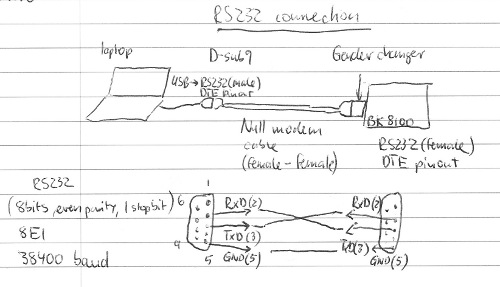

Connecting motors and sensors
[edit]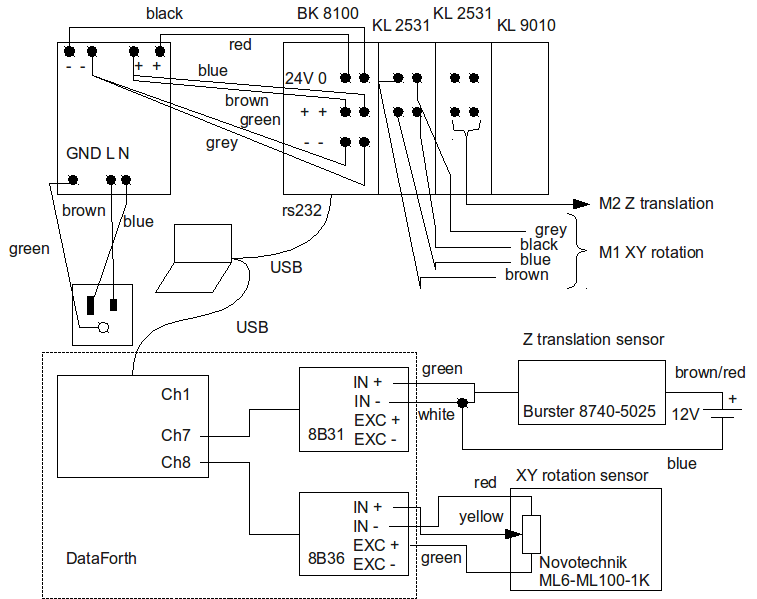

Displacements
[edit]Understanding motor velocity
[edit]From the KL2531 documentation.
DataOut is the register value (16 bit) that determines the velocity, along with number of microsteps MS and number of full steps per revolution R33 = 200.
Formulas are:
Microsteps/s R = DataOut*3.813
Fullsteps/s  Rfs = R/MS
Revolutions/s Rps = Rfs/200
We like to use MS=64 to get smooth rotation. To set a certain velocity in revolutions per second use:
DataOut = Rps*64*200/3.813 = Rps*3357
The number of microsteps per revolution = 64*200 = 12800. This relates to the 'actual position' that can be read from the controller DataIn register value.
- There seems to be a maximum speed for these motors, setting higher values will let them stall.
- Z-translation might need lower micro stepping MS, to achieve fast enough displacement.
Nominal displacements
[edit]- XY-rotation (120:1 gear box): 1 motor rotation (360 deg) -> XY-rotation of 3 deg.
- Z-translation: 1 motor rotation (360 deg) -> 10.6 um displacement (I used 16.6 um at first, which is wrong...).
The phantom attachment allows for off-centre mounting by x1=7mm and x2=18mm, Results in a nominal XY-translation of the center of mass of:
- x1=7mm; d1 = 0.122 mm/deg
- x2=18mm; d2 = 0.3 mm/deg
Motion measurements
[edit]Overview
[edit]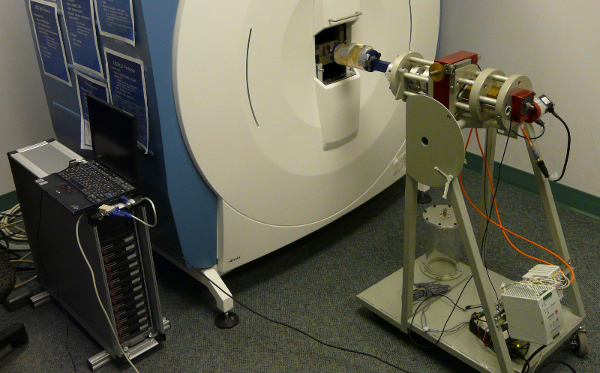

Create velocities file
[edit]Using c:\IGFAcontrol\PCSerialControl\myCppExample\createVelocities.m set the simulation parameters:
<source lang=matlab>
% Enable XYmotor
XYmotor = 1; % 1-> enabled, 0-> not active
% Enable Zmotor
Zmotor = 1; % 1-> enabled, 0-> not active
% Return to initial position after 30 seconds
returnToInitPos = 1;
% random or ramp motion
motiontype = 1; %0->random, 1->ramp
% For XY do you want to do translation or rotation?
xymode = 1; %0->translation, 1-> rotation
%Random motion
% XY rotation amplitude (actual will be smaller due to filtering)
xyrot_amplitude = 0; %[deg]
% Z translation amplitude (actual will be smaller due to filtering)
% cannot be larger than 8*0.082 due to motor limitations
ztrans_amplitude = 0*0.082; %[mm]
%Ramp motion
% XY motor start frame for statrting ramp 1:nProj
xystart_frame=575;
% XY motor end frame for statrting ramp 1:nProj
xyend_frame = 600;
% Z motor start frame for statrting ramp 1:nProj
zstart_frame=575;
% Z motor end frame for statrting ramp 1:nProj
zend_frame = 600;
% XY rotation end angle
xyrot_end = 15; %[deg]
% Z translation end location
% Check maximum velocity! Should be lower than 24000
ztrans_end = 6*0.082;%8*0.082; %[mm]
% output file name
outfilename = 'YP_IGFAMOTION_0XX_12';
</source>
Hit F5 to run the code. This script will save all the variables in outfilename.mat and create outfilename_velocities.txt to be used for the motor control.
Using ControlIGFA.exe
[edit]- Open cmd window, navigate to c:\IGFAControl\PCSerialControl\myCppExample\ControlIGFA\Release
- Get ControlIGFA.exe ready by typing: ControlIGFA.exe ..\YP_IGFAMOTION_013_1_velocities.txt ..\YP_IGFAMOTION_013_1_positions.txt > ..\YP_IGFAMOTION_013_1_log.txt
The positions of the stepper motor are going to be recorded in YP_IGFAMOTION_013_1_positions.txt which can be compared to the desired positions with readIGFAmotionresult.m. Cout is redirected to YP_IGFAMOTION_013_1_log.txt.
Windaq
[edit]On the IBM laptop:
- Open Windaq Hardware manager, select device, connect
- In windaq measurement choose File-Open reference file YP_IGFAMOTION_003_1. Loads calibration information for different channels (It was calibrated by Jim, additional information can be found in Steve Sandercott's report and Michael Hoffmann's thesis, I am not sure z-trnslation is calibrated properly, Jim says it is 10um/revolution, Michael says it is 16.6um/revolution...).
Create control file without cast check
[edit]The XtremeCT control file is based on the standard patient analysis file (same num of proj, int time, etc.). We need to turn off checking the cast switch since we are not using the patient cast.
I followed the description in UCSF_crosscali_manual.pdf
$ set host 0
Username: calibration
Password:
$ set proc/priv=bypass
$ @disk1:[microct]microct_setup.com
$ run disk1:[calibration.util]uct_upd_controlfiles
Controlfile # [1]: 48
Name [UCSF Cross-Calib; UCSF-SP]: (verify this is the correct ctrl file)

ALL DEFAULTS

Disable Cast Switch Test [F]: T

ALL DEFAULTS

Update CTRL-File [Y]:
UCSF embedded radius phantom
[edit]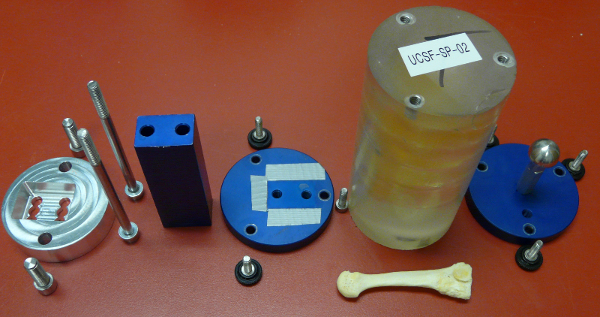


CT acquisition of moving phantom: putting it all together
[edit]- Create Patient Names/Numbers in Database
- Warmup X-ray tube and scan calibration phantom (daily calibration, patient 1, control file 1)
- Set up IGFA device and attach UCSF phantom to it
- Power controller and acquisition box
- Connect acquisition box via USB to Laptop
- Connect controller via serial to USB to Laptop
- Open Windaq Hardware manager, select device, connect
- In windaq measurement choose File-Open reference file YP_IGFAMOTION_003_1. Loads calibration information for different channels (It was calibrated by Jim, additional information can be found in Steve Sandercott's report and Michael Hoffmann's thesis, I am not sure z-trnslation is calibrated properly, Jim says it is 10um/revolution, Michael says it is 16.6um/revolution...).
- Open cmd window, navigate to c:\IGFAControl\PCSerialControl\myCppExample\ControlIGFA\Release
- Get ControlIGFA.exe ready by typing: ControlIGFA.exe ..\YP_IGFAMOTION_013_1_velocities.txt ..\YP_IGFAMOTION_013_1_positions.txt > ..\YP_IGFAMOTION_013_1_log.txt
- Get Windaq ready by pressing F4, enter name: YP_IGFAMOTION_013_1.wnd, enter
- Double check that phantom is at 90 degrees (in Windaq), adjust manually if necessary.
- Enter patient number, choose control file 48, pre-calibrate, scout view, choose reference line.
- Hit Scan to start scan, start windaq acquisition, when scanner is starting acquiring projections hit enter in the cmd window to start ControlIGFA
- When scan is done stop WIndaq by pressing Ctrl-F4, then file->close.
- Once phantom was moved to original position, unplug controller and re-plug (there is a configuration problem sometimes, power cycle makes sure that motion is always as it should be, this should be fixed in ControlIGFA.exe...)
- Check if orientation of phantom is still 90 degrees (in Windaq).
- If Windaq hangs, close Windaq then Hardware manager, remove USB, remove Power, and then back in reverse order.
Links
[edit]Stepper motor tutorial: http://www.cs.uiowa.edu/~jones/step/
Dataforth: http://www.dataforth.com/family.view.aspx?familyid=1256
Stepper motors AS1020-0000: http://beckhoff.com/english.asp?drive_technology/as1xxx.htm
Stepper motor application note (PDF): http://download.beckhoff.com/download/document/Application_Notes/DK9222-0410-0014.pdf
Motor driver KL2531: http://beckhoff.com/KL2531/
Controller BK8100: http://beckhoff.com/BK8100/
Software KS8000: http://beckhoff.com/english.asp?fieldbus_components_accessories/ks8000.htm
Dataforth Data logger SLX718B-U: http://www.dataforth.com/document.view.aspx?doc_id=1486
Nice to have
[edit]- electrical switch to stop motors
- ON/OFF switch for power supply
Lab Server Configuration
[edit]This is for administration info for the server "mike".
Maintenance and Administration
[edit]Administration Tools
[edit]Most administration tasks for mik.kin can be performed with the Server Admin tool installed remotely on any Mac. This is available on the DVD that came with mighty-mac. I believe that it is also a free download from Apple, but I don't have a link for it.
For managing users, you need the Workgroup Manager tool, which is typically installed along with the Server Admin tool.
A few things require a command line, in which case you can ssh to mike.kin .
Finally, if neither the Server Admin tool nor a command line is sufficient, you can use vnc (Screen Sharing) to log in remotely. From any mac, from the Finder choose Go -> Connect To Server and enter vnc://mike.kin.ucalgary.ca . vnc is not mac-specific, and in principle you could use a vnc client on some other kind of system.
Manual Backups
[edit]mike.kin is using TimeMachine for automated backups. We also do occasional manual backups with an external hard drive that goes into a drawer. I've written a little script the updates the manual backup. To run it, connect the backup drive and run this command:
sudo /usr/local/bin/backup-drawer
This will mirror the contents of /Volumes/Data0 , /Library/WebServer and /Library/Subversion to the external drive.
Installation
[edit]Configure External Drives as Concatenated Disk Set
[edit]Start Disk Utility.
Select the volume that will be the first in the set and choose "Erase". Make sure that the Format is set to Mac OS Extended (Journaled). I named it backup0.
Select backup0 and click the RAID tab. Set the name to backup and the RAID type to Concatenated Disk Set. Drag backup0 to the box and click "Enable".
Subversion
[edit]Create a Subversion repository
[edit]Since Snow Leopard already has Subversion, no software installation is required.
sudo mkdir -p /Library/Subversion/Repository
sudo svnadmin create /Library/Subversion/Repository/bonelab
We also need to ensure that the repository is editable by the webserver user.
chown -R www /Library/Subversion
Configure the server via Server Admin
[edit]Enable Apache modules
[edit]- Click Web in the Sidebar
- Click Settings in the top bar
- Select the Modules tab
- Check the following modules:
- authz_svn_module
- dav_module
- dav_fs_module
- dav_svn_module
Enable WebDAV on your site
[edit]- Click Sites in the top bar
- Select your site
- Click the WebDAV checkbox
Create a Realm
[edit]- Select the Realms tab
- Click �+� under the Realms box and enter the following:
- Realm Name: subversion
- Authentication: Basic
- Location: /svn (Note: You have to change the dropdown)
- Click �+� under the Users & Groups box, and drag/drop the users/groups that you want to give access to. Also be sure to give them read/write privileges.
- Click the Save button.
Tweak the config file
[edit]Edit the file /etc/apache2/sites/0001_any_443_default.conf. TIn the <Location "/svn"> section, add the following two lines:
DAV svn
SVNParentPath /Library/Subversion/Repository
Restart the web server
[edit]You can do this from Server Admin.
Fixing it if it breaks
[edit]Note: It often happens that when you use the Server Admin utility, it will overwrite the following line. The symptom of this is "page not found" error when you try to access svn. SImply change, in /etc/apache2/sites/0001_any_443_default.conf,
       <Location "/svn/">
               DAV Off
Back to
       <Location "/svn/">
               DAV svn
After you modify this file, you will need to do this:
sudo apachectl restart
Trac
[edit]Installation
[edit]Get and install the source code for trac.
sudo easy_install --prefix=/usr/local --install-dir=/Library/Python/2.6/site-packages http://svn.edgewall.org/repos/trac/tags/trac-0.11
Create Project
[edit]Now make a directory for the trac project.
sudo mkdir -p /Library/Trac/Environment
Create a project.
sudo trac-admin /Library/Trac/Environment/bonelab initenv
Answer the questions. Here are the questions for which I entered something different than the default:
Project Name [My Project]> bonelab
Path to repository [/path/to/repos]> /Library/Subversion/Repository/bonelab
Now set permissions on the project directory
sudo chown -R www:admin /Library/Trac/Environment
sudo chmod -R ug+rwX,o= /Library/Trac/Environment
Testing
[edit]You can test that everything worked by running
sudo tracd --port 8000 /Library/Trac/Environment/bonelab
Then browsing to http://localhost:8000/bonelab .
Web Access
[edit]Create a Trac Deploy
[edit]sudo trac-admin /Library/Trac/Environment/bonelab deploy /tmp/deploy
sudo mv /tmp/deploy/* /Library/Trac/
sudo chmod -R ug+rwX,o= /Library/Trac
sudo chown -R www:admin /Library/Trac
sudo chmod +x /Library/Trac/cgi-bin/*
Configure Apache
[edit]- Server Admin -> Web -> Settings -> Modules. Find fastcgi_module and select it.
- Go to Sites and select the entry for the service on port 443, which you created when setting up web access to Subversion.
- From the Realm tab, click the + button below the Realms column. Fill it it with Realm Name "trac", Authentication "Basic" and Location "/trac/".
- In the Users and Groups column, add the Local Accounts group and give it Browse and Read/Write access.
- In the Options tag, make sure "CGI Execution" is selected.
- Click Save.
Now edit /etc/apache2/sites/0001_any_443_default.conf . Find the /trac section and edit it to be like this:
       <Location "/trac/">
               AuthType Basic
               SetEnv TRAC_ENV_PARENT_DIR "/Library/Trac/Environment"
               <Limit GET HEAD OPTIONS CONNECT POST PROPFIND PUT DELETE PROPPATCH MKCOL COPY MOVE LOCK UNLOCK>
                       Require group  localaccounts
               </Limit>
               AuthName "trac"
       </Location>
Restart apache with:
sudo apachectl restart
MediaWiki
[edit]MediaWiki is not actually installed on mike (it is on caerostris), but instructions are here just in case.
The instructions follow http://www.mediawiki.org/wiki/Manual:Running_MediaWiki_on_Mac_OS_X , but are somewhat customized.
sudo mkdir /Library/MediaWiki
MySQL
[edit]On Mac OS Server, MySQL is preinstalled, but is not enabled by default.
Enable it with the GUI Server admin:
- Click on the server name
- Choose
Settings and underneath Services
- In the list, enable
MySQL
- Click on the triangle at the right of the server name to open the list of services
- Choose the
MySQL service
- Set the root password
- Click on
Save
- On the bottom of the window, click on
Start MySQL
Creating MediaWiki Database
[edit]In order for the MediaWiki software to be able to read and write to the MySQL database, you need to create and give it access to a new database by issuing the following commands:
mysqladmin -u root -p create wikidb
mysql -u root -p -e "GRANT ALL PRIVILEGES ON wikidb.* TO wikiuser IDENTIFIED BY 'wiki_password'"
mysql -u root -p -e "SET PASSWORD FOR wikiuser = OLD_PASSWORD('wiki_password')"
mysql -u root -p -e "FLUSH PRIVILEGES"
Replace 'wiki_password' with a string of your choice. You will need to enter it later in the MediaWiki configuration.
PHP
[edit]On Mac OS Server, PHP is preinstalled, but is not enabled by default.
Enable it with the GUI Server admin:
- click on the triangle at the right of the server name to open the list of services
- Choose the
Web service
- Choose
Settings and underneath Modules
- In the list, enable
php5_module
- Click on
Save
WikiMedia Files
[edit]Get it from http://www.mediawiki.org/wiki/Manual:Downloading_MediaWiki .
Unpack it to /Library/WikiMedia/
cd /Library/MediaWiki
sudo chown -R www .
sudo chgrp -R admin .
chmod -R a+rw config
sudo mkdir uploads
sudo chown www uploads
sudo chgrp admin uploads
Create a Realm
[edit]- Server Admin -> Web -> Sites -> 443
- Select the Realms tab
- Click �+� under the Realms box and enter the following:
- Realm Name: wiki
- Authentication: Basic
- Folder: /Library/MediaWiki (Note: You have to change the dropdown)
- Click �+� under the Users & Groups box, and drag/drop the users/groups that you want to give access to. Also be sure to give them read/write privileges.
- Click the Save button.
Now edit /etc/apache2/sites/0001_any_443_default.conf so it looks something like this:
       Alias /wiki "/Library/MediaWiki"
       <Directory "/Library/MediaWiki">
               AuthType Basic
               <Limit GET HEAD OPTIONS CONNECT POST PROPFIND PUT DELETE PROPPATCH MKCOL COPY MOVE LOCK UNLOCK>
                       Require group  localaccounts
               </Limit>
               AuthName "wiki"
       </Directory>
       <Directory "/Library/MediaWiki/web/uploads">
               AllowOverride None
               AddType text/plain .html .htm .shtml
               php_admin_flag engine off
       </Directory>
Now restart Apache:
sudo apachectl restart
Configure MediaWiki
[edit]Point your browser at https://caerostris.kin.ucalgary.ca/wiki/index.php .
Fill out everything.
- As prompted by the webpage, copy the LocalSettings.php file from the config folder up one level.
- Eventually, you should be led to https://caerostris.kin.ucalgary.ca/wiki/index.php/Main_Page and you should see a nice new wiki waiting to be populated.
- Once this is working, change the permissions of the config folder to prevent reading by anyone. If the wiki is working, you may as well just delete this folder.
Time Machine Backup
[edit]First change the system settings, on the computer with the backup drives physically connected, to allow non-Apple authorized volumes to be used with Time Machine:
sudo defaults write com.apple.systempreferences TMShowUnsupportedNetworkVolumes 1
You now also have to ensure that the external drives will be mounted at boot time (and not just at log in), and that they will stay mounted when someone logs out:
sudo defaults write /Library/Preferences/SystemConfiguration/autodiskmount AutomountDisksWithoutUserLogin -bool true
On the server you want to back up, from the Finder menu, choose Go -> Connect to Server and enter afp://mighty-mac.kin.ucalgary.ca .  Select the backup0 volume.
Start Time Machine.  It will ask if you want to configure it.  Choose Yes and select "backup0 on mighty-mac".
Click on Options.  data0 will be in the Exclude list (external volumes are by default).  Remove it from the Exclude list.
File Sharing Permissions
[edit]We want everyone to be able to read/write anything on Data0.
Connect to mike.kin.ucalgary.ca with Server Admin.
Select File Sharing.
Select Data0. Click the Permissions tab about the middle of the window. Click the + button. From the Users and Groups panel that pops up, click groups and drag Staff to ACL. Set the Permission to Read & Write. It should apply to "This folder, Child folders, Child files, All descendants".
NFS
[edit]Create a user for NFS access
[edit]We are going to create a user for NFS access. The user name will be "microct". All access and file permissions from the VMS systems will correspond to this user.
Using Workgroup Manager.
- Click the New User button.
- On the Basic tab, set the name to microct. Note the UID (in this case it was 1027). Deselect the checkbox Access Account. We don't intend to allow the user microct to log in, as it is not a real user.
- On the Groups tab, make sure that the primary group is Staff (this is the default).
- On the Home tab select None.
- Click Save.
Set up NFS Service
[edit]Using Server Admin:
- Settings -> Services -> Check NFS
- Select File Sharing from the top tab.
- Select Share Points:
- Only volume shared is Data0
- Select Data0, and then select Share Point from the tab bar in the box in the lower right.
- Click Protocol Options button.
- Select the NFS tab.
- Make sure that Export this item is selected and set to Client List.
- Add percy.kin.ucalgary.ca and thomas.kin.ucalgary.ca to the client list.
- Set Mapping to Root to Nobody
- Set Minimum Security to Standard.
Configuring OpenVMS client
[edit]I used the following documentation:
http://h71000.www7.hp.com/doc/73final/4584/4584pro.html
http://h71000.www7.hp.com/doc/732final/6524/6524pro_002.html#sec_comprocedure
http://h71000.www7.hp.com/doc/732final/6526/6526pro_contents_006.html#toc_chapter_23
License
[edit]First enable the license on thomas. Log into thomas as system. Then run:
LICENSE REGISTER UCX-IP-NFS /ISSUER=MONTAGAR /AUTHORIZATION=EDU-807977-808201 /PRODUCER=DEC /UNITS=0 /TERMINATION_DATE=1-OCT-2010 /ACTIVITY=CONSTANT=100 /CHECKSUM=2-LFIC-ENCF-IKOA-EADI
The license needs to be loaded into memory:
lic load ucx-ip-NFS
I believe that this has to be done on every node.
NOTE: The above instructions didn't actually work.  Instead we attempted to load ALL licenses.  The first step is to convert the long list of LICENSE REGISTER commands to a VMS license file format.  Something like this should do it.  (On a system with sed.  I used OS-X.)
sed -i .bak -f convert_license.sed license.txt
Where license.txt contains the commands looking like this:
$ LICENSE REGISTER X500-DIRECTORY-SERVER -
/ISSUER=MONTAGAR -
/AUTHORIZATION=EDU-807977-808196 -
/PRODUCER=DEC -
/UNITS=0 -
/TERMINATION_DATE=1-OCT-2010  -
/ACTIVITY=CONSTANT=100 -
/CHECKSUM=2-PDFG-FFGC-OJGH-OHBM
$ LICENSE REGISTER VAXCLUSTER -
...
and convert_license.sed has the following commands:
s/=/ = /g
s/ - $//g
s/^\///g
s/\$ LICENSE REGISTER/PRODUCT_NAME =/g
/^PRODUCT_NAME/ i\
\<NEXT\>
Copy license.txt over to the VMS system with FTP, then run:
@SYS$UPDATE:VMSLICENSE REGISTER DISK1:[MICROCT]LICENSE.TXT
If everything worked, then all the licenses can be loaded with
lic load
Enable NFS client
[edit]Enable the NFS client as follows:
@SYS$MANAGER:TCPIP$CONFIG
Select option 2 (Client components).  Then select 3 (NFS client).  Then 2 (Enable & Start service on this node).
This must be done on both percy and thomas.
Mount the NFS volume
[edit]As the user "system", start TCPIP with
TCPIP
Then enter
MOUNT DNFS1: /HOST="mike.kin.ucalgary.ca" /PATH="Data0" /UID=1027 /GID=20 /USER=microct
Make sure that UID agrees with the actual UID for the user microct on mike.kin.  Similarly GID must match the actual GID for the group staff on mike.kin .  Here /USER=microct refers to the user microct on VMS.
This must be done on both percy and thomas.
FTP
[edit]Connect to mike.kin.ucalgary.ca with Server Admin.
Go to Settings -> Services and make sure that FTP is selected.
Click the FTP icon in the left panel, and then click "Start FTP" button on the bottom if it is not already started.
Go to Share Points, select Data0, click the Share Point tab, click the Protocol Options button and then select the FTP tab. Select "Share the item with FTP" and then click OK.
FTP for Remote Access
[edit]Transfer of large data amounts can be achieved by making the data available to outside users. The outside user needs to know the following:
ftp mike.kin.ucalgary.ca
Login: france
Password: bonelab0
Note that the password may have been changed, or the account disabled.  It can be changed by anyone with administrative access.  On OS-X, use the Workgroup Manager to do this (this can be run from any OS-X client, you do not need to use VNC to log into mike.kin directly).  After selecting the "france" account in the Workgroup Manager, you can check or uncheck "access account" to enable or disable this account.
To access the server from a command line, do the following:
$ ftp mike.kin.ucalgary.ca
Connected to mike.kin.ucalgary.ca.
220 mike.kin.ucalgary.ca FTP server ready.
Name (mike.kin.ucalgary.ca:skboyd): france
331 Password required for france.
Password:
230-No directory! Logging in with home=/
230 User france logged in.
Remote system type is UNIX.
Using binary mode to transfer files.
ftp> cd Guests
250 CWD command successful.
ftp> prompt off
Interactive mode off.
ftp> binary
200 Type set to I.
ftp> mget *.*
At our end, we need to make the data available. This is possible by moving the data of interest onto mike.kin.ucalgary.ca into the Guests folder and setting proper permissions.
ssh skboyd@mike.kin.ucalgary.ca
cd /Shared Items/Guests/       ! and so on
chmod 755 *.*                  ! to get rwxr-xr-x
Remember to remove the data after the outside party has downloaded it.
Original Proposal
[edit]