Scanco User Instructions
OpenVMS Basics
[edit]The micro-CT scanners in the lab are manufactured by Scanco Medical and most analyses are performed using their custom software. The micro-CT workstations run OpenVMS as its operating system and it is useful to learn some basic commands.
OpenVMS Beginner's Reference
[edit]OpenVMS (informally known as VMS) is a high-end computer server operating system with reliable, multitasking, real-time and batch processing. OpenVMS supports computer clustering via a LAN, enabling computers to share resources such as processors and disks to balance workload efficiently.
 Return to Contents or Return to Main Page
Session Manager
[edit]The session manager automatically starts after a user logs in locally. For remote sessions, the session manager can be started with the command $ vue .

Session
[edit]Here you will find an option to "End Session", which you should do when you are finished using a workstation. You can click "Work in Progress..." when you have to leave in the middle of a session without logging out but showing a work in progress screen to other users to prevent interference.
Views (directory shortcuts)
[edit]The session manager is a graphical user interface that can be used to navigate directories (left side of session manager) and open files (right side of session manager). There are shortcuts to key directories under "Views". Single-click on a directory to list its subdirectories and files. Double-click on a file to open it.
Commands and Utilities
[edit]Under commands you will find tools such as copy, delete, and rename; however, it is much more practical to do these sorts of operations from a DEC terminal.
Applications
[edit]Under applications you can launch various applications including:
- DECterm: opens a DEC terminal
- MICROCT: opens the micro-ct control panel (buttons for Scanco Medical programs)
- Mozilla/Netscape: opens a web browser
- XV: opens a screen capture program
Return to Contents or Return to Main Page
DEC Terminal and Digital Command Language (DCL)
[edit]This is a DEC terminal: Commands issued in a DEC terminal are DCL commands.

Copy and paste using the mouse in DEC terminal
[edit]In the DEC terminal, you can highlight text by holding down and moving the mouse. Highlighted text can be pasted into applications or in the terminal using the middle mouse button. You can also highlight files in the Session Manager and paste the filename (with its full path) using the middle mouse button.
Return to Contents or Return to Main Page
What is a symbol
[edit]DCL can store information such as strings or integers in "symbols". DCL can also manipulate these symbols to create other symbols. Symbols are primarily used to define short strings that replace long commands, perform certain calculations and replacements within DCL procedures, hold status information.
$ UR == "SET DEFAULT DISK4:[BONELAB.PROJECTS]"	!A short hand to change locations to the project disk.
$ UR :== SET DEFAULT DISK4:[BONELAB.PROJECTS]	!Another way to define the symbol without quotations.
$ x == 3	                                !Store the value 3 in the symbol x.
$ SHOW SYMBOL x                                 !Displays the value of the specified symbol, x.
$ DELETE/SYMBOL/GLOBAL x                        !Deletes the specified symbol, x.
Selected symbols on the Scanco system:
$ UD	                            !Changes to the data directory.
$ UR	                            !Changes to the projects directory.
$ DISKS	                            !Shows the current disk usage.
$ DEC                               !Opens a new DEC terminal.
$ EVE file.txt                      !Opens the file in the text editor.
$ AIX file.aim                      !Shows the processing log for an aim file.
$ AIX -L file.aim                   !The "-L" is used to show the full processing log.
$ QUE	                            !Shows all entries in the queue.
$ GS file.ps or file.pdf            !Opens *.ps and *.pdf files in GhostScript.
$ CTHEADER file.isq or file.rsq     !Shows scan information for an *.isq or *.rsq file.
To create a symbol, use the assignment statement ( = or = = ) or the
string assignment (:= or := =). The = versus == means local versus global assignment (same as := and :==). Local symbols are only available within the same procedure or procedure level (-> subroutines with CALL). For being available in another procedure or subroutine you need global symbols, otherwise there is no difference. When you use the string assignment, all
alphabetic characters are converted to uppercase and multiple spaces and
tabs are compressed to a single space. You can use string assignments to
create a symbol that represents a DCL command or to define a foreign
command (note that in either case, there is a 255-character limit). To
continue a character string over two lines in a string assignment, use a
single hyphen.
For example:
$ a := asdfasfdasdf        asdfasfafasdf
$ b = "asdfasfdasdf        asdfasfafasdf"
$ sh symb a
A = "ASDFASFDASDF ASDFASFAFASDF"
$ sh symb b
B = "asdfasfdasdf        asdfasfafasdf"
The symbols are translated by single quotes. If the symbol translation is within a string, e.g.
$ WRITE OUTFILE "''AIMFILE'"
then we need two single quotes to indicate that this is not a string that contains a real single quote. It is a bit confusing that you only need at the beginning of a symbol two single quotes, but not in the end.
If you have the symbol just in a command, then 'AIMFILE' will do the job, e.g.
MYFILE := 'EVAL_DIR''AIMFILE'
More about symbols you can find in the Open VMS User's Manual under 12.2 symbols, which can be viewed here: http://bone.wiki/images/c/c0/Open_VMS_User%27s_Manual.PDF
Return to Contents or Return to Main Page
What is a logical
[edit]Logical names are strings, like symbols, but can be passed into programs whereas symbols can usually only be interpreted by the command line interpreter. For example, if the logical name UD was defined to be DISK2:[XTREMECT2.DATA] then UD: could be used as a substitute when entering the path to search for files from within a program.
$ DEFINE UD DISK2:[XTREMECT2.DATA]   !Defines a logical ud to point to the data directory.
$ DEFINE uct_default_isq myfile.isq  !Defines the default isq file for Scanco Medical programs. The isq filename must contain the full path to the file to be evaluated, whereas the path can be left out if you just want to contour the scan.
Selected logicals on the micro-CT system:
COM            !Logical pointing to the commands directory IDISK1:[XTREMECT2.COMMANDS]
UD             !Logical pointing to the data directory DISK2:[XTREMECT2.DATA]
UD6            !Logical pointing to the data directory DISK6:[XTREMECT2.DATA]
UR             !Logical pointing to the projects directory DISK4:[BONELAB.PROJECTS]
UE             !Logical pointing to the evaluation script directory MICROCT_ROOT:[EVAL]
UU             !Logical pointing to the templates directory MICROCT_ROOT:[UIL]
UCT_RESULTS    !Logical pointing to the results directory MICROCT_USER:[RESULTS]
Return to Contents or Return to Main Page
Arithmetic operations
[edit]| Addition | + | The plus sign (+) adds two numbers. |
| Subtraction | - | The minus sign (-) subtracts the second specified number from the first specified number. |
| Multiplication | * | The asterisk (*) multiplies two numbers. |
| Division | / | The slash (/) divides the first specified number by the second specified number. If a number does not divide evenly, the remainder is lost. No rounding takes place. |
Return to Contents or Return to Main Page
Logical expressions
[edit]| And | .AND. | The operator .AND. combines two logical values as follows
true .AND. true = true |
| Or | .OR. | The operator .OR. combines two logical values as follows
true .OR. true = true |
| Not | .NOT. | The operator .NOT. reverses the bit configuration of a logical value. A true value becomes false and a false value becomes true. |
Return to Contents or Return to Main Page
Numeric comparisons
[edit]| Equal to | .EQ. | Compares one number to another for equality. |
| Not equal | .NE. | Compares one number to another for inequality. |
| Greater than | .GT. | Compares one number to another for a greater value in the first number. |
| Greater than or equal to | .GE. | Compares one number to another for greater or equal value in the first number. |
| Less than or equal to | .LE. | Compares one number to another for a lesser or equal value in the first number. |
| Less than | .LT. | Compares one number to another for a lesser value in the first number. |
Return to Contents or Return to Main Page
String comparisons
[edit]The operators for string comparisons are the same as for numeric comparisons with an added "S" for string.
| Equal to | .EQS. | Compares one character string to another for equality. |
| Not equal | .NES. | Compares one character string to another for inequality. |
| Greater than | .GTS. | Compares one character string to another for a greater value in the first specified string. |
| Greater than or equal to | .GES. | Compares one character string to another for greater or equal value in the first specified string. |
| Less than or equal to | .LES. | Compares one character string to another for a lesser or equal value in the first specified string. |
| Less than | .LTS. | Compares one character string to another for a lesser value in the first specified string. |
Return to Contents or Return to Main Page
DCL Programming Guide
[edit]The OpenVMS systems allow for scripts to be written in a language called DCL (DIGITAL Command Language). It was not designed to be more difficult than other scripting languages, but learning any new programming language comes with its learning curve.
- DCL has 243 commands, but most programs can be written with a base set of about 20 commands. The goal of this section is to provide a convenient reference for these commonly-used commands.
It is recommended to open a text editor, enter the whole series of commands, and then run them as a whole program. The terminal on OpenVMS is technically a DCL interpreter, so these commands could be typed in sequence into a terminal with the same result. Typing code interactively is helpful when testing a small code snippet in more detail.
Your First DCL Script
[edit]Ever since Kernighan and Ritchie wrote the book "The C Programming Language", it has been custom to start with a program that prints the text "Hello, world" to the screen. Open a text editor (for example "EVE") and enter the text below.
$! My First DCL Script
$ mymessage = "Hello, world"
$ WRITE SYS$OUTPUT mymessage
$ EXIT
Now save the file as HELLO1.COM, and run it using
$ @HELLO1.COM
Several things are happening in the above program:
- Comment !: The exclamation mark can appear anywhere on the line, and everything following the mark will be treated as a comment.
- Variable: "mymessage" variable is populated with the string "Hello, world", which can be used in the rest of the script.
- Command "WRITE" send text to various places, in this case to "SYS$OUTPUT", that is to the standard output (i.e. screen).
- EXIT command tells the DCL interpreter that the script is done and we should exit.
- Commands in DCL are NOT case sensitive, so the command "write sys$output mymessage" would produce the exact same result, but by convention we write commands in all uppercase.
- Special Comment !! automatically prints the contents of the comment to the screen/logfile. It is useful when you want to know what part of the script you are in.
Basic Arithmetic
[edit]The DCL language supports several types of data in variables. In the "Hello, world" example above, we saw how to store a string in a variable. We could have stored an integer, that is a positive or negative whole number, in the variable, and done some basic math.
- Refer to Arithmetic Operations, For example:
$ i = 1
$ WRITE SYS$OUTPUT i+1
$ j = 3
$ k = j * (i + 1)
$ WRITE SYS$OUTPUT k
$ WRITE SYS$OUTPUT (k / 4)
$ WRITE SYS$OUTPUT 2 + 2 * 2
$ EXIT
will return:

2
6
1
6
Two things are worth noting.
- Because we are limited to integers, division of 6 / 4 needs to return an integer (1.5 is not an integer); the value is truncated, which means rounding is always done toward zero.
- Order of operations is done in the "correct" order, and not left-to-right, so "2 + 2 * 2" is interpreted as "2 + (2 * 2)".
Conditional Statements
[edit]Sooner or later, you will want to run a program with some logic. The general syntax is:
IF [condition]
THEN
  [do something]
ELSE
  [do something else]
ENDIF
- The "ELSE" component is optional.
- If you need a very simple if..then with only one command, it can be written on one line without the "ENDIF":
IF [condition] THEN [do something]
- Refer to Numeric Comparisons, String Comparisons and Logical Expressions for all possible logical operators (very similar to Fortran).
Loops
[edit]Most programming languages have 3 kinds of loops:
- Precondition Loops: Condition is tested at the beginning of the loop
- Postcondition Loops: Condition is tested after the loop has executed at least once
- Iterative Loops: A variable changes in a predetermined fashion each time the loop is called.
DCL has none of these. Instead, it has the concept of a "label" and the "GOTO" command. A loop in DCL would look like this:
$ i = 1
$loop1:
$   IF i .GE. 10 THEN GOTO exitloop1
$   WRITE SYS$OUTPUT i
$   i = i + 1
$   GOTO loop1
$exitloop1:
$ EXIT
This program will print the numbers from 1 to 10 in sequence.
Subroutines
[edit]Most programming languages allow to define a set of commands that can be called from various parts of the program.
- In DCL, the subroutine can be defined anywhere in the file (unlike C or Python, where the definition must precede the call).
$ CALL mycustomsub Joe
$ CALL mycustomsub Mary
$ EXIT
$mycustomsub: SUBROUTINE
$ WRITE SYS$OUTPUT "Hello, ", P1, "!"
$ EXIT
$ ENDSUBROUTINE
The first line calls a subroutine named "mycustomsub", which jumps execution to the 4th line. The parameters after the name of the function get copied over to local variables named "P1", "P2", "P3" etc. (in this example, only one parameter, but the maximum is 8) that are available to the subroutine. Note that the command "WRITE" accepts several arguments separated by commas, which get printed on one line.
- The subroutine should be terminated with the command "EXIT" followed by "ENDSUBROUTINE".
- Note that the parameters get passed literally to the subroutine, that is the subroutine gets the text "Joe", and not the contents of a variable named "Joe".
- To force symbol substitution, the parameter would need to be enclosed in single quotes.
$ Joe = "Joe Smith"
$ Mary = "Mary Jane"
$ CALL mycustomsub 'Joe'
$ CALL mycustomsub 'Mary'
$ EXIT
$mycustomsub: SUBROUTINE
$ WRITE SYS$OUTPUT "Hello, ", P1, "!"
$ EXIT
$ ENDSUBROUTINE
Reading from files
[edit]Sometimes you have a list of files (for example Micro-CT scans) that are to be processed in a certain way. The obvious way is to copy-paste the code several times, changing only the name of the file, but this is error-prone and inefficient.
- A better way is to put the list of models into a text file, and then call a subroutine on each model file. For example:
$ CLOSE/NOLOG foo
$ OPEN/READ foo DISK3:[MICROCT.PROJECTS.OWOC.COM]MYLIST.TXT
$read_loop:
$   READ/END=done foo myline
$   CALL process_me 'myline'
$   GOTO read_loop
$done:
$ CLOSE/NOLOG foo
$ EXIT
$process_me: SUBROUTINE
$ scriptname = DISK3:[MICROCT.PROJECTS.OWOC.COM]MYSCRIPT.COM
$ SUBMIT/NOPRINT/QUE=SYS$FAST/PARAM='P1' 'scriptname'
$ EXIT
$ ENDSUBROUTINE
- The first line closes the file handle, in case it was left open in a previous script.
- The second opens the file "MYLIST.TXT" for reading, and assigns the open file a handle named "foo".
- A loop reads the file line-by-line, calling a subroutine with the contents of each line.
- When the end of the file is reached, the file is closed and the script exits.
Return to Contents or Return to Main Page
List of basic commands
[edit]$ VUE !Start the session manager. Press enter after to regain prompt. $ DEC !Open a new DEC terminal $ UCT !Open the micro-CT control panel. $ UCT_SAMPLE !Start µCT Samples. $ UCT_MEASUREMENT !Start µCT Tomography. $ UCT_EVALUATION !Start µCT Evaluation Program. $ UCT_3D !Start µCT Ray. $ UCT_BACKUP !Start µCT Disk-Utility. $ CD UD !Change location to the data directory. $ CD UR !Change location to the projects directory. $ CD SYS$SCRATCH !Change location to the scratch directory. $ CD UCT_RESULTS !Change location to the results directory. $ DIR UE !List files in the evaluation directory. $ DIR UU !List files in the templates directory. $ DIR COM !List files in the commands directory. $ UCT_LIST !Extract results from the database. $ AIX -L !View the header of an AIM file. $ CTHEADER !View the header of an RSQ or ISQ file. $ EVE !Start the text editor. $ DISKS !Show the current disk usage (all hard drives). $ LOGOUT !End a session. For remote sessions, logout from the main (initial) login terminal.
How to move to a different directory
[edit]Use the SET DEFAULT command. You can use an absolute directory path or a relative directory path.
$ SET DEFAULT disk:[dir.subdir]	      !Moves to specified path.
$ SET DEFAULT [.subdir]		      !Moves one level into subdirectory subdir.
Use the CD (i.e., change directory) command (this calls the script $ @SCOM:CD.COM).
$ CD subdir	                      !Moves into subdirectory subdir.
$ CD subdir1 subdir2	              !Moves into subdirectory subdir1, then into subdir2.
$ CD ..		                      !Moves up one level (i.e., out of one directory).
What if you don't know the directory on the disk? For example, how can you change to DISK5 if you don't know what user is on that disk? You can enter the following:
$ dir disk5:[000000].dir
But you will need to be logged in as system-user in order to use that command.
Return to Contents or Return to Main Page
How to list the files in a directory
[edit]Use the DIRECTORY command, which may be abbreviated to DIR.
$ DIR		                      !List everything in the current directory.
$ DIR disk:[dir.subdir]		      !Lists everything in the specified directory.
$ DIR disk:[dir.subdir...]	      !Lists everything in the specified directory and subdirectories.
$ DIR/COL=1 *.aim	              !Lists all files with the extension .aim in a single column.
$ DIR /VERSIONS=1	              !Show only the newest version of each file in the directory.
$ DIR/SINCE=TODAY		      !Lists all files created today.
$ DIR [...*.aim]                      !The "..." indicates to do so recursively (i.e., counting all files in all subdirectories).
$ DIR/SIZE	                      !Lists each file and its size.
$ dir/size/grand_total [.subdir...]   !List the total size of all files in the SUBDIR directory.
$ HELP DIR	                      !More information on the DIRECTORY command.
Return to Contents or Return to Main Page
How to copy files
[edit]Use the COPY or BACKUP command.
$ COPY file1.ext disk:[dir.subdir1]file2.ext          !Make a copy of file1.ext to another location and call it file2.ext
$ COPY *.aim;* disk:[dir.subdir1]	              !Copy all .aim files (including all versions) to another location keeping the same name.
$ HELP COPY		                              !More information on the COPY command.
$ BACKUP/VERIFY [.subdir1...]*.*;* [.subdir2...]      !Copy entire directory SUBDIR1, including all subdirectories and files, into SUBDIR2.
$ BACKUP/VERIFY [.subdir1...]*.*;* []subdir1.sav/SAVE !Copy entire directory SUBDIR1, including all subdirectories and files, into a save set. The save set could be transferred and unpacked on another OpenVMS machine.
$ HELP BACKUP		                              !More information on the BACKUP command.
Or to copy a complete directory structure:
$ backup/log/verify dna7:[xtremect.data...]*.*;* disk7:[xtremect2.external...] /by=parent
Return to Contents or Return to Main Page
How to delete files
[edit]Use the DELETE command, which may be abbreviated to DEL.
$ DEL myfile.txt;	              !Delete the most recent version of myfile.txt.
$ DEL myfile.txt;*	              !Delete all versions of myfile.txt.
$ HELP DELETE		              !More information on the DELETE command.
 Warning: Extreme caution!
$ DEL *.*;* !Delete everything in the current directory!
Return to Contents or Return to Main Page
How to create a directory
[edit]Use the CREATE/DIR command.
$ CREATE/DIR [.subdir]	              !Creates a subdirectory named subdir.dir in the current directory.
$ CREATE/DIR disk:[dir.subdir]	      !Creates the subdirectory subdir at the specified path.
Or if you are creating a directory on a new disk (log in as user system):
$ create/dir/log/vol=1 disk7:[xtremect2.abc] /own=xtremect2
If the owner of the new directory is not specified (qualifier '/own=<owner>), it will be assigned to the user as which the command has been entered.
Return to Contents or Return to Main Page
How to move location of a directory
[edit]Use the RENAME command.
$ SET FILE/PROTECTION=O:RWED RESULTS.DIR
$ RENAME RESULTS.DIR [-.-.-]                  !Moves the directory up three levels
Return to Contents or Return to Main Page
How to rename files and directories
[edit]Use the RENAME command.
$ SET FILE/PROTECTION=O:RWED olddir.dir         !Sets protections so you can rename the directory.
$ RENAME oldfile.ext newfile.ext                !Renames oldfile.ext to newfile.ext.
Return to Contents or Return to Main Page
How to check the queue
[edit]Use the SHOW QUEUE command, which may be abbreviated to SH QUE.
$ SHOW QUEUE	                      !Shows all the queues, there are many!
$ SH QUE *FAST	                      !Shows all queues whose names end with "fast", these are used for evaluations.
$ SH QUE *SLOW                        !Shows all queues whose names end with "slow", these are used for reconstructions.
$ SH QUE *FAST/ALL	              !By default you are only shown queue entries for the user you are logged in as. To show jobs for all users, use the /ALL qualifier.
$ SH QUE *FAST/BY=EXE/ALL	      !Show only jobs that are currently executing for all users.
Return to Contents or Return to Main Page
How to get queue information
[edit]Use the SHOW ENTRY command to obtain information about batch jobs in the queues.
$ SHOW ENTRY	                      !Shows all the batch jobs for your user, there may be lots!
$ SHOW ENTRY 251	              !Shows information for batch job number 251.
$ SHOW ENTRY 251/FULL                 !Shows detailed information for batch job number 251.
$ SHOW ENTRY/ALL                      !Shows all the batch jobs for all users.
Return to Contents or Return to Main Page
Micro-Computed Tomography (µCT) Basics
[edit]User Tutorials
[edit]For Scanco MicroCT Systems and Software:
For XtremeCT II and I:
For MicroCT35, VivaCT40 and VivaCT80:
Return to Contents or Return to Main Page
Micro-CT Image Basics
[edit]Computed tomography is a non-destructive x-ray imaging modality that enables three-dimensional (3D) virtual models of an object to be created, which can be subsequently visualized and analyzed. Micro-CT refers to CT in which the resolution lies in the micro-scale, which is achieved with a high-resolution x-ray detector and a field of view that is much smaller than conventional CT. Structural detail provided by CT depends on differences in x-ray attenuation properties. Components with very different x-ray attenuation properties, for example air, soft tissue, and bone, can be differentiated in a CT scans whereas different types of soft tissues, for example muscle and cartilage, do not have sufficient differences in attenuation to be distinguish.
Dark Field
[edit]Detector response with x-rays off. Enables corrections of non-uniformities of the detector. Acquired automatically by the scanning software before each scan.

Bright Field
[edit]Detector response with x-rays on but no sample. Enables corrections of non-uniformities of the x-ray beam. Acquired automatically by the scanning software before each scan.

Raw Projection
[edit]A raw x-ray projection of a mouse leg. The darker regions correspond with higher x-ray attenuation. The discontinuities result from overlaps where the detector was shifted to acquire the large region of interest (3x2 detector frames in this example). Projections are acquired at many incremental rotations around the sample.

Sinogram
[edit]The sinogram is a different representation of the projection data. The sinogram represents the attenuation values of one row of the detector at each rotational increment around the sample.

Attenuation Projection
[edit]Accounting for the inhomogeneities of the detector and beam, we can calculate the x-ray attenuation caused by the sample. Bright regions correspond with higher attenuation.

Reconstructed Image
[edit]From the attenuation projections, the original structure can be calculate using filtered back projection.

Return to Contents or Return to Main Page
Image Data
[edit]Image Data Type
[edit]Binary Images
[edit]Binary images are images whose pixels contain only two possible intensity values (off-on, or black-white B&W). The off or black value is usually 0 and the on or white value is usually 1 (1-bit pixel) or 255 (8-bit pixel). This type of image is commonly used as a multiplier to mask regions within another image.
Grayscale Images
[edit]Grayscale images represent intensities. Pixels range from least intense (black) to most intense (white). Pixel values usually range from 0 to 255 or are scaled to this range when displayed.
Indexed Images
[edit]An indexed image uses direct mapping of pixel values to colormap values. Instead of intensities, a pixel value within an indexed image relates to a color value within a color lookup table. An indexed image consists of a data matrix and a colormap matrix. The data matrix can be of class uint8, uint16, or double. The colormap matrix is an m-by-3 array of class double containing floating-point values in the range [0,1]. Each row of map specifies the red, green, and blue components of a single color. Since indexed images reference color tables composed of up to 256 colors, the data values of these images are usually scaled to range from 0 to 255.
RGB Images
[edit]Within the three-dimensional array of an RGB image, two of the dimensions specify the location of a pixel within an image. The other dimension specifies the color of each pixel. The color dimension always has a size of 3 and is composed of the red, green, and blue color bands (channels) of the image.
Return to Contents or Return to Main Page
Image Data Pixel Values
[edit]The image data type is determined by the pixel depth in bits per channel, or bit depth. Bit depth for each channel can be 8, 16, 32 or 64. The data may be signed, unsigned (u), floating-point (f), real or complex (c) for some arithmetic functions, where each channel value is represented by two numbers: real and imaginary part. All channels in an image must have the same data type.
| Image Data Type | Name | Byte | Value Range | Comments |
|---|---|---|---|---|
| char | 8-bit signed integer | 1 | -128 ~ 127 | Scanco SEG.AIM, GOBJ |
| uchar | 8-bit unsigned integer | 1 | 0 ~ 255 | |
| int | 16-bit signed integer | 2 | −32768 ~ 32767 | Scanco grey-scaled images, ISQ, AIM |
| uint | 16-bit unsigned integer | 2 | 0 ~ 65535 | Converted format of Scanco grey-scaled images |
| long | 32-bit signed integer | 4 | −2^31 ~ 2^31 - 1 | |
| ulong | 32-bit unsigned integer | 4 | 0 ~ 2^32 - 1 | |
| float | floating point | 4 | ±3.40282347 E+38 | 32-bit single-precision with 6~7 significant digits |
| long64 | 64-bit signed integer | 8 | −2^63 ~ 2^63 - 1 | |
| ulong64 | 64-bit unsigned integer | 8 | 0 ~ 2^64 - 1 | |
| double | double precision floating point | 8 | ±1.79769313486231570 E+308 | 64-bit double-precision with 15~16 significant digits |
| complex | floating point complex | 8 | same as floating-point | same as floating-point |
| dcomplex | double precision complex | 16 | same as double-precision | same as double-precision |
Return to Contents or Return to Main Page
Scanco Image File Types
[edit]| Extension | Description | Creation | Opens with |
|---|---|---|---|
| RSQ | Raw SeQuence data. This is the raw data collected after the scan. This file contains the bright and dark field corrections and the raw projections. | created with scan | $ x |
| ISQ | Image SeQuence data. This is the reconstructed 3D image, which you see in the µCT Evaluation Program. | created from RSQ | $ uct_evaluation
$ x |
| AIM | Any IMage data. This is a binary raw data format (16-bit signed data, little endian) 3D discretized data you see using the µCT Ray Program and used for the analysis. The AIM file is a volume of interest isolated from the ISQ file. | extracted from ISQ | $ uct_3d
$ uct_evaluation |
| GOBJ | Graphical OBJect data. These are the green contours in the µCT Evaluation Program, which are used to isolate regions of interest from an AIM file for analysis. | extracted from ISQ/AIM | $ uct_evaluation |
| SCV | SCout View | created with scan | $ x |
| RAD | Scout View | created with scan | $ x |
| RSW | raw data (RSQ) | created with scan | $ x |
| IMA | image data (AIM, ISQ, GOBJ) | created from RSQ | $ uct_evaluation |
- Refer to Scanco Aim Format or its Doc Format for its header info.
Return to Contents or Return to Main Page
Scanco Medical Micro-CT Software
[edit]In the bottom left hand corner of the micro-CT workstation desktop is the micro-CT control panel, from which the micro-CT programs can be launched. The standard operating procedure for scanning a samples involves proceeding through the programs in the control panel from left to right:
$ UCT_SAMPLE         !Samples:      Registering a sample
$ UCT_MEASUREMENT    !Tomography:   Scanning
$ UCT_EVALUATION     !Evaluation:   Evaluating the scan
$ UCT_3D             !Ray:          Viewing the 3D scan
$ UCT_BACKUP         !Disk-Utility: Archiving the data
You must specify an operator in the control panel to use the scanning and evaluation programs.
- XtremeCT

- MicroCT35, VivaCT40 and VivaCT80


Return to Contents or Return to Main Page
µCT Samples
[edit]The µCT-Samples program is used to register new samples to be scanned and update sample names (e.g., to correct a sample name). To start the program type $ uct_sample in a DEC terminal, or use the sample button.


- Prepare Sample Names according to Sample Name Convention
- Register Sample Names
- Create a new sample by clicking “New” and typing in your sample name where it says “Name.” “Save” the sample.
- You are now given a sample number. Record the sample number on the log sheet.
- Create Additional Sample Names Using Copy and Paste
- If you have many samples to register, you can copy and paste part of the sample name you just created. Highlight the part of the sample name you want to copy by holding down the left mouse button while dragging the mouse, then release the mouse button.
- Paste the highlighted text into a DEC terminal by pressing the middle mouse button. Now highlight the text in the DEC term.
- Go back to the µCT-sample window, click "New", and paste the information next to "Name" using the middle mouse button. Update the name as required and "Save."
- Add Additional Sample Details
- When a patient comes in for their first scan, you need to update their sample with their date of birth, sex, and hand/foot dominance.
- Use the "Find..." button to search for a sample that has already been registered. You can search by sample number or by project name (e.g., CAMOS).
- Date of birth: DD/MMM/YYYY. Example: 14/JAN/1951
- Remarks: include the sex and hand/foot dominance. Example: F-RHRF for female that is right hand dominant and right foot dominant


Return to Contents or Return to Main Page
µCT Tomography
[edit]The µCT-Tomography program is used to perform a scan.
NOTE: Only Authorized Operators are permitted to use uCT or XtremeCT scanners. For the XtremeCT scanners, this is a formal process. To inquire about authorization, speak to your supervisor. The below description is intended to provide general understanding of how scans are acquired. It is not a substitute for complete training.
To start the program type $ uct_measurement in a DEC terminal on the scanner computer (remote access does not allow this functionality), or use the scanner button. If you use the button, you must specify an operator prior to using the program.


- Select Sample
- When the µCT-Tomography program is first started, you will be prompted to enter the sample name or number of the specimen you are about to scan.
- If you have not registered your sample, press "Cancel" to close the select sample box, then press "New..." in the measurement sample box to register a new sample (see µCT-Samples).
- Once you have entered your sample information, the measurement sample box will show details for that sample, including the sample name and scan (measurement) history.
- After your first scan you will need to press the "Other..." button to open the sample selection box and find your next sample.
- Select a Controlfile
- The controlfile contains scan parameters such as the x-ray energy, current, and more (see Controlfiles).
- Once the controlfile is setup, you need only to select it. If there are many controlfiles, you may want to search for yours using the file filter by entering part of the name or number in the white box and pressing enter; if you do this, you still must click on the controlfile so that it is highlighted in black as shown below.
- Precalibrate
- Calibrations are done before loading your patient/animal and scanning for quality control and to reduce the time the patient/animal is under preparation/anaesthesia. Start the calibration by pressing the "Precalibrate" button.
- Press "Start Calibration". The calibration will start with an "X-Ray Warmup", followed by "Measuring Dark" and "Measuring I0" and usually takes about 2-3 minutes to complete.
- The precalibration is good for 15~20 min. The time remaining is shown on the "Precalibrate" button.
- The precalibrate option cannot be used with batch measurements, and it's not available for MicroCT35 which is not intended for invivo/live scan.
- Load and Position the Patient/Sample
- Instruct the patient to remove any jewelry in the scan areas (wrist/ankle/knee/elbow ect). With the patient seated, put the wrist/ankle/knee/elbow into the appropriate cast. Different pads with different sizes can be used to fit the patient.
- For invivo/invitro samples, prepare your sample in terms of orientation, immobilization, hydration ect.
- After the precalibration is complete, you can now open the bore cover and insert the patient's wrist/ankle/knee/elbow or sample into the scanner. Gently move the wrist/ankle/knee/elbow or sample into the scanner until you can snap in the cast at the gantry. Check that the cast is positioned correctly and the patient/sample is comfortable.
- Close the bore cover.
- Scout-View
- A scout-view is similar to a 2D x-ray image and allows the user to set where to start and stop the scan.
- After loading your sample, press the "Scout-View..." button to bring up the scout-view window.
- The start position (top of the scanner) and end position (bottom of the scanner) can be modified to zoom in on the region of interest.
- The angle of the scout view can also be changed to see the object in a different orientation.
- Once pressed the "Scout-View" button but the scout view is found not in an appropriate position, press "Cancel", modify the start position, end position, or angle and press "Scout-View" again.
- Scout view image is displayed in the top right hand corner of the program and will start by showing the right half of the image, followed by the left half of the image.
- Set Reference Line and Launch a Scan
- A reference line (solid green line) is placed to set the scan region (green block).
- Press the "Reference-Line" button to show the reference line and default scan region over the scout view.
- To change the number of slices to scan, move the reference line to the top of the scan region, then hold down the shift button while dragging the mouse to extend the scan region and press the left mouse button to set the reference line.
- To centre the scan region between two reference lines, move the reference line to the top of the scan region, then hold down the alt key while dragging the mouse until the second green reference line is in place, then press the left mouse button to set while still holding down the alt key!
- For a single scan, select "OK", "Scan" and "Start Measurement". Record measurement number on your log sheet.
- For a batch scan which is only available on microCTs, select "Batch Measurement" and record the measurement number on your log sheet. You may now setup a new scan (select new sample and controlfile, perform scout, etc). When you have finished setting up all scans, press "Start Batch Scans." (See Perform Batch Scans for detailed instructions)
- Cancel or Reposition a Scan
- If you need to interrupt a scan, press the cancel button and restart the scan or if you do not want to rescan then "unload" the scanner.
- If you have not started a scan and need to reposition the patient, you also must "unload" the scanner.
- Remove Patient/Sample from Scanner
- After the scanning is complete, open the bore cover and slide the patient's wrist/ankle/knee/elbow or sample out of the scanner. Release the cast by pushing down the cast release handle.


Return to Contents or Return to Main Page
µCT Evaluation Program
[edit]The µCT Evaluation Program is used to evaluate a scan. To start the program type $ uct_evaluation in a DEC terminal, or use the graph button. If you use the button, you must specify an operator prior to using the program.

SCREEN SHOT TO BE ADDED SHORTLY
- Find Your Sample
- Enter the first part of your sample name in the file filter box and press enter. The samples are shown in the left hand box. The measurement box on the right shows scans for the selected sample (highlighted in black). Select a measurement and press "OK."
SCREEN SHOT TO BE ADDED SHORTLY
- Draw Contours (If Applicable)
- Contours, or GOBJ files, are drawn to define regions of interest. Depending on the analysis required, contours may be drawn to isolate the object from the sample tube or to separate bone compartments (e.g., cortical versus trabecular).
- Contours must always be drawn COUNTER-CLOCKWISE!!!
- Contouring tools reference sheet
- For this sample, we are only interested in viewing the object in 3D and drew contours to isolate the bone and soft tissue from the sample tube.
- Evaluate
- Scanco Medical provides several standard evaluation scripts. Open the 3D-Evaluation menu either using the "T..." button or from the top menu by going to "Tasks" and "Evaluation 3D...". If you set a default evaluation script in your scanning controlfile, it will be listed under "Task/Evaluation."
- If you want to run a different evaluation press "Select...", highlight the evaluation script of interest, and press "OK".
- When the 3D-Evaluation window is activated, a white box will appear on your reconstructed image. The white box is the region of interest that will be "cut out" of the full scan. If you have drawn contours, the white box will automatically be adjusted to fit the contours. Adjust the box if necessary by grabbing one of the white handles; use the left mouse button to move the box and the right mouse button to resize. The box can also be resized using the "VOI Start" and "Dimensions" in the 3D-Evaluation window.
- For most evaluation scripts, you will be required to specify parameters for a Gaussian filter, to reduce noise, and a threshold, to isolate your object (e.g., bone) from the background. Check that the parameters used provide a good representation of your scanned sample by flipping back and forth between the segmented and grayscale image using the "Preview" and "Grayscale" buttons.
- When you are satisfied with the segmentation parameters, press "Start Evaluation", which will submit the job to the queue.


Return to Contents or Return to Main Page
µCT Ray
[edit]The µCT Ray program is used to view scanned objects in 3D, create images, and create image sequences for animations. To start the program type $ uct_3d in a DEC terminal, or use the 3D object button.

SCREEN SHOT TO BE ADDED SHORTLY
- Select and Render Your Sample
- Select: If you have used the default Scanco Medical scripts, then
- If your data is on the "data disk" and you can search for your files using the file filter to select a sample and measurement then press "OK". To open a new file, File --> Open.
- If your data is not in the standard location (e.g., it was copied to the projects disk), then use File --> Read and navigate to find the file to open.
- Alternatively you can start the program with a file to open
$ uct_3d myfile_seg.aim
- Rendering:
- Use a single click of the left mouse button to start or to stop rendering the sample.
- You can also use the "Start" and "Stop" buttons at the bottom of the options on the left.
- You must stop rendering to change viewing options on the left.
- Change View:
- To adjust the view, move the "Rotation" and "Elevation" slider bars in the options on the left.
- The slider bar is located above its label.
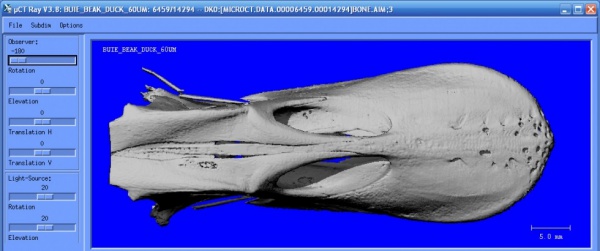
- Change Colours (Object and Background):
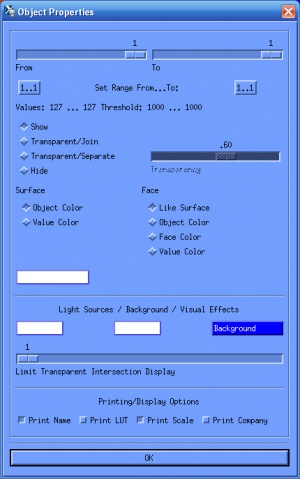
- From the top menu choose "Options" then "Object/Display Properties...".
- A segmented image typically only has two values, 0 (black, background) and 127 (white, object). To change the colour of the object only, we need to set the value 127 to a specific colour.
- In this example, the slider bar value "1" corresponds with the value 127 and we will set both slider bars to "1" so that we are adjusting values "127 ... 127", in other words, only value "127".
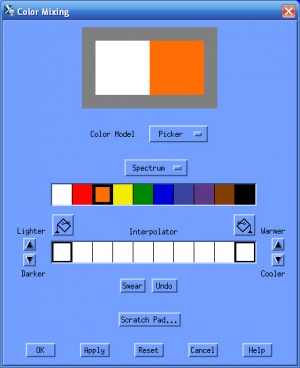
- Under "Surface" click on the "white box" to open the "Color Mixing" window.
- Choose the new colour for the object (e.g., orange) and press "OK."
- Close the "Object Properties" window or move it to the side.
- Now re-render the object with a single click of the left mouse button.
- Cutplane (left options) and Subdim (top menu):
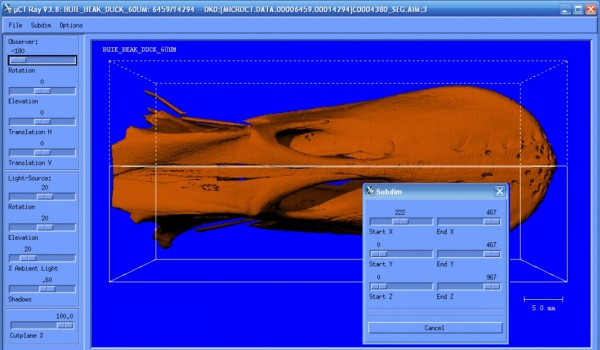
- The cutplane and subdim functions allow you to show a cross-section of your object.
- The subdim function tends to work better than the cutplane but is limited to axes of the scan.
- Print an Image to File
- An image must be fully rendered in order to be saved.
- From the top menu choose "File" then "Print". Set the print format to "TIFF" and the directory to "Scratch/Temp" (or another location using the "Specify in Filename" option).
- Change the filename to something meaningful then press "OK."
- Auto-Print Images for an Animation
- Creating an animation involves saving a sequence of rendered images, which can then be compiled into an animated GIF or other video format using various software packages (e.g., Photoshop, Quicktime Pro).
- From the top menu choose "Options" and "Animation..." to open the Animation Settings window. Set the viewing parameters for the start of the animation, fully render the image, then press the "Get Settings A" button.
- Set the parameters for the end of the animation, fully render the image, then press the "Get Settings B" button.
- Set the number of frames you want, the higher the number frames, the smoother the animation will be, but also the larger the file size.
- Now setup the auto-print feature. From the top menu choose "File", then "Print". Choose "TIFF" for the print format, and the "Scratch/Temp" for the directory (or use the "Specify in Filename"). Specify a filename prefix, to which numbers will be appended for the image sequence.
- Activate the "Auto-Print" feature. Press "OK" then press the "Start Calculation" button on the Animation Settings window.
- Do not interrupt the program while the frames are being rendered and saved. When the program is done rendering all the frames, transfer them to your computer to compile into an animation.


Return to Contents or Return to Main Page
XImage
[edit]The XImage program is used to view the raw data (RSQ file) and scout view. To start the program type $ run um:ximage or $ x in a DEC terminal.
When loading an RSQ, the default view (XY plane) is of the sinogram.

To view the attenuations, choose the XZ plane. The first slice in this orientation is the dark field, the second slice is the bright field , and slices three and onward are the raw projections (attenuations).

To view the corrected projections, from the Evaluations menu, choose Projection Mode.

Return to Contents or Return to Main Page
Scanning
[edit]Sample Name Convention
[edit]- At the Bone Imaging Laboratory, all sample naming must conform to the following format
- PROJECT IDENTIFIER _ SAMPLE DETAILS
- In CAPITAL LETTERS (filenames are case sensitive, so this makes it easy to remember how you input your sample name)
- No special characters (spaces, /, %, etc.) as further evaluations will not work if spaces are present.
- Examples: CAMOS_771, TESTS_0001, TESTS_0002, TESTS_0003
Register Samples for Scanning
[edit]- Although samples can be registered immediately prior to a scan, it is much more efficient to register all your samples beforehand.
- Refer to µCT Samples for instructional details.
Log Sheets
[edit]- Log sheets are used to record important information about scans that are performed, such as sample and measurement numbers ect.
- Log sheets are to remain in the lab. If you would like a copy of your log sheets, please make a photocopy or print two copies to record the scan information.
- Use the PDF file to print blank log sheets. Use the Excel file to make your own custom log sheet.
- Bone Lab for General Patients
- MicroCT Lab for General Non-Patients
Return to Contents or Return to Main Page
Patient Casts and Sample Holders
[edit]Patient Casts for XtremeCTs
[edit]Regardless of what cast is used, the X-, Y-, and Z- dimensions remain the same:
- X=14cm
- Y=14cm
- Z=designated 20cm distance in the scanner
Standard Scanco Distal Radius Cast
- Used for distal radius scans of 1-3 stacks. Designed with the hand to be in a curved position. The field-of-view allows for scanning of approximately the most distal 1/4 of the forearm.
Standard Scanco Distal Tibia Cast
- Used for distal tibia scans of 1+ stacks. Designed with the foot to be in a flexed (upright) position. The field-of-view allows for scanning of approximately the most distal 1/4 of the tibia.
Standard Scanco Sample Holder
- This is a cylindrical tube with a cut-out window on the top.
- Allows for scanning small ex-vivo and other samples. The tube provides support for the sample during scanning.
- Also used for in-vivo scans of the hand along with a platform that conforms to the hand and slides into the tube.
Elbow Holder
- Used for scans of the elbow. Designed to support the forearm during scanning.
Knee Holder
- A long cylinder cast cut in half lengthwise and with a foot holder at the end. This cast is designed to slide over the gantry tongue, placing the leg further into the gantry, in order to scan at distances closer to the core of the body.
- Used for distal femur and proximal tibia (i.e. knee) scans.
- Used for mid-shaft tibia scans.
- Used for larger ex-vivo and other samples.
Sample Holders and Scan SOP for microCTs
[edit]Ex Vivo Sample Holders
[edit]- Ex vivo and inanimate samples are scanned in sample holder tubes. These tubes come in a variety of diameters. It is extremely important that the tube diameter corresponds to, or is smaller than, the field of view (FOV) set in your scanning control file.
- Biological tissues should be hydrated and wrapped in plastic wrap to prevent drying of the sample. Your sample should then be secured in the sample holder using foam to prevent it from shifting around during scanning, which would lead to poor image quality.
Return to Contents or Return to Main Page
Chemical Resistivity of Sample Holders
[edit]- White tube sample holders are made of PMMA (poly-methyl-methacrylate).
- Yellow tube samples holders are made of PEI (poly-ether-imide).
- Use the yellow tubes if you will need to disinfect the sample holder after scanning.
| Thermal and chemical compatibility of sample holders | ||
|---|---|---|
| Properties | White Tubes (PMMA) | Yellow Tubes (PEI) |
| Max. Temperature | +85°C | +170°C |
| Sterilization Steam Autoclave | non resistant | resistant (138°C for 20 Min. at 1 bar) |
| Water | resistant | resistant |
| Inorganic Acids | limited resistance | resistant |
| Inorganic Bases | non resistant | limited resistance |
| Aldehydes (Formaldehyde) | limited resistance only in diluted form | resistant |
| Alcohols | limited resistance | resistant |
| Bleach | non resistant | resistant |
Return to Contents or Return to Main Page
Mounting of Sample Holders
[edit]
- The spindle (metal bit) of the sample holder has a slot, which must be aligned in the scanner or adapter plate.
- The sample holder sits vertically in the µCT35 while horizontally in the VivaCT80 and VivaCT40.
- For the vivaCT40, attach the adapter plate for the tube sample holders to one of the animal bed. The tube sample holders are held horizontally in the vivaCT 40.
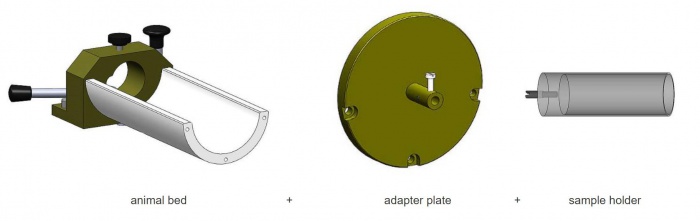
VivaCT40 setup

Return to Contents or Return to Main Page
Ex vivo rodent scanning SOP
[edit]- Refer to Ex Vivo Rodent Scanning for its scan SOP.
- Refer to Ex Vivo Rodent Scanning in docx for its Word version.
Return to Contents or Return to Main Page
In Vivo Sample Fixtures and Anesthetic System
[edit]- Anaesthetic System : You must receive training to use the anaesthetic system.
- Mouse/Rat Tibia Fixture
- Mouse Lower Body Fixture
- Mouse Whole Body Tube
In vivo rodent scanning SOP
[edit]- Refer to In vivo rodent scanning for its scan SOP.
- Refer to In vivo rodent scanning in docx for its Word version.
Return to Contents or Return to Main Page
Align whole body device in FOV
[edit]It's important to have your whole sample in the field of view for accurate density measurements.
- Refer to Align the device for detailed instructions.
Return to Contents or Return to Main Page
Scan Parameters (Controlfiles)
[edit]Manufacturer Scanco Medical AG Carl Zeiss X-ray Microscopy Model XtremeCT II XtremeCT I VivaCT80 VivaCT40 µCT35 Xradia 520 Versa 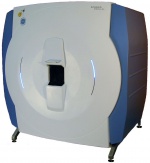
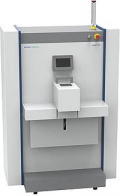

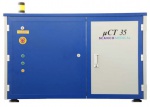
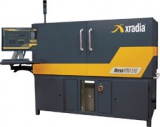
Application Clinical studies for human extremities in vivo Horizontal static patient setup
Preclinical in vivo animal studies Horizontal static animal setup
High resolution ex vivo specimen scans Vertical rotational sample setup
E (KVp) 68 60 45, 55, 70 30 ~ 160 Power (W) 100 54 4, 8 4 ~ 10 Filter Fixed 0.2mm Cu + 1mm Al (Equivalent 6.7mm Al)
Fixed 0.1mm Cu + 0.6mm Al Default 0.5mm Al, Air, 0.1mm Al, 0. mm Cu
Fixed 0.5mm Al Fixed 0.5mm Al Air, LE1~LE6, HE1~HE6, customizable filter
FOV (⌀ * L) (mm^2) 140 ⌀ * 200 L 126 ⌀ * 150 L 31.9 ~ 80 ⌀ * 145 L 21.5 ~ 38.9 ⌀ * 148 L 7.2 ~ 38 ⌀ * 140 L (75 L standard)
90 ⌀ * 100 L Image Matrix 4608*4608 ~ 512*512 3072*3072 ~ 512*512 4096*4096 ~ 512*512 2048*2048 ~ 512*512 2048*2048 ~ 512*512 2048*2048 ~ 512*512 Voxel Size (µm) Standard 60.7 (30.3 ~ 273.4)
Standard 82.0 (41.0 ~ 246.0)
5 ~ 156 10.5 ~ 76 3.5 ~ 74 0.7 ~ 50 Sample Image 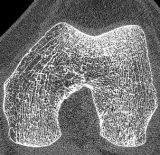
human distal femur
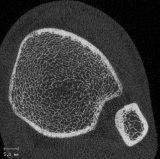
human distal tibia
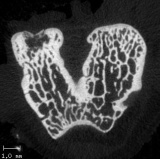
rat distal femur
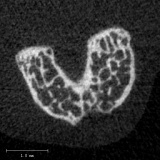
mouse distal femur
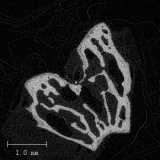
mouse distal femur
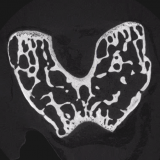
mouse distal femur


Controlfiles are used to specify the parameters for the scans. Once your controlfile is setup, you should not modify it over the course of your project.

- Control File Name: Specify a meaningful name so that others can reuse yours.
Return to Contents or Return to Main Page
General Settings
[edit]- Holder Type: Choose the used holder type for XtremeCT II from Standard Casts, Knee Cast and Elbow Cast. No option for XtremeCT I scanner. For microCTs, Choose the used sample holder type with the correct diameter.
- Mode of operation: Default is continuous operation for all scanners. Gated operation mode is available for VivaCT80 and VivaCT40 scanners.
- Evaluation Script: This sets the default evaluation script used for the analysis. You can manually select a different script from the evaluation program.
Return to Contents or Return to Main Page
X-ray Settings
[edit]- Tube Energy (KVp): Fixed energy for XtremeCTs while having 3 options for each of microCTs: Use the 70 KVp for most samples, use the 55 or 45 KVp for low density objects (e.g., soft tissue) or specimens with a diameter less than 20 mm. Lower energies provide better contrast while higher energies provide better signal to noise (SNR).
- Tube Current (µA): Fixed current for XtremeCTs while having 2 options for each of energy settings of each microCTs: Use the higher current except when the voxel size is set for the best resolution of the scanner. The higher current will yield better SNR but a larger spot size.
XtremeCT II XtremeCT I vivaCT80,vivaCT40, µCT35 E (KVp) 68 60 70 55 45 I (µA) 1470 900 114, 57 145, 72 177, 88 Power (W) 100 54 8, 4
- Filter: Fixed filter settings for all scanners except VivaCT 80 has 4 filter options.
- Calibration: This sets the mu scaling factor, density and beam hardening correction used for the reconstruction. For standard patient scans use 200 mg HA/cm3. For ex vivo bone scans, use 1200 mg HA/cm3, for soft tissue use the plexi scaling, and for non-biological tissues use the aluminum scaling.
Return to Contents or Return to Main Page
Scout-View Settings
[edit]Normally you will want to enable this and here you can specify the default start and end position, and scout-view angle, which you may override for each scan.
Return to Contents or Return to Main Page
CT Scan Settings
[edit]- Resolution: This setting includes the reconstruction matrix size (2048x2048, 1536x1536, 1024x1024, or 512x512) and the number of projections per 180°. The lower the resolution setting, the better the SNR and larger the voxel size.
- FOV / Diameter: This field of view must fully contain the sample holder for accurate density measurements. Fixed FOV for XtremeCTs while having 5 options for each of microCTs: If you choose a smaller FOV than the sample holder, the scan may be aborted to prevent damage to the scanner. For the best resolution, you should choose the smallest holder that contains your sample.
- Voxel Size: The nominal isotropic voxel size is determined by the FOV and the reconstruction matrix.
- Number of Slices: You can specify a specific number of slices or image stacks to acquire (1x110 = 1 image stacks of 110 slices). The scan time increases with each image stack, therefore pay attention to the stack boundaries (e.g., 111 slices will take 2x longer to scan than 110 slices).
- Rel Position of First Slice: This option enables you to offset the scan region from the reference line. This is useful for scanning a region a specific distance from the growth plate or centering the scan region around the reference line. If you disable the scout view, then the position is relative to the absolute 0 position of the scanner (top of the sample holder for the µCT35 and towards the back of the scanner for the vivaCT40).
- Integration Time: The higher the integration time, the better the SNR and longer the scan time. Use 100 ms for patient scans and higher values for ex vivo scans of better image quality. To get the highest integration time, uncheck the "Continuous ROT" button. For standard microCT measurements, use ~400 ms for the µCT35 and ~200 ms for the vivaCT40. The maximum integration time is scanner-specific and limited to prevent saturation of its detector.
- Average Data: This is often referred to as frame averaging and is used to improve a scan's SNR. Multiply the average data value by the integration time to calculate the effective integration time. Only use this if the integration time is maxed out.
- Measurement Time: This is the estimated scan time without the time performing the scout view or warm-up of the scanner.
- CTDIvol: Computed Tomography Dose Index (CTDI) is a standardized measure of radiation dose output of a CT scanner for scanner settings' comparison purposes only, and it represents the average absorbed dose along the longitudinal axis from a series of contiguous CT exposures. Volumetric CTDI is the ratio of the weighted-CTDI to the level of overlap between slices (pitch). CTDIvol has no consideration of real scan length and does not represent actual dose administered to the patient.

- DLP: Dose Length Product DLP = CTDIvol * Scan Length in unit of mGy-cm.
Return to Contents or Return to Main Page
XtremeCT II Scan Settings
[edit]Resolution Choice Native Custom High Medium Standard Image Matrix 4608 2304 1536 1024 512 Projection/180° 3000 900 750 500 250 Voxel Size (µm) FOV/Diameter 140 mm 30.3 60.7 91.1 136.7 273.4 Slices/Stack 338 168 112 74 37 Stack Thickness (mm) 10.24 10.20 10.20 10.12 10.12 Time/Stack (min, at 43 ms Integration Time) 8.1 2.0 2.0 1.4 0.7 Time Current Product (mAs) 238 71 59 40 20 CTDIvol (mGy) 37.4 11.2 9.3 6.4 3.2 DLP (mGycm) 38.3 11.4 9.5 6.4 3.2
Return to Contents or Return to Main Page
XtremeCT I Scan Settings
[edit]Resolution Choice Custom High Medium Standard Image Matrix 3072 1536 1024 512 Projection/180° 1000 750 500 250 Voxel Size (µm) FOV/Diameter 126 mm 41 82 123 246 Slices/Stack 221 110 73 36 Stack Thickness (mm) 9.06 9.02 8.98 8.86 Time/Stack (min, at 100 ms Integration Time) 3.7 2.8 1.9 1.0 Time Current Product (mAs) 114 86 57 29 CTDIvol (mGy) 7.3 5.5 3.6 1.9
Return to Contents or Return to Main Page
VivaCT80 Scan Settings
[edit]Resolution Choice Native High Medium Standard Custom Image Matrix 3072 2048 1024 1024 512 Projection/180° 1500 1000 500 250 125 Voxel Size (µm) FOV/Diameter 31.9 mm 10.4 15.6 31.9 31.2 62.4 FOV/Diameter 35.9 mm 11.6 17.5 35 35 70.1 FOV/Diameter 39.9 mm 13 19.5 39 39 78 FOV/Diameter 49.8 mm 16.1 24.2 48.5 48.5 97.1 FOV/Diameter 63.9 mm 20.8 31.2 62.4 62.4 124.8 FOV/Diameter 79.9 mm 26 39 78 78 156 Slices/Stack 333 ~ 328 222 ~ 219 111 ~ 109 111 ~ 109 55 ~ 54 Time/Stack (min, at 200 ms Integration Time) 14.9 10.0 5.0 2.5 1.3 Time Current Product (mAs) 73 48 24 12 6
Return to Contents or Return to Main Page
VivaCT40 Scan Settings
[edit]Resolution Choice High Medium Standard Custom Image Matrix 2048 1024 1024 512 Projection/180° 1000 500 250 125 Voxel Size (µm) FOV/Diameter 21.5 mm 10.5 21 21 42 FOV/Diameter 25.6 mm 12.5 25 25 50 FOV/Diameter 30.7 mm 15 30 30 60 FOV/Diameter 35.8 mm 17.5 35 35 70 FOV/Diameter 38.9 mm 19 38 38 76 Slices/Stack 213 106 106 53 Time/Stack (min, at 200 ms Integration Time) 9.9 5.0 2.5 1.3 Time Current Product (mAs) 61 31 15 8
Return to Contents or Return to Main Page
µCT35 Scan Settings
[edit]Resolution Choice High Medium Standard Custom Image Matrix 2048 1024 1024 512 Projection/180° 1000 500 250 125 Voxel Size (µm) FOV/Diameter 7.2 mm 3.5 7 7 14 FOV/Diameter 12.3 mm 6 12 12 24 FOV/Diameter 20.5 mm 10 20 20 40 FOV/Diameter 30.7 mm 15 30 30 60 FOV/Diameter 37.9 mm 18.5 37 37 74 Slices/Stack 232 ~ 235 116 ~ 117 116 ~ 117 58 Time/Stack (min, at 400 ms Integration Time) 23.9 12.3 6.5 3.5 Time Current Product (mAs) 119 60 30 15
Return to Contents or Return to Main Page
Advanced Settings
[edit]- Number of Det-lines (for Scout-View): Defines how many lines on the detector shall be used during the Scout-View. Using all available lines provides faster Scout-Views but some faint horizontal lines might be seen between the stacks. Limit the number of lines to a small number to obtain Scout-Views without these artifacts but the time of the Scout-View will increase.
- Number of Det-lines (for CT-scan): Defines how many lines on the detector should be used. This number influences the number of slices within a stack. Limit the number of detection lines if you see residual cone beam artifacts.
- FOV/Scan Diameter: Chose the diameter of the FOV. This action is cropping the area of the detector.
- Software binning: factor of the pixels on the detector.
- Hardware binning:
- Samples: number of (possibly binned) pixels on the detector that are used for each slice (note: this number is given for the whole FOV).
- Proj/180°: number of projections taken per 180° turn of the sample.
Return to Contents or Return to Main Page
Reconstruction
[edit]- After each image stack is acquired, it is automatically submitted to the queue (sys$slow) for reconstruction. The reconstruction for each image stack is split into four jobs to make efficient use of processors.
- The reconstruction time depends on the resolution setting, with low resolution scans reconstructing faster than high resolution scans. Normally scans are reconstructed within a day or two.
- It is possible to resubmit a scan for reconstruction (refer to Scanco Administration's Reconstruction) for details. This may be necessary or desirable for several reasons:
- The sample did not reconstruct properly (e.g., due to a power failure)
- To reconstruct the object at an angle (e.g., so that the anterior surface of a bone is always in the same direction).
- A new beam hardening correction was applied to the sample
- The scaling was changed for the sample to change the brightness
Return to Contents or Return to Main Page
Perform a Scan
[edit]Perform a Single Scan
[edit]- Refer to µCT Tomography for instructional details.
Perform Batch Scans
[edit]- Batch scan mode is only available on microCT scanners.
- Batch scans can be setup for different regions of interest (ROI) within a sample or for different samples contained within a sample holder.
- Setup the First Scan
- Refer to µCT Tomography to use the "Other..." button to find your sample number, choose a controlfile, perform a scout view (a mouse's whole body in this example), use the reference line to setup the first scan region (mouse skull in this example).
- To add a batch scan press the "Batch Measurement" button.
- An information window is displayed with the scan measurement number. Record the measurement number on your log sheet then press "OK" to close the window. An entry is also added to the measurement history for the sample.
- Setup the Next Scan
- Using the "Other..." button, find your next sample number, choose a new control file (if desired).
- If the next region of interest or sample is not in view of the current scout view, adjust the parameters of the scout view and obtain a new one.
- Use the reference line to set a new scan region (upper limbs in this example).
- To add a batch scan press the "Batch Measurement" button.
- As the first scan, a measurement number is assigned for this new scan. Record the measurement number on your log sheet.
- Repeat this process until you have added all your scans.
- Start the Batch Scans
- There are two ways to start a batch scan:
- Click the "Start Batch Scans" button: the program will automatically close so that control of the scanner can be allotted to the queue.
- Exit the scanning program.
- Check the Queue
- Batch jobs will be submitted to the SCEVA2_BATCH queue for µCT35 or SC5019_BATCH queue for vivaCT40.
- Initially the jobs will show up as temporary (TMP) jobs:
- After about 30 seconds, the sample number will show up in entrie names:
- Request an Email Notification
- There is a script in the commands (com) directory that will put an entry into the batch queue to send an email. Run the script and input parameters (queue and email) as prompted.
- Cancel a Batch Scan
- For errors made during batch scan setup, to cancel a scan in progress, or to cancel a pending scan.
- If you cancel all the scans and the scanner door does not unlock automatically (µCT 35 only), then start the measurement program and the scanner will unload, unlocking the door.


Return to Contents or Return to Main Page
Action on Image Artifacts
[edit]Rescan for
[edit]- Motion Artifacts
- Sample Out of the Field of View
Contact Scanco Medical for
[edit]- Ring Artifacts (Bad Detector)
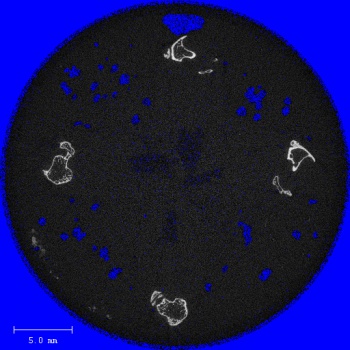
- Ring artifacts are caused by a faulty detector pixel and show up in the reconstructed image as a full or partial white circle.
- For uCT scanners: When noticed, please notify lab technicians who will contact Scanco Medical to perform a "Pixel Correction", which will correct this artifact for future scans and can be used to update previous scans. You should not rescan the sample if there is a ring artifact.
- For XtremeCT scanners: A small number of rings artifacts are expected and acceptable. For a 168-slice scan, ring artifacts present in <5 slices total is acceptable. If you observe ring artifacts in a larger number of slices, notify a staff member. Do not repeat scans for ring artifacts. In most cases, it is also unnecessary to perform a correction to already acquired data.
-
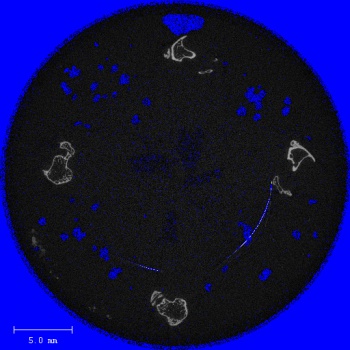
Image with Ring Artifact -
Same Image after with Detector Correction


- Bad Centre Calibration Values
- Defective Shutter Artifact
Return to Contents or Return to Main Page
Evaluation
[edit]Evaluate a Scan
[edit]- To evaluate a scan, refer to µCT Evaluation Program for general instructions on how to open the evaluation program and draw a contour.
Open default ISQ
[edit]You can load a default ISQ usig uct_evaluation program:
$ def uct_default_isq DISK3:[MICROCT.PROJECTS.VALIDATION.MODELS]C0000123.ISQ   ! or
$ def uct_default_isq DISK2:[MICROCT.DATA.00001234.00005678]C0003456.ISQ
$ uct_evaluation
Hit cancel when asked files to load, and the file you just set as default will be loaded.
- Use the whole pathname for ISQ.
- If you don't import your data into the system, you cannot store your evaluation results in the measurement database. You will have to use the LOG file to access your results.
- Only start a 3D evaluation if and only if the sample (patient) and measurement index are correct in the ISQ full path! Also, no results will be stored in the database unless the ISQ header info (samp/meas) is correct.
- Many of the UCT_xxx.COM scripts use the whole filename to extract the sample and measurement numbers, so it is possible that some evaluations will not run. UCT_xxx_BATCH_V4.COM is an example of an evaluation that will not run, but UCT_CUTOUT.COM will run (doesn't need any sample/meas info).
- A better option to execute a script is to run a
HIJACKscript as it'll ensure the sample/measurement number is captured so the results can be written to the database.
Return to Contents or Return to Main Page
Errors in database writing
[edit]Sometimes you'll find LOG files that look like this:
EVAL_UPAT_XT2_00000000_00000000.LOG
It means that the analysis script couldn't find the sample/measurement number. This can happen for two main reasons:
- 1. If you set the
UCT_DEFAULT_ISQlogical then the sample/measurement number isn't known. The analysis script may run, but the results won't be saved to the database. - 2. If you use the
UCT_EVALUATIONand you do the following: You go to FILE --> SELECT MEASUREMENT ... If you then hit Cancel then you still see the first scan but the patient and measurement number is set to 0/0/ on the top.
If the UCT_BACKUP program does not know where the IMA data is, but you know it is on the disk, you can set it's location as follows:
SHIFT-CLICKon the radio button beside the IMA field.- Type into the field
DK0and it will auto-populate with a proposed path. Edit it if you need to. - Save the new path location
Return to Contents or Return to Main Page
Draw Contours
[edit]- Contours, or GOBJ files, are drawn to define regions of interest. Depending on the analysis required, contours may be drawn to isolate the object from the sample tube or to separate bone compartments (e.g., cortical versus trabecular).
- Contouring is the first step in the analysis process, which allows you to segment the desired bone from surrounding tissues.
Contouring Tools Reference Sheet
[edit]- Contouring Tools Reference Sheet
- Contours must always be drawn COUNTER-CLOCKWISE!!!
Return to Contents or Return to Main Page
Contour and Run the Standard Patient Evaluation
[edit]The following instructions are for contouring standard patient radius and tibias.
- Open the Evaluation Program and select your sample.
- Refer to µCT Evaluation Program for general instructions on how to open the evaluation program and draw a contour.
- Zoom into the desired bone (Radius or Tibia)
- Using the zoom menu from the top panel, zoom into the Radius or Tibia.
- Usually 3x zoom is appropriate.
- Draw contours roughly around the bone.
- Select the first contouring tool (top left button) and draw COUNTER-CLOCKWISE.
- Automatically generate contours for all slices in the scan.
- Double click the image to bring up the contouring window.
- Double click again and the program will attempt to snap the contour to the bone. Double click again if needed.
- Select Forwards, and then Iterate Forwards to have the evaluation program automatically segment the bone.
- Modify any contours as needed.
- Select the second contouring tool (2nd button from top) to fix any "wrong" contours.
- Draw COUNTER-CLOCKWISE!!
- If many contours cannot be automatically generated correctly i.e. cortical bone is porous and evaluation program misses a lot of bone, it may be better to use the Range/Morph function rather than fixing each individual slice.
- This is done by first clearing all the breakpoints (Clear all BP in contouring window). The boxes will now become red.
- Manually fix the slice that does not have the correct contour automatically drawn, skip a few slices and manually fix that slice as well. The slices that you have fixed will turn green, indicating that it is a breakpoint (BP).
- Now you can morph between the two breakpoints (BP, green boxes) you have just created. Select the BP with the higher slice number, select range (first column on left) from the contouring window, followed by morph (second column from left).
- Save Contour (.GOBJ): Make sure you save your work!
- Run the 3D Standard Evaluation for your specific project (and timepoint).
- Select 3D evaluation under Tasks to bring up the window. You'll then need to Select... the evaluation specific for your project.
- There are a variety of evaluations to choose from, you can search for your project's evaluation script by typing in the name of your project in the filter window.
- Check the queue to ensure that the evaluation is running properly.
- Type
$ show quein a terminal window will allow you to see all running processes.
- Type
Return to Contents or Return to Main Page
Correct Trabecular Contours and Run the Cortical Evaluation
[edit]Once the standard evaluation has been completed, an auto-segmentation process is completed to segment the cortical from the trabecular bone. However, the auto-segmentation is not always accurate, and hence the contour (TRAB.GOBJ) will need to be checked.
- Load TRAB.GOBJ by selecting File, then load GOBJ from the top panel.
- You will now see a list of all GOBJ files pertaining to your sample. You'll need to load the TRAB.GOBJ.
- When the TRAB.GOBJ has loaded, you will see that the loaded contour is between the cortical and trabecular bone.
- Correct contours as needed
- Can manually adjust the slices or use the Range/Morph function.
- Remember to draw COUNTER-CLOCKWISE!
- Run the 3D cortical evaluation for your specific project (and timepoint, if relevant).
- Select 3D evaluation under Tasks to select the appropriate evaluation script.
Return to Contents or Return to Main Page
Evaluation Scripts
[edit]Scanco Standard Evaluation Scripts
[edit]The following are descriptions of some of the standard evaluation scripts provided by Scanco Medical.
- 3D Segmentation of VOI, 1 solid object
- Produces a 3D segmented (binary) object with values 0 (background, hidden) and 127 (solid). Input Gaussian filtering and threshold parameters. Draw contour to isolate the object of interest (optional).
- 3D Seg. of 2 VOIs: solid dense in transparent low dens obj
- Produces a 3D segmented object with values -1 (transparent), 0 (background, hidden), and 127 (solid). Input two sets of Gaussian filtering and threshold parameters (input the second set by pressing the red 2 button). The preview shows the solid object in white and the transparent object in red. Draw one contour to isolate the object of interest (optional). This script is useful for showing soft tissue and bone.
- Bone Trab. Morphometry (3D Seg, 3D Calc, Print Sheet)
- Produces a 3D segmented object with values 0 (background, hidden) and 127 (solid) from Gaussian filtering and threshold inputs. Draw contour to isolate the trabecular bone. Performs model-independent (direct) measurements on the trabecular region. Outputs: BV, TV, BV/TV, TbBMD, TbTMD, BS, SMI, DA, ConnD, TbTh, TbThSD, TbSp, TbSpSD, TbN, and Tb1/NSD.
- BV/Density only Bone Eval. (3D Seg, BV and Dens Calc, Print)
- Produces a 3D segmented object with values 0 (background, hidden) and 127 (solid) from Gaussian filtering and threshold inputs. Draw contour to isolate the region of interest. Outputs: BV, TV, BV/TV, BMD, and TMD.
- Bone Midshaft Evaluation
- Produces a 3D segmented object with values 0 (background, hidden) and 127 (solid) from Gaussian filtering and threshold inputs. Draw contour on the outer surface of the bone. Outputs: BV, TV, BV/TV, BMD, TMD, and moment of inertia parameters.
- Bone Midshaft more than e.g. 50 slices Evaluation
- Produces a 3D segmented object with values 0 (background, hidden) and 127 (solid) from Gaussian filtering and threshold inputs. Draw contour on the outer surface of the bone. If you wish to exclude the medullary area from the analysis, then draw a counterclockwise contour on the outer surface of the bone and a clockwise contour on the inner surface of the bone. Performs direct measurements in addition to the standard midshaft analysis. Outputs: BV, TV, BV/TV, BMD, TMD, moment of inertia parameters, Th, and Sp.
- Convert to TIFF
- Converts the grayscale data to TIFF slices for the region inside the white evaluation box. The converted files are output into the scan directory.
- Convert to DICOM
- Converts the grayscale data to DICOM slices for the region inside the white evaluation box. The converted files are output into the scan directory.
- Reformat to Axial Cuts
- Flips the dataset from the XY plane to the XZ or YZ planes (specify in the advanced options for the script). This is useful if you want to contour your sample in a different plane. The flipped sample is imported as a new measurement under the same sample number as the original data.
Return to Contents or Return to Main Page
Understanding Evaluation Scripts
[edit]Following are some example evaluation scripts full of comments to promote understanding:
Setup Customized Evaluation Scripts
[edit]To setup an evaluation script customized to your project, in the µCT Evaluation Program:
- Choose "Scripts" then "Import from" then "TEMPLATES", pick a Scanco Standard Evaluation Scripts and Save.
- Choose "Scripts" then "Modify". Choose the script that was just imported and click "OK", Change the name of the script.
- Modify the default segmentation and other parameters for the script. When finished making changes press "Save" then "OK".
Return to Contents or Return to Main Page
Image Processing Language (IPL) Scripting
[edit]The following documentations related to IPL scripting, as it applies to image analysis was compiled by Jan Owoc in July 2013 based on numerous sources including own experience.
Your First IPL Script
[edit]- Prerequisite: you are familiar with navigating the VMS system.
- "$" or "ipl>": the DCL and IPL prompts respectively, and you should only type the text after the prompt.
- If you FTP the file to the OpenVMS system, ensure you use "binary" to transfer the file.
You can run these commands on almost any greyscale AIM file. Example file here: MJ7101.AIM
Return to Contents or Return to Main Page
Interactive IPL
[edit]- Command
$ iplstarts IPL interactively, that is you see the result of each command as you run it. - While it is useful for testing, running large scripts interactively may interfere with others using the computer.
- Reading an AIM file
- Before you can run any analysis on the AIM file, you need to read it into IPL and assign it a file handle. This is done using the command
ipl> read in MJ7101.AIM
- A fraction of a second later, the file should have been read into memory and assigned the internal name "in". If we want to do some basic density calculations on it, we can use the command
ipl> vox_ in 0
- IPL, much like DCL, will automatically complete the command if it is given enough characters.
- The "vox_" was expanded to the command "vox_scanco_param" (calculates voxel-counting parameters) and told you that the mean density of the cube is 114 mg HA/cm3 and a standard deviation of 283 mg HA/cm3.
- The argument "in" is the internal name of the image.
- The argument "0" is the region. The command vox_scanco_param supports several numbered regions if, for example, you wanted to separately compute the density for the trabecular region and the cortical region.
- Segmenting an AIM file
- Some parameters, like average density, are computed from the Greyscale Image. Other parameters, like the trabecular number, require an image that has been segmented to Binary Images, that is converted into "bone" and "not bone".
- There are many ways to separate bone from non-bone, and parameters that work well for one dataset will not generally work for images of different samples, or acquired at different resolutions.
- One of the simplest segmentation methods "seg_gauss" is to apply Gaussian smoothing to the sample, to eliminate the noise present in the image, followed by a semi-arbitrary threshold that preserves the trabecular structure.
ipl> seg_gauss in seg

  -sigma                     [1.000000] >
  -support                   [2] >
  -lower_in_perm_aut_al      [300.000000] >
  -upper_in_perm_aut_al      [100000.000000] >
  -value_in_range            [127] >
  -unit                      [0] > 2
- seg_gauss expects 8 parameters, and we have provided only 2. It will now prompt us for the remaining 6 one-by-one.
- Leave everything at the defaults (simply hit "Enter") except the unit, which we will change to "2".
- For young human trabecular bone from the distal tibia scanned at 20 um in the uCT 35, but then downscaled to 80 um, the above parameters give a reasonable representation of the trabecular structure. With other bones at other resolution, you may need to change the sigma, the support, and the lower threshold.
- The unit of "2" simply means that we are working in units of mg HA/cm3.
- Now that the cube is segmented, we can run the same voxel-counting command as above and obtain more information.
ipl> vox_ seg 0
- We now know that our combination of smoothing and threshold resulted in an object volume of 103 mm3 (i.e. volume of bone) and a bone volume ratio of 22.88%.
- Writing out a file
- we can write the segmented file out for future use. Accept the defaults for the remaining arguments.
ipl> write seg MJ7101_SEG.AIM
- Now you can quit IPL and verify that the segmented file has been written out.
ipl> quit
Return to Contents or Return to Main Page
Batch IPL
[edit]- Command
$ ipl_batchstarts IPL inside a script that would be submitted to a queue.
While the following code is likely to work, it is not very readable:
$ IPL_BATCH
read in MJ7101.AIM
vox_ in
seg_gauss in seg 1 2 300 100000 127 2
vox_ seg
write seg MJ7101_SEG.AIM
..
$ EXIT
- Instead, it is recommended that you copy and paste the "pretty" output of the command after you have run it once interactively.
- Values that are likely to change should be variables, defined at the top of the script.
- To substitute a variable from DCL into IPL, use a double-quote character before the variable name, as shown in the example below.
Copy and paste the below into a text editor.
$ modelname  :== MJ7101.AIM
$ threshold   == 300
$ outputfile :== MJ7101_SEG.AIM
$
$ IPL_BATCH

/read
  -name                      in
  -filename                  "modelname

/vox_scanco_param
  -input                     in

/seg_gauss
  -input                     in
  -output                    seg
  -sigma                     1.000000
  -support                   2
  -lower_in_perm_aut_al      "threshold
  -value_in_range            127
  -unit                      2

/vox_scanco_param
  -input                     seg

/write
  -name                      seg
  -filename                  "outputfile

..
$ EXIT
Now, it is clear what the full names of the commands are, and what the parameters mean.
- If a parameter isn't important and can be left at the default (for example the region number during vox_scanco_param), you can leave it out of the file.
Save the file as MYSCRIPT.COM and run it using @MYSCRIPT.COM.
- Submitting to the queue
- As mentioned in the introduction, running IPL interactively on larger models negatively impacts other users of the system. Copying the commands to a file and running it from the command line has the same effect.
- The correct way to run larger scripts is to submit the job to the queue.
SUBMIT/QUE=SYS$FAST MYSCRIPT.COM
- The correct way to run larger scripts is to submit the job to the queue.
Return to Contents or Return to Main Page
IPL Reference
[edit]
Return to Contents or Return to Main Page
Standard Read Write etc. Functions
[edit]- /read: Reads a file into ipl and gives the file an internal name
- /aim_read:
- /read_versatile:
- /write_v020: Writes an aim file to the directory in which ipl is open (or specified directory if in a script)
- /write_new:
- /write_part:
- /copy: Copies an internal file (a file that is already in the ipl system) and allows the copy to be given a new name.
- /delete: Deletes an internal file (a file that is already in the ipl system)
- /rename: Changes the name of the file (input is the old name and output the new name)
- /list:
- /options:
- /release_history:
- /commands_write_log:
Return to Contents or Return to Main Page
Segmentation Functions
[edit]- /gauss_lp: Applies a low pass gaussian filter with specified sigma and support values
- /fft_laplace_hamming:
- /median_filter: Applies a low pass median filter to reduce unwanted noise in an image
- /seg_gauss: Segments aim files using the input sigma of gauss and the filter support for gauss. A threshold can also be applied using this function.
- /threshold: Removes data outside of the specified range
- /absolute_threshold:
- /adaptive_threshold:
- /adaptive_iter_threshold:
- /matching_threshold:
Return to Contents or Return to Main Page
Gobj and Masking Functions
[edit]- /gobj_maskaimpeel_ow: Cuts an aim file with a gobj so that only the portion of the aim within the gobj remains. Peel_iter value used to specify the number of pixels within the gobj the function will need to cut.
- /gobj_to_aim: Reads a gobj file from the directory and makes an aim file (the aim file is in ipl, to output it to the directory use write).
- /togobj_from_aim: Takes an aim file and writes a gobj file (the gobj is output to directory).
- /gobj_circumf_area:
- /gobj_join:
- /gobj_join_consec:
- /gobj_scale:
- /gobj_isotrop:
- /cortex_maskoff:
- /peel3d:
Return to Contents or Return to Main Page
Voxel-Counting, Density and Triangulation Functions
[edit]- /db_scanco_activate:
- /db_clear_eval:
- /db_calib_unit_fill:
- /db_set_mean_accur:
- /voxgobj_scanco_param: Inputs an aim file and a gobj and provides information (including total volume, object volume and the mean value of the points) on the region within the gobj.
- /vox_scanco_param: Inputs an aim and provides information including total volume, object volume and the mean value of the points.
- /tri_da_metric_db:
- /tri_direc_distr:
- /connectivity: Receives a component labelled aim object and calculates the connectivity of the labelled components.
- /conn_nocl:
- /conn_bgcl:
- /fractal_dimension:
Return to Contents or Return to Main Page
Distance Transformation (Sphere Filling) Functions
[edit]- /dt_object_param:
- /dt_ow_object_param:
- /dt_background_param:
- /dt_mat_param:
- /dt_cortex_obj_param:
- /dt_value_output:
- /dt_mat_output:
Return to Contents or Return to Main Page
Statistical Functions
[edit]- /examine: Receives an AIM object and outputs specified information based on the item input.
- /histo:
- /moment2d_of_inertia:
- /moment3d_of_inertia:
- /zmeanmax:
Return to Contents or Return to Main Page
Voxelsize-Scaling Functions
[edit]- /isotrop:
- /scale_elsize:
- /ipscale_elsize:
- /noipscale_elsize:
- /scale_ow_elsize_noip:
Return to Contents or Return to Main Page
Component Labeling Functions
[edit]- /cl_ow_rank_extract: Receives AIM file and over writes it with an AIM containing the extracted and component labelled pieces based on their size. First_rank specifies the largest selected piece to be extracted and last_rank specifies the last selected piece.
- /cl_rank_extract: Receives AIM file and outputs an AIM containing the extracted and component labelled pieces based on their size. First_rank specifies the largest selected piece to be extracted and last_rank specifies the last selected piece.
- /cl26_rank_extract:
- /cl_image:
- /cl_extract:
- /cl_slicewise_extractow:
- /cl_nr_extract:
Return to Contents or Return to Main Page
Add, Concat, Cut etc. Functions
[edit]- /add_aims: Adds the values of two AIM images in a 3D space.
- /add_constant_ow:
- /border_change:
- /bounding_box_cut: Cuts extra space out of an aim file so that only the region with the data remains. A border can be added to the image using the border input.
- /concat: Takes two aim files and combines them. The data from both aims or just the common region can be kept. To add the images add_not_overlay is set to true (for example if image 1 has a value of 41 and image 2 has a value of 82, the combined value will be 123).
- /concat_adapt:
- /divide_volumes:
- /fill_min_max_ow:
- /header_geo_set:
- /header_log_set:
- /header_calib_ov:
- /invert_ow:
- /mult_constant_ow:
- /multiply_volumes:
- /sqr_to_float:
- /sqrt_to_float:
- /offset_add:
- /offset_set:
- /clear_offset:
- /fill_offset_mirror:
- /fill_offset_duplicate:
- /set_value: Sets the values of the object and background of an aim file to chosen values
- /sub_get: Extract a portion of an image
- -pos corresponds to x,y,z origin -1 -1 -1 maintains the original coordinates
- -dim corresponds to x,y,z dimensions -1 -1 -1 maintains the original dimensions (within maximum range)
- indexing starts at 0 instead of 1
- -pos corresponds to x,y,z origin -1 -1 -1 maintains the original coordinates
- /sub_pick:
- /subtract_aims: Subtracts one aim from another and outputs the remaining region.
- /sup_divide:
- /transparent_concat:
Return to Contents or Return to Main Page
Erosion Dilation Open Close Functions
[edit]- /erosion:
- /dilation:
- /open:
- /close:
- /erosion_dilat_variable:
Return to Contents or Return to Main Page
Import Export Conversion Norming Functions
[edit]- /import_freeformat:
- /dicom_to_aim:
- /todicom_from_aim:
- /dicom_list_series:
- /isq_to_aim:
- /isq_gobjfit_to_aim:
- /toisq_from_aim: Writes an isq file to the directory ipl is open in (or specified directory) from an aim file. The isq name should be 8 characters long.
- /mesh:
- /msq_from_aim:
- /rsq_to_aim:
- /stl_tri:
- /convert_to_type:
- /convert_unsigned:
- /norm_max:
Return to Contents or Return to Main Page
Functions for Root Canal Evaluations
[edit]- /separ_roots:
- /calc_ctr_mass_list:
- /calc_ctr_mass_diff:
- /treated_surf:
- /match_cut:
- /match_cut_adapt:
Return to Contents or Return to Main Page
Miscellaneous Functions
[edit]- /align_z:
- /dcl:
- /flip_aim:
- /growback_to_orig:
- /turn3d:
- /turn2d:
- /upat_filldb: Fill special Upat DB for patient (radius/tibia) evaluation
- /xray:
Return to Contents or Return to Main Page
Obsolete, Experimental and Duplicate Functions
[edit]- /curv_tri:
- /cut2D_shape_ow:
- /join_uncompress:
- /mil_param:
- /milv1_param:
- /gauss_seg: duplicate of /seg_gauss
- /from_aim_to_isq: The function toisq_from_aim will also convert an aim to an isq
- /local_threshold:
- /edge_canny:
- /sobel_grad:
- /hysteresis_thresholg:
Return to Contents or Return to Main Page
Functions only available in iplfe
[edit]- /register: Registers two aim files and output a transformation matrix of the transformation to moving input 2 into the space of input 1. Gobjs can be input (registration is more successful with gobjs). Orientation search can be done with masscenter, and/or moment of inertia (MoI), or degree intervals.
- /transform: Transforms an aim file using a transformation matrix (a text file of the matrix can be input). Interpolation options are nearest neighbor, linear, and cubic interpolation. The inverse of the transform provided can be done by setting Tmat_invert to true.
- /fe_solveD: A number of finite element functions are available in iplfe, not all are listed here
Return to Contents or Return to Main Page
Results
[edit]Images and Animations
[edit]Refer to µCT Ray for detailed instructions.
Save a Screetshot Image
[edit]- Open XV from a dec terminal on a workstation by typing
$ xv. - Open and frame the image, program etc. that you would like to save an image of.
- In XV, click GRAB. You can either autograb the entire screen after a delay or manually grab a desired area.
- After grabbing the desired section, click Save in XV.
Return to Contents or Return to Main Page
Convert AIM to TIF series
[edit]Use the utility SEQ_TO_IMAGE located in the UT directory. A symbol has been set up to run this called TIF.
$ mcr ut:seq_to_image
Program: seq_to_image V1.1b
Input-File []: WISDOM_L_R05.AIM
File Format [TIF]:
Default TIF Names: WISDOM_L_R05_xxxx.TIF

Output-File [WISDOM_L_R05]:
!> Reading AimVersion020
Start Slice [0]:
End Slice [179]: 5
Number of images thereof (count) [6]:
Scale Factor (Integer) [1]:
global_pos (1=true, 0=false) [0]:
Max value to norm to 255 [32767]:
Slice: 0
Slice: 1
Slice: 2
Slice: 3
Slice: 4
Slice: 5
$ dir wisdom*

Directory DISK1:[MICROCT.SCRATCH]

WISDOM_L_R05.AIM;1  WISDOM_L_R05_0000.TIF;1                 WISDOM_L_R05_0001.TIF;1
WISDOM_L_R05_0002.TIF;1                 WISDOM_L_R05_0003.TIF;1
WISDOM_L_R05_0004.TIF;1                 WISDOM_L_R05_0005.TIF;1

Total of 7 files.
$
Return to Contents or Return to Main Page
Generate TIF (or others) from 3D rendered volume
[edit]This replaces uct_movie that operated on the alpha systems. UCT_3D can be called in batch mode.
A pdf describing this tool is located here: Media:UCT_RAY V4.0-1.pdf
To interactively declare the desired settings:
$ uct_3d_batch
?CT RAY_BATCH V4.0-1

UCT_R: Application initialized
Filename             []:
Print-Filename       [SYS$SCRATCH:TEMP_3D.PS]:
Ambient   (0.0..1.0) [0.200]:
Shadows        (0/1) [1]:
Size       (1..1024) [1024]:
Elevation  (-90..90) [30]:
Rotation (-180..180) [35]:
Copies        (0..9) [1]:
To apply a saved set of settings, a setup-file can be created by running uct_3d in interactive mode. Select "Presets" from the toolbar and save the settings you desire (e.g. elevation 90, rotation 0).
$ uct_3d_batch setup-file [data-file printfile]

Examples:

$uct_3d_batch uu:3d_preset_test.dat myaimfile.aim sys$scratch: x.ps
$uct_3d_batch uu:3d_preset_test.dat myaimfile.aim sys$scratch: x.tif
You can also add/remove patient name, etc, in options -> object/display properties. Make sure you render your image before you save your preset!
To automatically generate tifs for many files, a script was created to replace PRINT_3D.COM The script is currently stored in the xtremect2 com directory.
@COM:PRINT_REG_TIF.COM

 Generates a 3D image from a segmented file.

 The outputs include:
  - two 3D renderings (TIF)

 Use full pathnames for the segmented AIM.

 P1 - Segmented AIM

 Usage:
 @COM:PRINT_REG_TIF.COM DISK2:[MICROCT.DATA.00000379.00001376]C0001234_SEG.AIM
This script can be modified to use a custom preset file.
Return to Contents or Return to Main Page
Make an Animation
[edit]To calculate an Animation, two (separate) tools of the 3D program are used: the set-up of start and end point of the Animation, and the 'Auto-Print' tool that automatically creates the TIF files for every rendered image.
This is a 'step by step' guide to create an animation using TIFF files:
- Open your sample in the 3D program.
- Now, open 'options','Animation'
- Render your Image the way you want your animation to start. e.g. observer rotation -179 degrees. You may interrupt if you want. If you are satisfied with all the settings (rotation, elevation, transparency, colors etc.) the Click on 'Get Settings A'
- Then, adjust all the settings for the endpoint of your animation (with the mouse or the sliders) e.g. observer rotation +179, and start the rendering. If satisfied, click 'Get settings B'
Note: To test, put # of views to 5 or 10... You can also interrupt the build-ups for faster viewing.
- Click the START button again, wait till the build-up of the 3D image is finished.
- DO NOT HIT 'START CALCULATION' YET!
- First, you also need to set-up the 'Auto-Print' mode:
- Go to the 'Print' menu (file --> print), choose print to TIF and to File and enter THE BEGINNING OF A FILENAME, e.g. sys$scratch:test_ (the program will append 0000.TIF, 0001.TIF etc afterwards) Or enter (possibly with middle-mouse-click): "DK0:[MICROCT.DATA.00001234.00003456]ANIMATION_" to have the result go to the measurement directory.
- Click on the 'Auto-Print' box. Then 'ok'
- Adjust the number of views (e.g. 200), then click on 'Start Calculation', and it will render. This may well take a long time.
- Take those TIFF files to your PC, and combine the sequences in the program that you are using to convert the TIFF files to AVI or MOV files (like Windows Movie Maker 2, or Quick Time Pro, or Adobe Premiere etc.)
Notes/Hints:
- The order in the above list can also be reversed: You can first set up the 'Auto-Print', and then go into the 'Animation' menu, choose start and end settings, and hit 'Start Calculation'
- The positions A and B can be any: e.g. with subdim, you can first take everything (A), then slide it back to nothing (B).
- You can even slowly change the color of an object. Or slowly hiding objects: choose 'transparent' for object, but change from 0.0 (A) to 1.0 (B)
- If you want to create a movie with different sections, e.g. first rotate around, then slowly make bone transparent, then cut in: Do this in multiple sections with the 3D program, e.g. first create Auto-Print files 'rotation_0000 to rotation_0200', then 'transp_0000 to transp_0050', and then 'cut_0000 to cut_0100'. Make sure ALL the settings from the last view of the previous section match those of the first view of the next section so you get smoot transitions.
- The 'Auto-Print' box is also usable without the 'Animation' Menu: Activate it, Like above, with sys$scratch:test_ only the beginning of filename. 'ok' Then, whenever a 3D image is completely built-up (so when you are happy with a view and you do not interrupt the build-up), automatically a TIF file is generated, numbered sequentially.
Return to Contents or Return to Main Page
Combine two volumes to create transparent image
[edit]First create your two start "seg.aim" images Start by running either the normal eval, or $ voi to get one _seg.aim file of one region
Rename it to a better name in the session manager, e.g. c0001234_all.aim
Then either by choosing different contours, or a different threshold, start the $ voi or the normal evaluation again, which will create another _seg.aim file.
Load them in the 3D viewer ('all files') to check that they look like expected.
Now we will go into IPL and concatenate those two volumes.
$ ipl
/read all xx_all.aim
/read trab xx_seg.aim
/transparent
  -input_solid               trab
  -input_transp              all
  -output                    out
Note: the solid volume is OVERWRITING the transparent input volume, so usually, it is the smaller (inner) of the two.
/write out xxx_transp.aim
/quit
Then load the _transp.aim file in 3D, go to 3D program FAQ to see how to change transparency levels in the Display options there.
See IPL FAQ or 3D program FAQ if you need help with these parts.
Step by Step Example: Showing your chosen trab VOI within whole bone
- $ voi, enter threshold in ipl_voi.com, start 3d eval WITHOUT contours
- WAIT UNTIL THE JOB IS FINISHED!
- Rename xxxx_seg.aim to xxxx_all.aim
- Start up normal eval program, draw trabecular contours, check threshold in ipl_fixed_batch_v4.com, start 3D eval.
- WAIT UNTIL THE JOB IS FINISHED!
- go into ipl and combine the two, see code above
- Voila, finished
Step by Step Example: Showing high-dense volume surronded by lower density volume
- Start normal 3D eval with HIGH threshold entered in ipl_fixed_batch_v4.com
- WAIT UNTIL THE JOB IS FINISHED!
- Rename xxxx_seg.aim to xxxx_high.aim
- If wished: read out 3d result database with $ uct_list
- Start normal 3D eval with LOW threshold entered in ipl_fixed_batch_v4.com
- WAIT UNTIL THE JOB IS FINISHED!
- go into ipl and combine the two, see code above
- Voila, finished
Return to Contents or Return to Main Page
Image Tours
[edit]XtremeCT Image Tours
[edit]MicroCT Image Tours
[edit]- Refer to MicroCT Image Gallery with its Image Notes.
- Refer to MicroCT Image Tour YouTube Video
- Hover over a thumbnail and click on its overlaid description to see the animated GIF or a larger version of the image.
- Micro-CT Scans
-
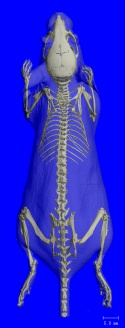
-
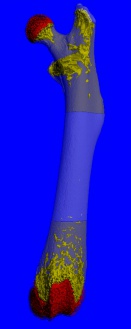
-
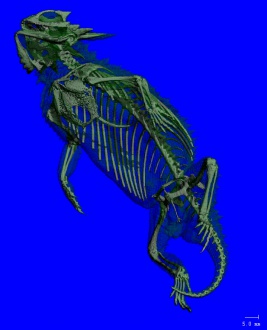
-
-
-
-
-
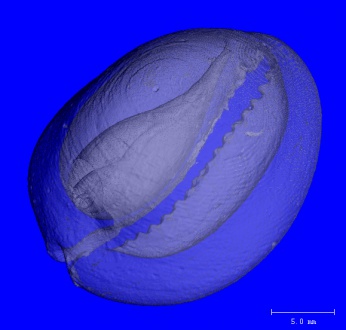
-
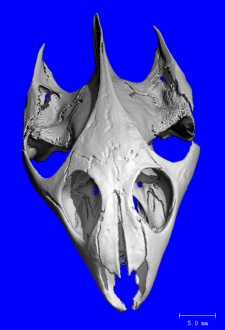
-
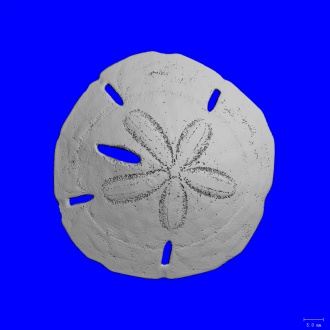
-
-
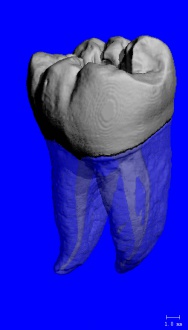


- Contrast-Enhanced Micro-CT Scans
-
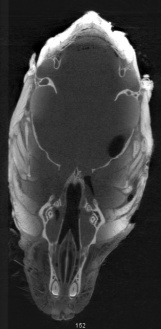
-
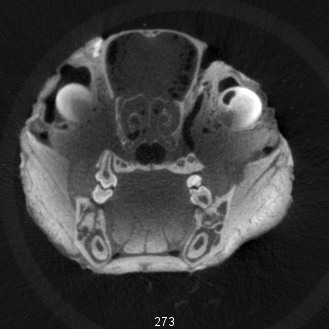
-
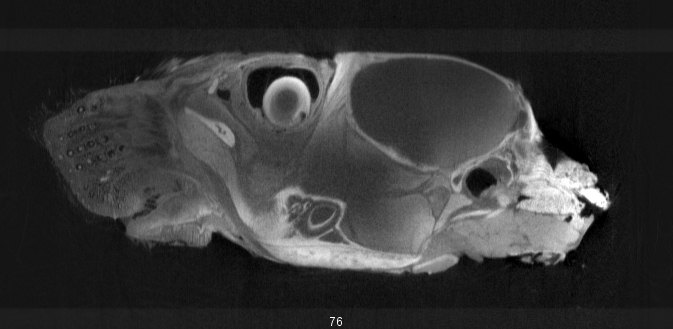


Return to Contents or Return to Main Page
Extract Results
[edit]Automatic Results
[edit]Results are generally automatically extracted after each analysis to the UCT_RESULTS directory.
The results files have the form of:
- UCT_LIST_*PROJECT*.TXT for XtremeCTs: e.g. result file UCT_LIST_KYLA.TXT for the following project.
- UCT_LIST_3DLOG_*PROJECT*.TXT for microCTs: e.g. result file UCT_LIST_3DLOG_KYLA.TXT for the following project.
- where PROJECT is specified in the evaluation tool script setup.

Open the result file and copy and paste it into Excel, e.g.
$ dir uct_results:*kyla*
$ eve uct_results:UCT_LIST_3DLOG_KYLA.TXT
Or transfer the file to your computer using FTP.
- microct/vivact account UCT_RESULTS location: ADISK1:[MICROCT.RESULTS]
- invivo/invitro account UCT_RESULTS location: ADISK1:[BONELAB.RESULTS]
Return to Contents or Return to Main Page
Extract Results from XtremeCT Database using UPAT_LIST
[edit]- Run
$ UPAT_LISTto take in a range of samples and extract the standard patient results, which may include scans from other projects.- Run
$ UPAT_LIST -hto print out help for all parameters. - For standard analysis on XtremeCT2, the default Evaluation Type 4=XT1 is not applicable. To get results for XtremeCT2, you need to run upat_list twice. Once for evaluation 5 and once for 6.
- Run
Evaluation type (1-6) [4]: Type code of evaluation (4=XT1, 5=trabecular, 6=cortical, default=4)
- Run
$ @com:EXTRACT_UPAT_LISTto take in a list of sample numbers and extract the standard patient results with follow-ups and append them to a result file.
$ @COM:EXTRACT_UPAT_LIST P1 P2 P3 P4 P5

    P1 = Sample List
    P2 = Site (RR, RL, TR, TL, R*, T*, *)
    P3 = Number of Follow-Ups (max 19)
    P4 = Results Output File
    P5 = Eval type (4=XT1, 5=Trab, 6=Cort)
- An example to extract all sites:
$ @com:EXTRACT_UPAT_LIST mysamples.txt * 19 myresults.txt 5
- Run
$ @com:EXTRACT_UPAT_LIST_NOMATCHto take in a list of sample numbers and extract the standard patient results without matching follow-ups and append them to a result file.
$ @com:EXTRACT_UPAT_LIST_NOMATCH P1 P2 P3 P4 P5

    P1 = Sample List
    P2 = Site (RR, RL, TR, TL, R*, T*, *)
    P3 = Number of Follow-Ups (max 19)
    P4 = Results Output File
    P5 = Eval type (4=XT1, 5=Trab, 6=Cort)
- An example to extract all sites:
$ @com:EXTRACT_UPAT_LIST_NOMATCH mysamples.txt * 19 myresults.txt 5
Return to Contents or Return to Main Page
Extracts Results from microCT Database using UCT_LIST
[edit]- Run
$ UCT_LISTto take in a range of samples and extract the results, by specifying the first and last measurement numbers for the range they want to extract - This may include scans results from other projects, but you can delete unrelated results that are extracted afterwards.
- The program will output a tab-delimited text file, which can be read into Excel or other analysis programs.
$ uct_list

     UCT_LIST.EXE Version V5.22
     Template-File [UCT_3D_LIST_SHEET]:         !Press Enter to use the default results sheet.
     Output-File [SYS$SCRATCH:UCT_EVAL.TXT]:    !Enter a filename, e.g., BUIE_RESULTS.TXT.
     Density units (0 default) [0]:             !Press Enter.
     From Meas. # [0]:                          !Enter the first measurement number, e.g., 100.
     To Meas. #   [0]:                          !Enter the last measurement number, e.g., 101.

Processing measurement 100
Processing measurement 101
- An example output file: Buie_results.txt
- Or Run
$ @com:extract_results.com
- References of results template:
- Formatted Excel template 1 for results extracted with uct_list.
- Formatted Excel template 2 for results extracted with extract_results.com.
- In vivo spreadsheet template for UCT data: In vivo results template.xls
- In vitro spreadsheet template for UCT data: In vitro results template.xls
Return to Contents or Return to Main Page
Understand Morphological Parameters
[edit]- Refer to Explanation of UPAT_LIST Output to understand the result file.
- Refer to Explanation of UCT_LIST Output to understand the result file.
All values are determined on a slice-by-slice basis, then averaged over all the slices to calculate morphological results:
- BV/TV -> Sum all raw data within the GOBJ and divide by 1200 mg/cc HA
- Tb.N -> As per standard method
- Tb.Th and Tb.Sp -> Derived from BV/TV and Tb.N above (semi-derived method)
- D100 -> Average density of entire cross section
- DTrab -> Average density of trabecular region
- Ct.Th -> Cortical area (from seg) divided by circumference (from GOBJ)
- GOBJ circumference can be determined with /gobj_circum.
BV/TV  -> VOX-BV/TV
BS/BV  -> TRI-BS/BV
Tb.Th  -> DT-Tb.Th
Tb.Sp  -> DT-Tb.Sp
Tb.N   -> DT-Tb.N
ConnD  -> Conn-Dens
SMI    -> TRI-SMI
DA     -> TRI-DA
Usually I'd use the names on the left for the plots, but these correspond to the names on the right of the arrow in the Scanco output files.
Note, if you use the TRI-Tb.Th rather than the DT-Tb.Th*, then you are using the derived (plate-model) morphological parameters. These are less accurate than the direct parameters. They are calculated by triangulating the surface (marching cubes) to get BS, and then calculate thickness Th = 2 * BV / BS, etc...
Mean Values
mean 1: mean of bone AND marrow --> 'apparent density'
mean 2: mean of what was considered bone only (i.e. what was segmented)
'bone tissue density'
Note, there are five possible categories for the mean Mu. They are assigned by setting -region_number in the /voxgobj_scanco_param function. The region number is zero-based, so setting it to 0 corresponds to mean1, 1 corresponds to mean2, etc. So, although mean1 and mean2 are typically apparent and tissue density, respectively, this can be adjusted in the IPL script by setting the region_number. Mean3 might be useful for storing cortical bone density, for example.
/voxgobj_scanco_param      Voxel or Mu Scanco Parameters
  -input                     Gray scale or Segmented AIM object
  -gobj_filename             GOBJ: input or Automatic
  -peel_iter                 Peel Iterations or Automatic
  -region_number             Region number for Mu only

! -region_number             0   ! mean1
! -region_number             1   ! mean2
! -region_number             2   ! mean3
! -region_number             3   ! mean4
! -region_number             4   ! mean5
What you should also know: because of partial voluming effects, for Mean2, we are DISCARDING the 2 surface voxels of EVERY trabeculae - thus, to get meaningful Mean2, you have to do your scan with the chosen resolution high enough, such that the mean trabeculae is depicted by at the very least 5 pixels, better actually more than 6 pixels thickness. (You can do this check at the end in the XLS sheet: divide DT-Tb.Th* by el-size-mm.x, and you need to get numbers bigger than 6 or 7 or 10 or so.
For parameters such as ConnD where no GOBJ is taken as input, the TV is determined from the processing log stored in an AIM that has previously had a GOBJ applied (stored as the relative region of interest; ROI). So, it is important to apply a GOBJ prior to ConnD measurements to ensure the TV is correctly determined (and not taken as the whole AIM).
Trabecular Number (TbN) The epsilon values can be set to account for differences in scanner resolution, and hence 'surface roughness' for individual pixel suppression.
For microct, for good resolution: if there is a pixel 'sticking out' from a flat surface we do not assign that pixel with a thickness value of 1, but we let it 'get eaten' by the bigger sphere that sits in the center of the trabeculae. So this is nice for 'noise' (0.9/1.5).
For XT resolution, where also many 'good' features are just one or two pixels wide, I liked a lower epsilon value better (0.9/0.5).
Return to Contents or Return to Main Page
Generate Report
[edit]Generate Standard Patient Report
[edit]The standard patient reports are extracted from a DEC terminal using upat_list in print mode, which will print to a postscript (PS) file and can also print a hard copy.
- The number of follow-ups specified will determine if a baseline or follow-up report is generated.
$ upat_list

     Mode (1 = list, 2 = print, 3 = show) [1]:  2
     Patient # (1-3162) [1]:                    !input the patient's sample number
     Site (found RR) [RR]:	                !RR or RL or TR or TL
     Maximum # of follow-ups (0-19) [19]:	!0 for baseline report, press return for follow-ups
     Template file [default]:	                !press return to use the default template
     Output filename [SYS$SCRATCH:UPAT...]:	!default output file (with sample number and the site) goes to sys$scratch
     # copies [1]:	                        !the number of printouts, 0 if no printout is desired
Return to Contents or Return to Main Page
Generate CaMos Patient Report
[edit]The CaMos patient report is extracted from a DEC terminal using upat_list in print mode, which will print to a postscript (PS) file and can also print a hard copy.
- To ensure the report is generated using the appropriate normative results, the patient's sample remarks should be in the form "F-RHRF" where the first character indicates the sex of the individual, otherwise the patient is assumed to be male.
$ upat_list

     Mode (1 = list, 2 = print, 3 = show) [1]:  2
     Patient # (1-3162) [1]:                    !input the patient's sample number
     Site (found RR) [RR]:	                !RR or RL or TR or TL
     Maximum # of follow-ups (0-19) [19]:	!0 - 1st scan, 1 - 2nd scan, 2 - 3rd scan...press return for latest scan report
     Template file [default]:	                COM:UPAT_EVAL_CAMOS.PS
     Output filename [SYS$SCRATCH:UPAT...]:	!default output file (with sample number and the site) goes to sys$scratch
     # copies [1]:	                        !the number of printouts, 0 if no printout is desired
Return to Contents or Return to Main Page
Print out report sheets
[edit]The postscript report sheets can be generated and printed on the command line. For the XtremeCT system, use UPAT_PRINT_LIST.EXE which can be run (using the symbol):
$ UPAT_LIST
Look in the UU: directory to see options for the template files (UPAT*.TXT) and the postscript output files (*.PS).
- UU:UPAT_EVAL_FUP05_SCUSA.PS
- UU:UPAT_EVAL_BASELINE_SCUSA.PS
For other options, see the upat_list help:
$ UPAT_LIST -h
One particular option that may be useful, is to turn off slice matching:
$ UPAT_LIST -nomatch
Here is an example of producing a report for the third measurement of TL for a patient, where we want only the most recent results in the report, without slice matching:
$ upat_list -b=3818 -e=3818 -s=TL -mb=01-MAY-2018 -me=01-AUG-2018 -nomatch -t=UU:UPAT_EVAL_BASELINE_SCUSA.PS -c=0 -o=sys$scratch:upat_pat_3818_tl_0fu.ps

$ upat_list -b=3818 -e=3818 -s=TL -mb=01-MAY-2018 -me=01-AUG-2018 -nomatch -t=DISK1:[MICROCT.COMMANDS]UPAT_EVAL_CAMOS.PS -c=0 -o=sys$scratch:upat_pat_3818_tl_camos.ps
The first command line generates a normal Scanco report, and the second command line generates a CAMOS report.
For reports from non-patient measurements (i.e., the vivaCT system or non-patient scans on the XtremeCT), the template files are different (UCT*.TXT) and the postscript outputs are different (UCT*.PS). To print a result sheet use:
$ RUN UM:UCT_RAY_BATCH.EXE
If you want to create a postscript file, but not send it to the printer, set the number of copies to zero (interactive). Then, find the postscript file from the SYS$SCRATCH directory and transfer it to your PC. You must transfer the postscript file in ASCII mode. The files are typically called TEMP_3D.PS or UPAT_PAT_62_RR.PS. A program such as Adobe Photoshop can convert the postscript file to a different format.
See also our custom scripts:
$ @COM:PRINT_2D.COM
$ @COM:PRINT_3D.COM
Return to Contents or Return to Main Page
Convert PS to PDF report
[edit]The report can be converted to PDF using $ @SCOM:PS_TO_PDF by:
- Follow the instructions above for creating a report, using "2" to print and "0" for the number of copies. (Use the default template file and output filename.)
- Locate the file on the sys$scratch by
$ cd sys$scratchand$ dir- The file should read "UPAT_PAT_[sample #]_[site].PS;1" (e.g. UPAT_PAT_0010_RL.PS;1)
- You can view this file on the monitor by typing
$ gs UPAT_PAT_0010_RL.PS;1
- Convert the postscript to PDF by typing in the command followed by the .PS file to convert
$ @SCOM:PS_TO_PDF UPAT_PAT_0010_RL.PS;1
- The PDF file can then be located again in the sys$scratch directory.
You can transfer the result file to your computer using FTP.
Return to Contents or Return to Main Page
Data Management
[edit]Trainee’s Data Responsibility
[edit]- Perform Contouring and Data Analysis on Data Disk ideally 1-2 months after scanning.
- After finished onsite analysis, use Scripts to Copy and Rename image data (no RSQ, no ISQ, only AIM, SEG.AIM, GOBJ, COM, LOG, PDF, PS ect) to your specific project folder on Project Disk.
- After finished copying all your image data to Project Disk, Notify lab personal to delete your data on Data Disk by providing a Data Scans to Delete Template.
- Notify lab personal to backup your project folder on Project Disk to Winston server on a monthly basis.
- Only the two most recent backups (A or B version) are kept for each project on Winston:
- Backup version "_A" for odd months (Jan, Mar, May, Jul, Sep, Nov), e.g. YZHU_A_OTHER_2017-01-12.SAV
- Backup version "_B" for even months (Feb, Apr, Jun, Aug, Oct, Dec), e.g. YZHU_B_OTHER_2020-04-08.SAV
- When a project is finished, Notify lab personal to archive your project to HOG server.
- When a trainee is about leaving, Notify Steve and lab personal to determine either to backup or to archive your project.

Return to Contents or Return to Main Page
Move data from Data Disk to Project Disk
[edit]This is generally done after onsite analysis (i.e. autocontour, cortical porosity, FE etc.) is done. Examples of this can be found in DISK3:[MICROCT.PROJECTS.GRACE.COM]
1. Go to the specific project's .COM directory, for example:
$ cd DISK3:[MICROCT.PROJECTS.GRACE.COM]
2. Create a script that will move all IMA (i.e. .AIM, .GOBJ, _SEG.AIM, _CORTEX.AIM, _LHTH_DTN.AIM) to the .MODELS directory for the project. You will use the rename_to_models.com script to generate this script. To move Grace data for example, with a measurement range of 2684 to 2685, you would use:
$ @com:rename_to_models.com meas#1:meas#2 DESTINATION DIR
$ @com:rename_to_models.com 2684:2685 DISK3:[MICROCT.PROJECTS.GRACE.MODELS]
3.This will create a file named RENAME_ALL.COM to the project's COM directory. You will now have to open the RENAME_ALL.COM file and add site + other details into the script. Following the same example as above, it should look like this:
$ eve RENAME_ALL.COM     ! to open the file using a text editor
$ COPY DISK2:[MICROCT.DATA.00000700.00002684]C0002040.AIM -
   DISK3:[MICROCT.PROJECTS.GRACE.MODELS]GRACE_020_00MTH_RR.AIM
$! DELETE/CONFIRM DISK2:[MICROCT.DATA.00000700.00002684]C0002040.AIM;1
$ COPY DISK2:[MICROCT.DATA.00000700.00002685]C0002041.AIM -
   DISK3:[MICROCT.PROJECTS.GRACE.MODELS]GRACE_020_00MTH_RL.AIM
$! DELETE/CONFIRM DISK2:[MICROCT.DATA.00000700.00002685]C0002041.AIM;1
4. You also need to copy the rest of the standard patient image files (i.e. .AIM, .GOBJ, _SEG.AIM, _CORTEX.AIM, _LHTH_DTN.AIM) which is easily done by copying the above lines and replacing .AIM with the respective files.
Warning: Always use the same account consistently to create all files and subfolders within their Project folder, otherwise you way miss data when doing Project Backup or Archive!
Return to Contents or Return to Main Page
Import and Export
[edit]Import Foreign Data to Scanco System
[edit]Only RSQ and ISQ files can be imported into the database, however it is possible to convert other types of data into ISQ files (i.e., stacks of BMPs into ISQ).
PART 1:
After transfering your data to the VMS system (use the data disk disk2, NOT the user disk disk1), use the IPL commands /import_freeformat or /read_aim function to import your data for conversion to an ISQ.
For AIM files, navigate to the location of the AIM file. Then open IPL by:
$ IPL
In IPL, read in the .AIM file:
ipl> read in [.AIM file]
IPL will do the following:
ipl> read in STUDYID_001_RL.AIM

/read
  -name                      in
  -filename                  STUDYID_001_RL.AIM
!> Reading AimVersion020

!%  /read completed:  CPU: 00:01.03  ELAP: 00:01.55
For DICOM files, start IPL and run the /dicom function to import. For DICOM, if your object is a single 3D file (-multifile false) or many many individual slice files (-multifile true, and give beginning of filenames, and –extension).
There may be requests by IPL to convert your data to signed short or signed char from other data types. Obey these requests and do it by running the /convert_unsigned function.
Then, write the ISQ file using either the "toisq" or "from_aim" commands:
ipl> toisq
-aim_name                  [in] >[leave blank as you defined “in” as .AIM file.]
  -isq_filename              [default_file_name] > C0001234.ISQ [Create a 1 letter and 7 digit file name]
  -square_flag               [true] > false
  -original_position         [true] > false

ipl>toisq_from_aim
  -aim_name                  in
  -isq_filename              C0001234.ISQ
  -square_flag               false
  -original_position         false

!%  Dimensions of ISQ file: dim.x dim.y dim.z 558 638 168
Write_ctdata_headerext_new: no mhext found. Init mhext.
Extended header successfully added of type            8

!%  Writing ISQ slice   167  (Done:   168/168)

!%  /toisq_from_aim completed:  CPU: 00:05.12  ELAP: 00:10.47
Type ipl>help toisq [or ipl>help from_aim] to see details of the command.
This writes the ISQ file. Make note of the ISQ file name.
Remember, the ISQ name must be 8 characters long (1 character followed by seven digits)!!! The letters and numbers can be chosen freely.
Exit IPL:
ipl>quit
PART 2:
To VIEW the ISQ, refer to Open default ISQ.
The measurement can be verified by looking at the Header Information. (File, Header)
If you only needed to view the ISQ, delete the file when finished by:
$ dir/sincet
$del [.ISQ file]
PART 3:
To use the ISQ further (e.g. for evaluations, contouring, etc.) create a sample in the database and write down the sample and measurement number. Then, run:
$ run um:uct_import ! will import both RSQ and ISQ (modify patient index, etc)
and give the new ISQ file, the new sample-number and check that the feedback is correct (i.e., that the name from the database is matching the name from the ISQ file header). If the Patient Name in the ISQ header doesn't match the measurement database Patient Name (very likely), then upon importing the RSQ/ISQ the headers will be updated to the new Patient Name.
Operator and controlfile can be left 0 if you want. However, controlfile should be set appropriately if the data being imported is for the XtremeCT patient database.
If you are also importing the RSQ, put it in the same directory as the ISQ.
Then it changes the sample and measurement number in the ISQ file, makes the correct directory on DK0, and gives you the line on the screen of how to rename the file to the correct, new directory. Take this line and use it on the command line. Done!
You can now use the normal uct_evaluation program with this file. If the control file was set properly, then the evaluation will be done correctly (i.e., for XtremeCT patient measurements).
Note: Any AIMs created from the original ISQ should be recreated. So, it is important that you re-evaluate your newly imported ISQ. It is OK to move the GOBJ from the old directory to the same directly as the newly imported ISQ (it does not have a 'registry' in the database).
Return to Contents or Return to Main Page
Import DICOM to Scanco System
[edit]- Load MRI's or CT's DICOM data in Osirix
- Export from Osirix
- Click export button in top left in osirix.
- Select "flat" and "decompress all DICOM files"
- Copy files to correct folder in scanco system
- Use Fillezilla or FTP (make sure it's set to binary mode)
- Use IPL to convert dicom to aim or isq
/dicom_to_aim
  -aim_name                  in
  -dicom_filename            IM-0001-0001.DCM   ! Note - choose the first filename of the series
  -multifiles                true

/convert_unsigned
  -input                     in
  -shift_flag                false
  -divide_by_2               true

/write_v020
  -name                      in
  -filename                  PREOA_023_L_MR.aim
  -compress_type             bin
  -version_020               true

/toisq_from_aim
  -aim_name                  in
  -isq_filename              MROA023L.isq
  -square_flag               true
  -original_position         true''
5. Delete dicoms
/del *.dcm;1
Return to Contents or Return to Main Page
Import Xradia *.bin to Scanco System
[edit]Xradia scanner exports a *.bin image that is:
- 16-bit unsigned          ! This is "short" (8-bit is char - we don't want this for a grey-scale image)
- 2 bytes per voxel
- little endian notation
To upload this binary image to Scanco database, the steps are as follows:
- Ftp the *.bin to Scanco system using binary transfer (not ascii)
- Convert it to an AIM or ISQ in IPL
$ipl

/import_freeformat
-internal_name             in
-file_name                 BMLPL_006.BIN
-sample_name               BMLPL_006
-data_offset               0
-data_dim                  1000 1024 1016    !dimensions from header file
-data_el_size              0.013 0.013 0.013 !voxel size from header file
-bytes_per_voxel           2
-data_endian               little_endian
-data_type                 integer
-signed_type               unsigned          !correct
-multifiles                false

/convert_unsigned
-input                     in
-shift_flag                true              !shift_flag = TRUE will produce an ISQ/AIM with negative values which may not be visualized properly using uct_evaluation, but keeps the original image resolution.
-divide_by_2               false             !divide_by_2 = TRUE will down grade image resolution, but all positive values in an ISQ/AIM will be visualized properly using uct_evaluation.

/write_v020
-name                      in
-filename                  test.aim
-compress_type             bin
-version_020               true

/from_aim_to_isq
 -aim_name             in
 -isq_filename         bmlpl006.isq !ISQ name requires 8 characters
 -square_flag          true
 -original_position  true
quit
To VIEW the ISQ, refer to Open default ISQ.
Alternatively the image can be converted to a 16-bit signed in ImageJ (and cropped) before importing to ipl. It then becomes:
- 16-bit signed
- 2 bytes per voxel
- big endian notation
It can then be imported into ipl without the need to run /convert_unsigned.
Return to Contents or Return to Main Page
Import foreign data with calibration information for BMD mg HA/ccm or Hounsfield Units
[edit]Data can be converted from any other source (e.g. mha, nii, png, bmp, dicom, etc) into an AIM format using the BoneLab GitHub repository, which includes blImageConvert. However, those data should be represented as 'short' (2 byte) integers. Obviously that data cannot be used directly to measure BMD without conversion. Normally, an AIM file will contain the following information in the extended header (use aix -l to read the AIM header).
!-------------------------------------------------------------------------------
Patient Name                  PATIENT_001
Index Patient                                      28
Index Measurement                                 641
!-------------------------------------------------------------------------------
Site                                               39
Scanner ID                                       3418
Scanner type                                        9
Position Slice 1 [um]                          163359
No. samples                                      2304
No. projections per 180                           900
Scan Distance [um]                             139852
Integration time [us]                           43000
Reference line [um]                            141359
Reconstruction-Alg.                                 3
Energy [V]                                      68000
Intensity [uA]                                   1470
Angle-Offset [mdeg]                                 0
Default-Eval                                        3
!-------------------------------------------------------------------------------
Mu_Scaling                                       8192
Calibration Data              68 kVp, BH: 200 mg HA/ccm, Scaling 8192
Calib. default unit type      2 (Density)
Density: unit                 mg HA/ccm
Density: slope                         1.55715601e+03
Density: intercept                    -3.82782013e+02
HU: mu water                                  0.24220
!-------------------------------------------------------------------------------
The slope and intercept is the calibration data that came from the scanner. Normally, when creating an AIM from an ISQ, the calibration data will come from the ISQ, which in turn came from the database of the scanner. When an evaluation of BMD is made in IPL, the calibration data is taken from the extended header.
Since the imported data converted to an AIM does not have calibration data in the header, you must use the following options in IPL. When you read in the AIM into IPL using /import_freeformat it assumes
the data to be µ values with scaling 1. You can then use /header_log_set to change the µ scaling. If you do not follow this procedure (i.e., no calibration data) then the IPL output for BMD will be in the units of your input (i.e., 2-byte short).
More information about the calibration information and µ scaling is found in the Scanco FAQ. Some key parts are copied to here:
A physical CT image contains the values for the Linear Attenuation Coefficients at each voxel. These are floating point values, typically between 0.0 and about 4.0 for bone (at our energies). To store them in our files, we scale these numbers with typically 4096 (XtremeCT: 8192) to a short integer value to be able to save a 2-byte number (-32768 to 32767, negative values not physically meaningful, but exist because of detector noise) instead of a 4-byte float.
BMD (mg HA/ccm):
For the bone density measure, the µ-values are converted to mg HA/ccm units by 'Density: slope and intercept'. This conversion is linear, so slope and y-intercept defines the equation:
mg HA/ccm = µ-value * slope + intercept
Hounsfield units:
SCANCO data files do not directly contain the image values in Hounsfield Units, but they contain scaled µ-values. To get Hounsfield Units, the µ-value of water is needed, and then the conversion formula is this:
HU(pixel) = -1000 + µ(pixel)*1000/µ(water)
where the µ-values are the native image values divided by the above mentioned µ-scaling 4096 or 8192.
An approximation for the µ of water can be found in the AIM or ISQ header, if (and only if) the scan was performed with the bone density calibration turned on.
Return to Contents or Return to Main Page
Get Your Files
[edit]MAC/Linux Options
[edit]Fetch
[edit]
Return to Contents or Return to Main Page
FTP from Terminal
[edit]- Open a terminal
- MAC: open the "Applications" folder, choose "Utilities", then "Terminal".
- Navigate to where you want to transfer the files to.
- Connect to the micro-CT ftp server using the ftp command in the terminal:
- Login with the micro-CT user account and password.
- Navigate to the directory of interest on the micro-CT system.
- Logicals such as "ur" can be used as short cuts. Whole directory names must be used.
- Set a filename mapping convention to remove OpenVMS version numbers.
- The command
ftp> nmap $1;$2 $1sets anything before the version number to parameter $1 and anything after the version number to $2. The file output will be set to $1, therefore the version number will not be kept.
- The command
- Set the file transfer mode.
 If you transfer an .AIM file in ascii mode, you will receive a "mesh generation" errors and "material ID out of range" message.
- Transfer your files.
- Option: Turn off prompt so does not ask you whether or not to transfer each file.
- If you do not turn off the prompt prior to transferring the files, press "a" (for all) to transfer all files at once.
- Exit FTP.

$ FTP 136.159.74.231	              !Connect to an FTP Server. Need to input user name and password.
$ FTP emily.ucalgary.ca	              !Connect to an FTP Server. Need to input user name and password.
$ FTP microct@emily.ucalgary.ca       !Connect to an FTP Server. Need to input password.

FTP> cd ur                            !Navigate to the directory containing the target files.
FTP> cd sys$scratch                   !Navigate to the directory containing the target files.

FTP> nmap $1;$2 $1                    !Set a filename mapping convention to remove OpenVMS version numbers.

FTP> bin	                      !Set transfer mode to binary (.aim, .gobj, .isq, and most image file types).
FTP> ascii	                      !Set transfer mode to ascii (.txt, .log, .com, .ps, .pdf and all other files in general).

FTP> put test.aim                     !Put the file
FTP> get test.aim                     !Get the file

FTP> prompt                           !Interactive mode off before transferring multiple files without having to be prompted.
FTP> mput *.aim	                      !Put all files with the .aim extension on the FTP server (mput = multiple put).
FTP> mget *.aim	                      !Get all files with the .aim extension from the FTP server (mget = multiple get).
FTP> mget *.aim;	              !Transfer the latest version of all aim files in a directory.

FTP> quit	                      !Disconnect from the FTP Server.
Return to Contents or Return to Main Page
Windows Options
[edit]Scanco Medical µCT FTP
[edit]- Downlod Scanco Medical MicroCT FTP 3.4 from BoydDrive:\\04 - Resources\04 - Software\Scanco Medical MicroCT FTP 3.4\
- Install the software using the default parameters.
- Click on FTP Connection and input the host to connect to, the username, password.
- Give this profile a name.
- Click on the options tab to set the locations to connect to (e.g., project disk, scratch) and the location on your computer to transfer files to.
- Go back to FTP Connection and press the Connect button.
- If you are connecting from off campus to the XtremeCT you will need to use the VPN to gain access through the firewall.
- Use the left tree to navigate folders.
- Use the file filter to search for specific file types or file names (bottom left).
- Select files to download and press the Download Selected Files button (bottom right).
- Press the Exit button to disconnect.


Return to Contents or Return to Main Page
Filezilla
[edit]- Download Filezilla 2.2.32 from BoydDrive:\\04 - Resources\04 - Software\Filezilla 2.2.32\
- This version of Filezilla will remove the OpenVMS version number from files, the new version will not!
- The left side of the program shows your computer, the right side will show the micro-CT system once you have connected.
- On the top menu, choose "File", then "Site Manager".
- Create a "New Site" for all the directories that you frequently access.
- Give the site a meaningful name.
- For the host, you may connect to "emily.ucalgary.ca" or "sceval.ucalgary.ca".
- For the logon type choose "Normal" and input the micro-CT user name and password.
- Click on the "Advanced..." button to set the default remote directory (i.e., on the micro-CT system).
- Set the default local directory if there is a specific location you plan to always transfer files to.
- Setup any additional sites you want then press "Save and Exit".
- To connect to a session, hold the left mouse button down over the arrow next to the site manager button (computer icon under "File") to bring up your list of sites. Highlight the site of interest then release the mouse button to connect.
- Once connected, you can drag and drop files from the remote site to your local computer.


- Common FTP locations
| Account | Location | Path |
|---|---|---|
| microct / vivact | Data Disk | DISK2:[MICROCT.DATA] |
| microct / vivact | Projects Disk | DISK3:[MICROCT.PROJECTS] |
| microct / vivact | Scratch Disk | ADISK1:[MICROCT.SCRATCH] |
| invivo / invitro | Data Disk | DISK4:[BONELAB.DATA] |
| invivo / invitro | Projects Disk | DISK5:[BONELAB.PROJECTS] |
| invivo / invitro | Scratch Disk | ADISK1:[BONELAB.SCRATCH] |
Return to Contents or Return to Main Page
Remote Access
[edit]VPN Setup
[edit]Access to the OpenVMS workstations from campus does not require VPN setup; however, to access from off the campus requires establishing a VPN connection prior to connecting.
- The VPN server is: gpvpn2.ucalgary.ca
- The client needed for VPN connection is FortiClient SSL which is available through UofC IT Service Request "Order Something".
Return to Contents or Return to Main Page
Setup for MAC/Linux
[edit]Terminal and XQuartz
[edit]You need following to access the MicroCT system remotely.
- Terminal: an SSH client
- Preinstalled in MAC/Linux.
- XQuartz: an X server for X11 forwarding
- X11 was previously distributed with Mac OSX but has since stopped.
- Check if preinstalled in MAC: open the "Applications" folder, choose "Utilities", there should be a file called "XQuartz". No need to open.
- If not preinstalled, download the most recent XQuartz.dmg.
- Once downloaded, double click the .dmg file to follow the instructions and install.
- SSH from terminal
- Open a terminal.
- MAC: Open the "Applications" folder, choose "Utilities", then "Terminal".
- Type
$ ssh xtremect2@emily.ucalgary.ca -Y
- The -Y flag activates X11 forwarding.
- Or type
$ ssh -Y -p22 -c 3des-cbc -o KexAlgorithms=+diffie-hellman-group1-sha1 -o HostKeyAlgorithms=+ssh-dss xt2recalib@emily.ucalgary.ca
- Type
$ alias xt2recalib='<ssh command above>'
allows you to only type"$ xt2recalib"
in the terminal from here on out to access the MicroCT system.
- Type
- You're good to go!
Return to Contents or Return to Main Page
Setup for Windows
[edit]MobaXterm
[edit]There is only one program required to access MicroCT remotely: MobaXterm. It will act as both an SSH client and as an X server.
- Configure MobaXterm
- Run the .exe file after downloading MobaXterm.

- Click on "Sessions" -> "User Sessions" and choose "SSH" in the top left of the "Session settings" window.
- Input your host info into the "Remote host" dialogue box such as "emily.ucalgary.ca", check on "Specify username" and input your username such as "xt2recalib" and ensure "X-11 Forwarding" is checked in "Advanced SSH Settings" tab, and click OK.

- Start the session
- Launch the MobaXterm client and under "Sessions" -> "User session" you should have something titled "xt2recalib@emily.ucalgary.ca".
- Double click that session and you're good to go!

Return to Contents or Return to Main Page
PuTTY and Xming
[edit]There are two programs required:
- PuTTY: an SSH client
- Download PuTTY or from BoydDrive:\\04 - Resources\04 - Software\PuTTY.
- Xming: an X server
- Download Xming 6.9.0.31
- Download Xming Fonts
- Configure PuTTY
- Under categories, expand the "Connection" and "SSH" trees. Click on "X11" and check the "Enable X11forwarding" box.

- Under categories, now choose "Sessions".
- Under host name, put in "emily.ucalgary.ca". Choose "SSH" for the connection type.
- Under Saved Sessions, give the session a name (e.g., Emily). Click the "Save" button.

- Start the Session
- Launch the Xming program, nothing should open except the Xming icon on the task bar.
- Open PuTTY. Double-click on the saved session, which will open a DEC terminal.
- Any program that you run remotely will be displayed by Xming.
Return to Contents or Return to Main Page
Remote Access FAQ
[edit]MAC Open SSH Authentication Issue
[edit]You might get an error similar to the following especially after a recent OS update:
 Unsupported KEX algorithm "+diffie-hellman-group1-sha1"
 command-line line 0: Bad SSH2 KexAlgorithms '+diffie-hellman-group1-sha1
This is not Apple’s fault, it’s OpenSSH version 7. SHA1 is weak, so support for it has been removed. Which is fine, but VMS clients are probably using RSA/SHA1. So until they’re all updated (i.e. never!) we need to re-enable SHA1.
Open a terminal windows and execute the following:
sudo nano /etc/ssh/ssh_config
ENTER YOUR PASSWORD
Locate the line ‘# MACs hmac-md5,hmac-sha1,umac-64@openssh.com,hmac-ripemd160′ and remove the Hash/Pound sight from the beginning.
Locate the line ‘# Ciphers aes128-ctr,aes192-ctr,aes256-ctr,aes128-cbc,3des-cbc’ and remove the Hash/Pound sight from the beginning.
Then paste the following on the end;
 HostkeyAlgorithms ssh-dss,ssh-rsa
 KexAlgorithms +diffie-hellman-group1-sha1
There’s no reason to reboot, it should work straight away.
Return to Contents or Return to Main Page
SSH Speed Issues
[edit]
If you notice that the remote display is quite slow, you may prefer to enter the 'manual' X display redirection after connecting with ssh.
The steps to enter the 'manual' X display redirection are outlined in one of Scanco's FAQs found here.
Click the "Remote Graphical Access from your PC to the MicroCT" tab (5th tab) and scroll down to "SSH Speed Issue" for more information.
Return to Contents or Return to Main Page
MobaXterm Backspace Issue
[edit]If the Backspace/Delete key doesn't work on your MobaXterm
- Right-click on a session name on the left column and click "Edit session"
- Under "SSH" page "Terminal settings" tab, toggle off "Backspace sends ^H" and "Save"


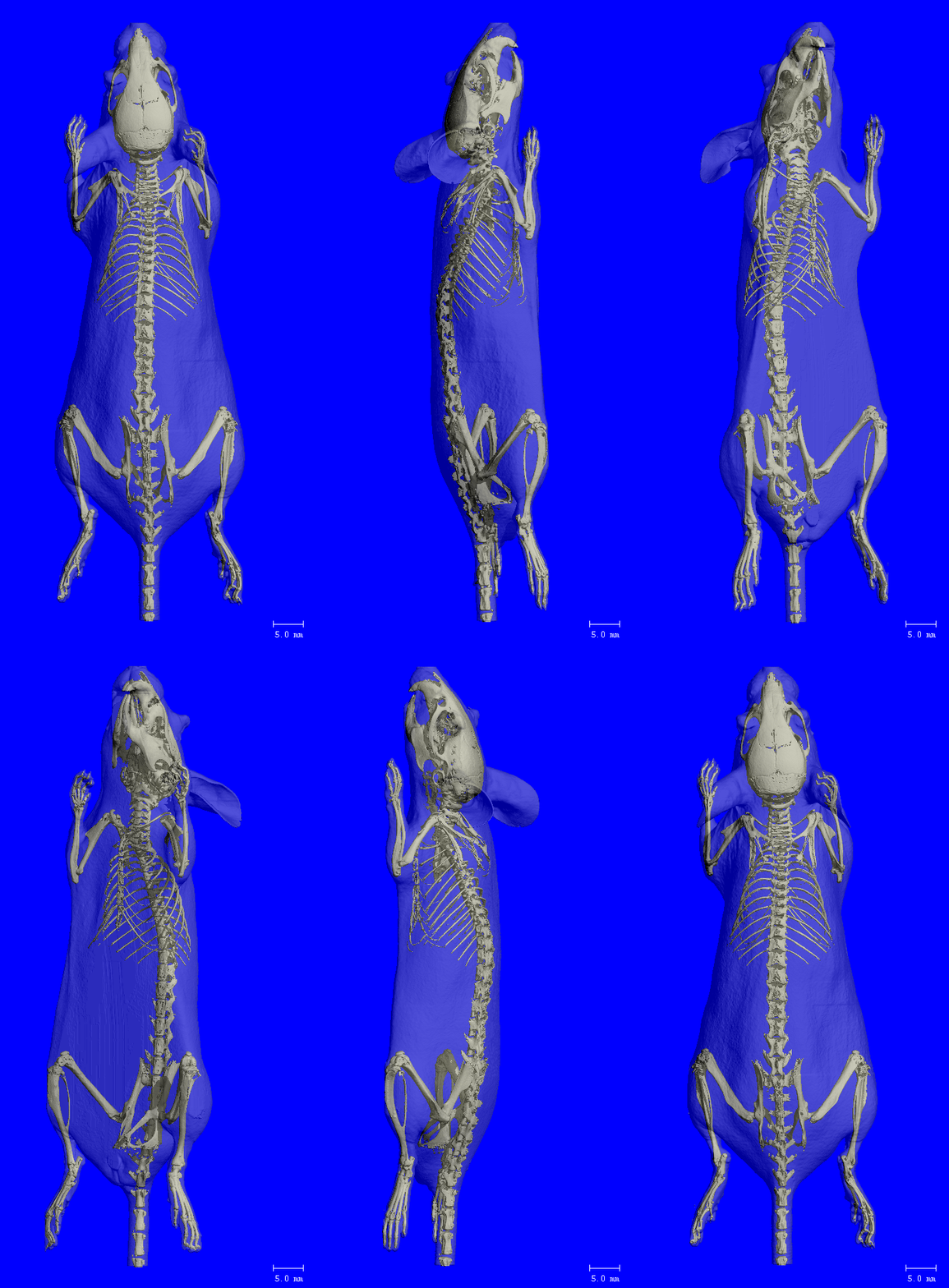
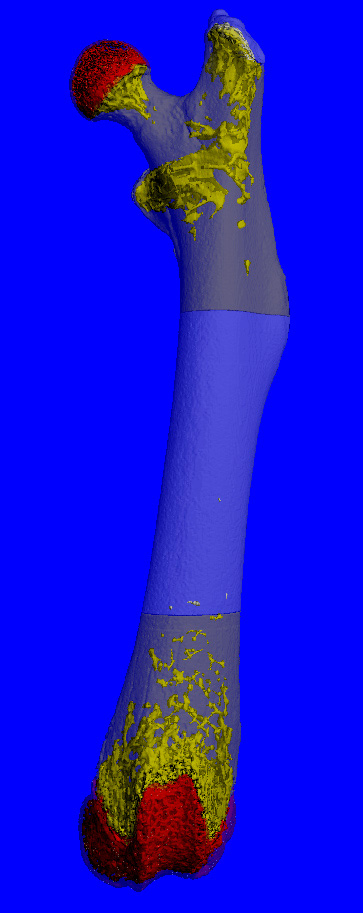
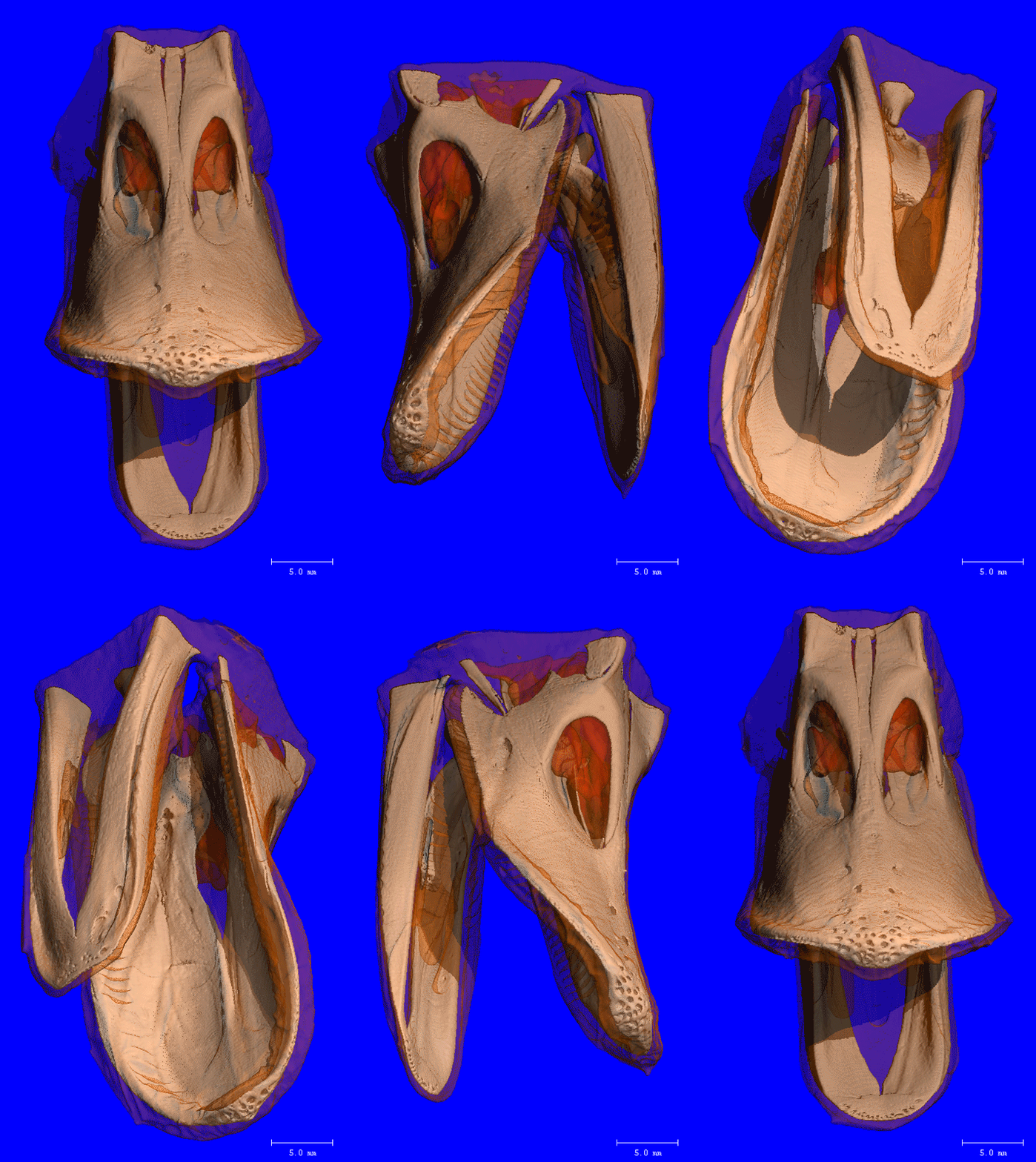
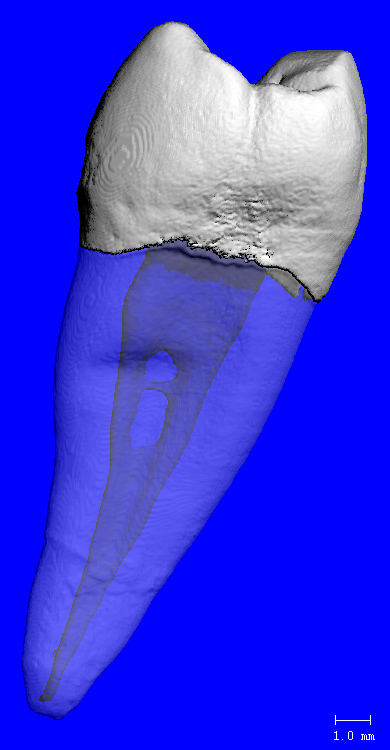
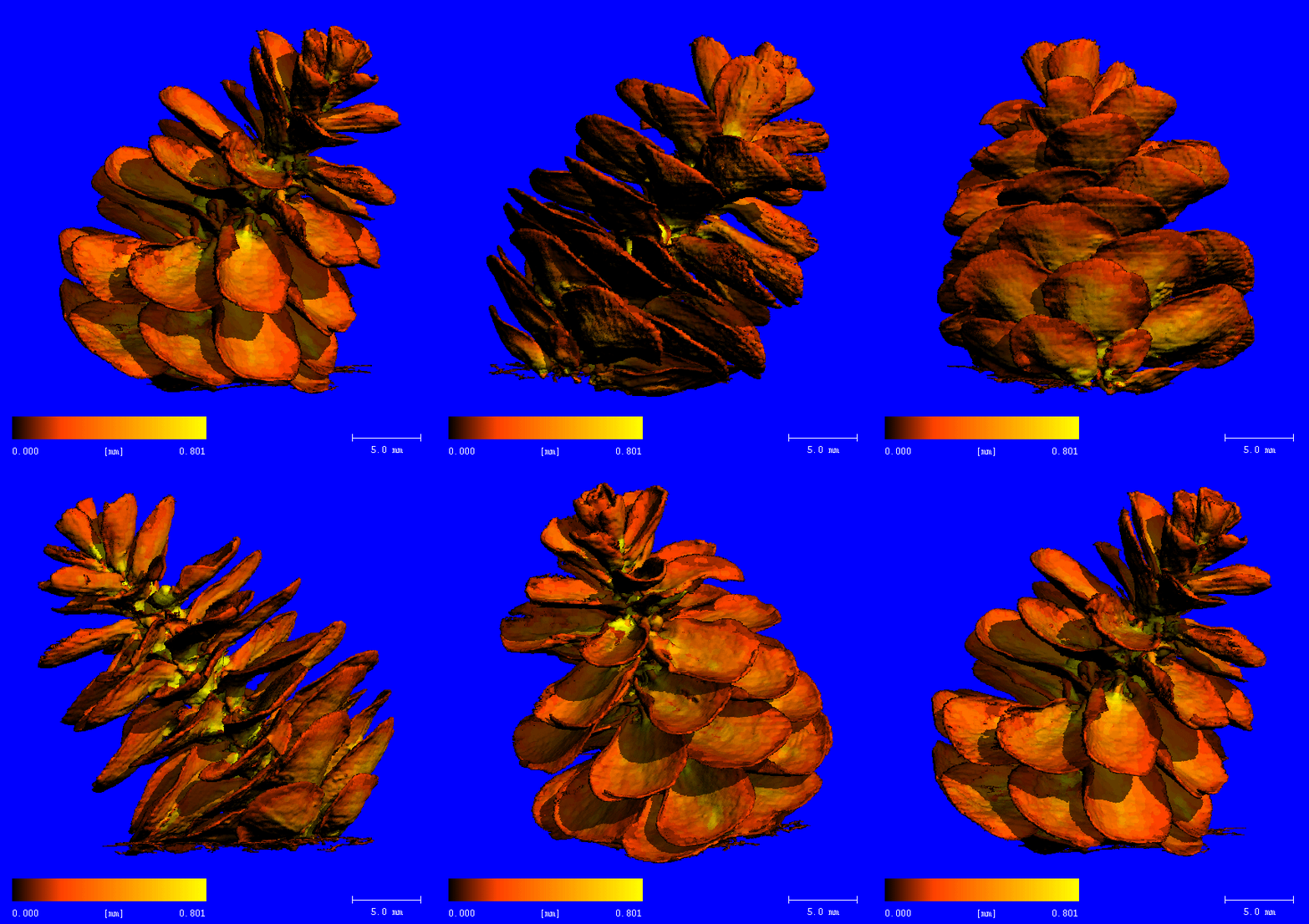
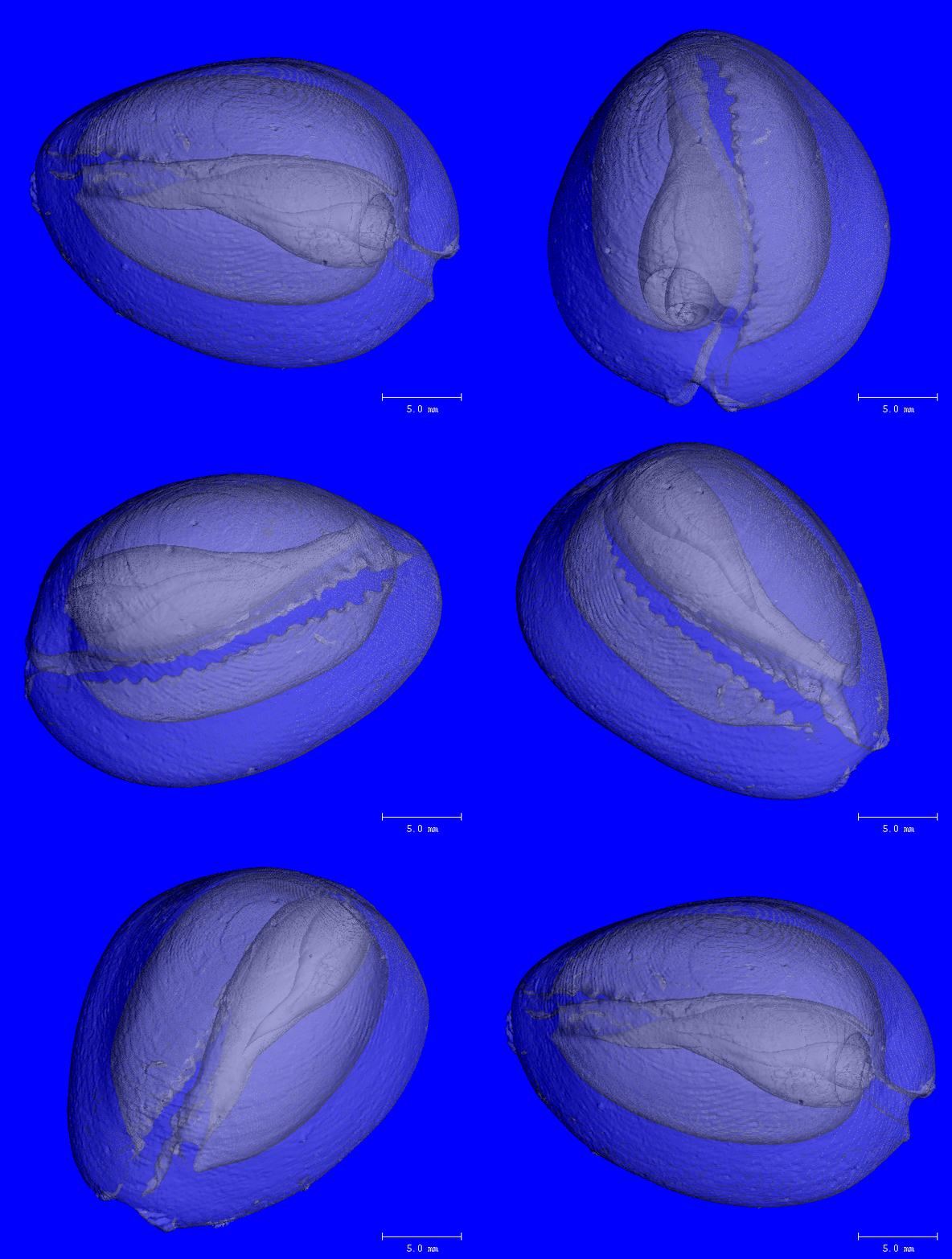
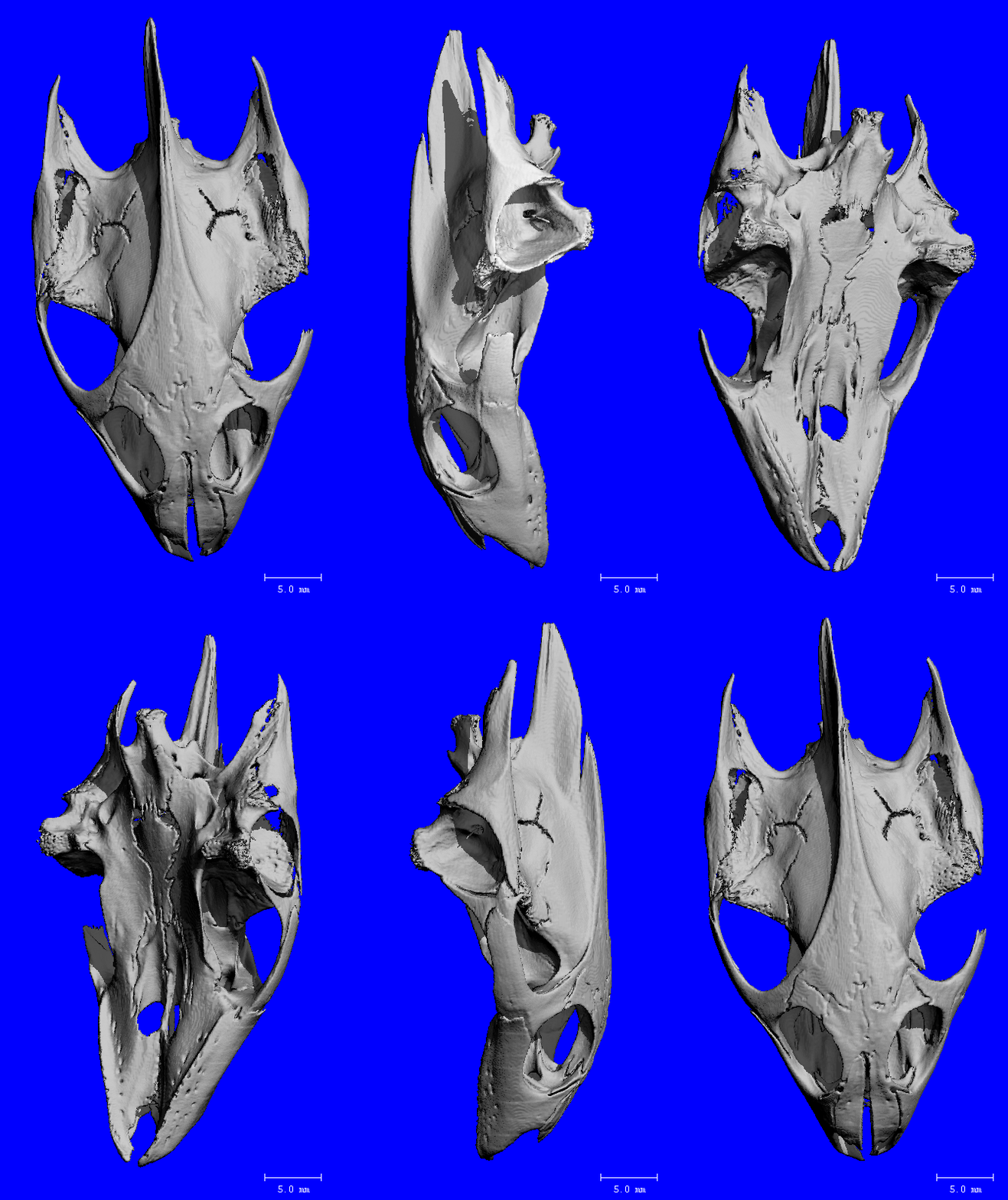
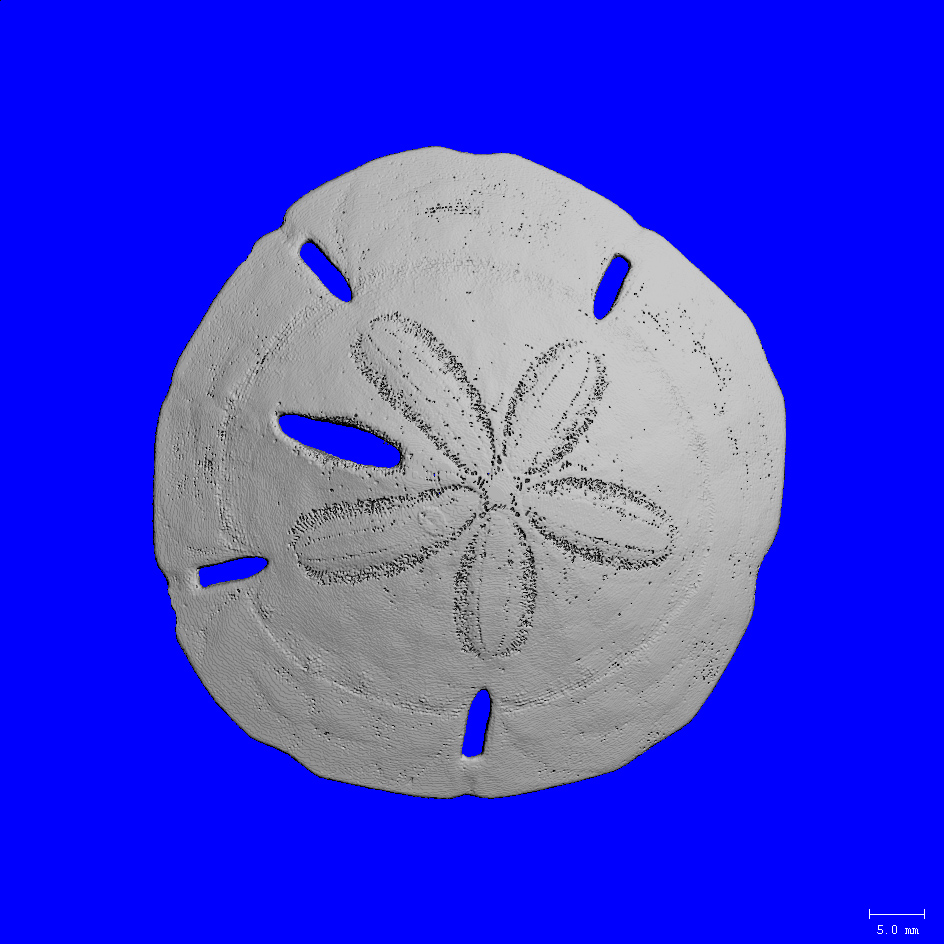
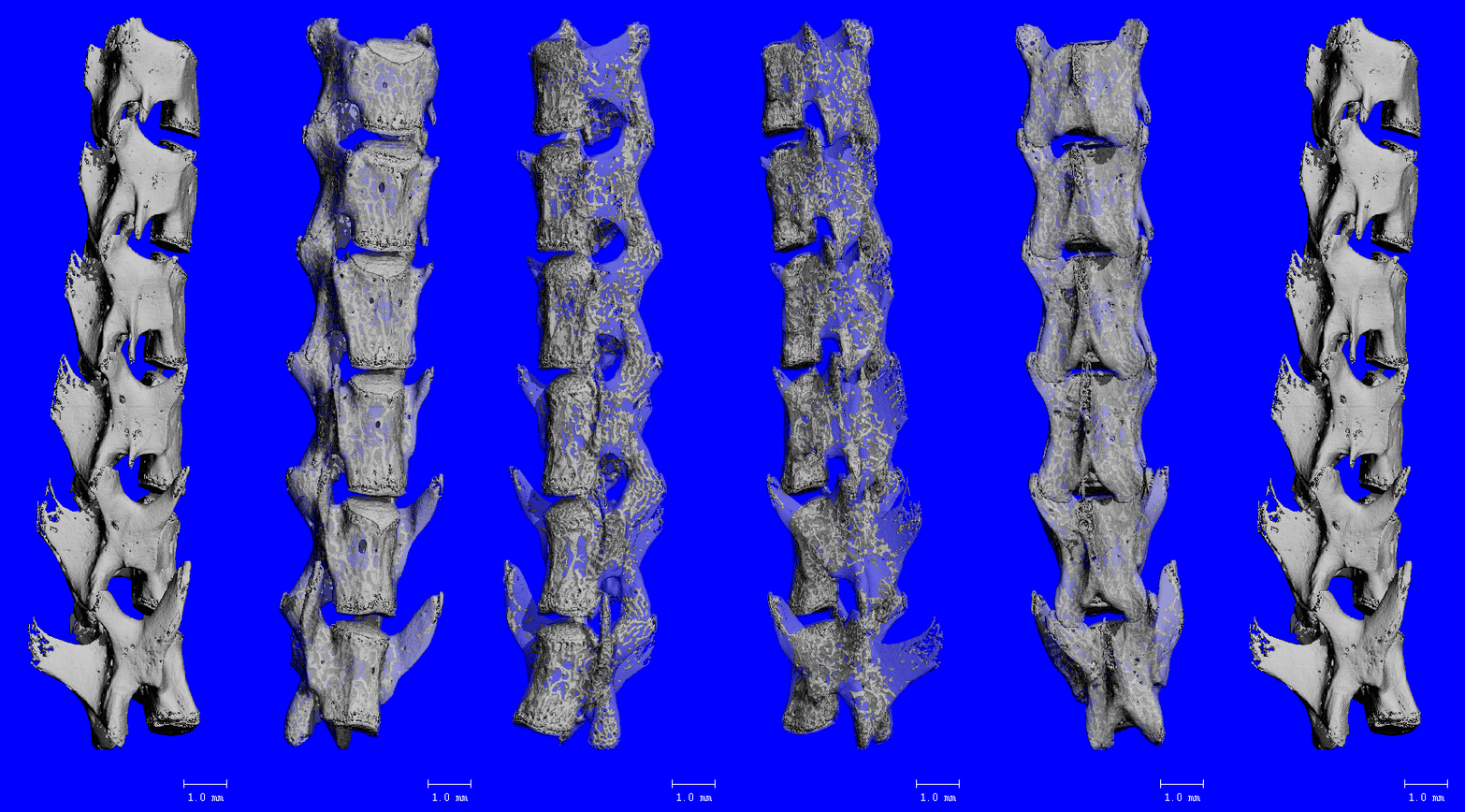
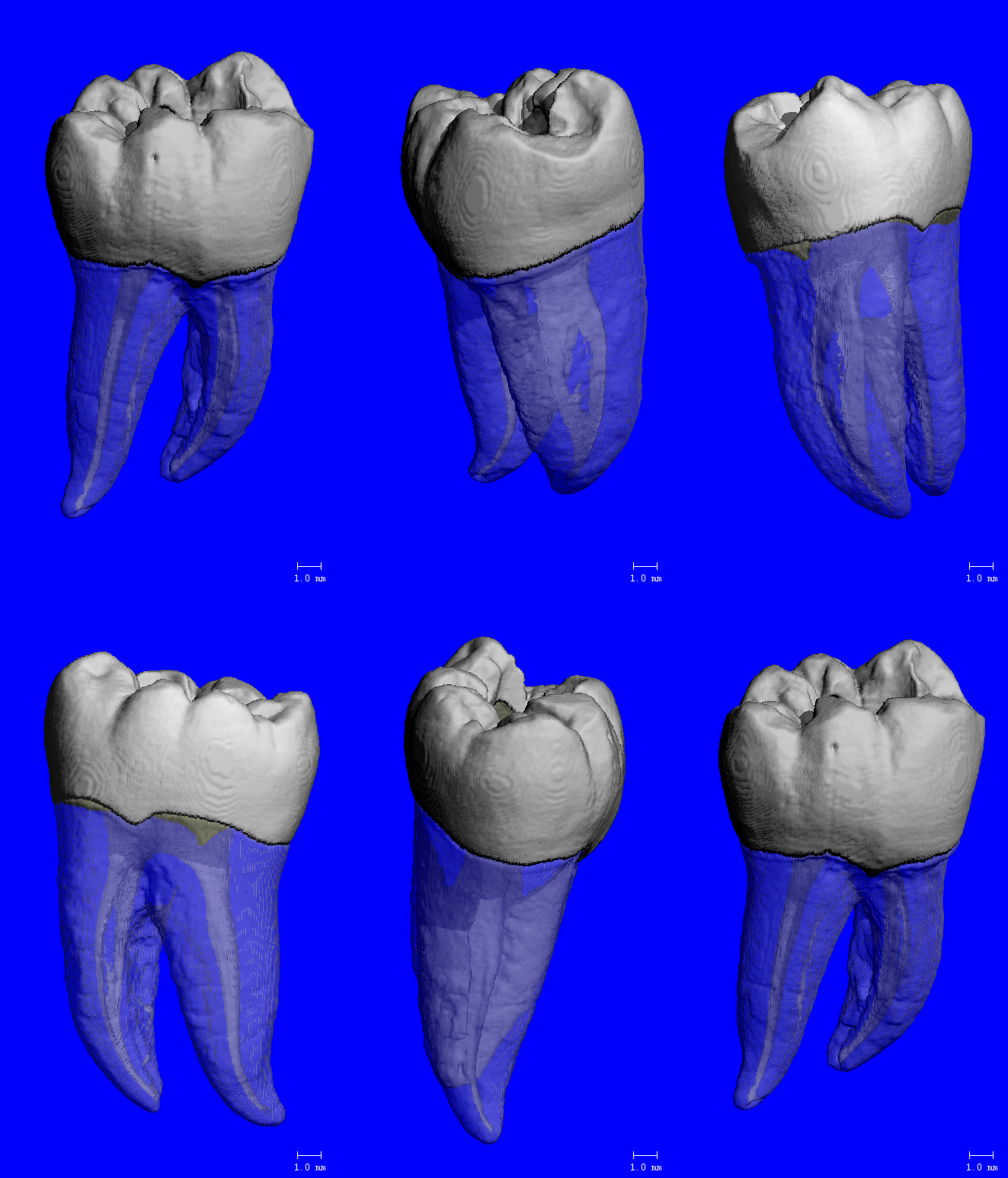
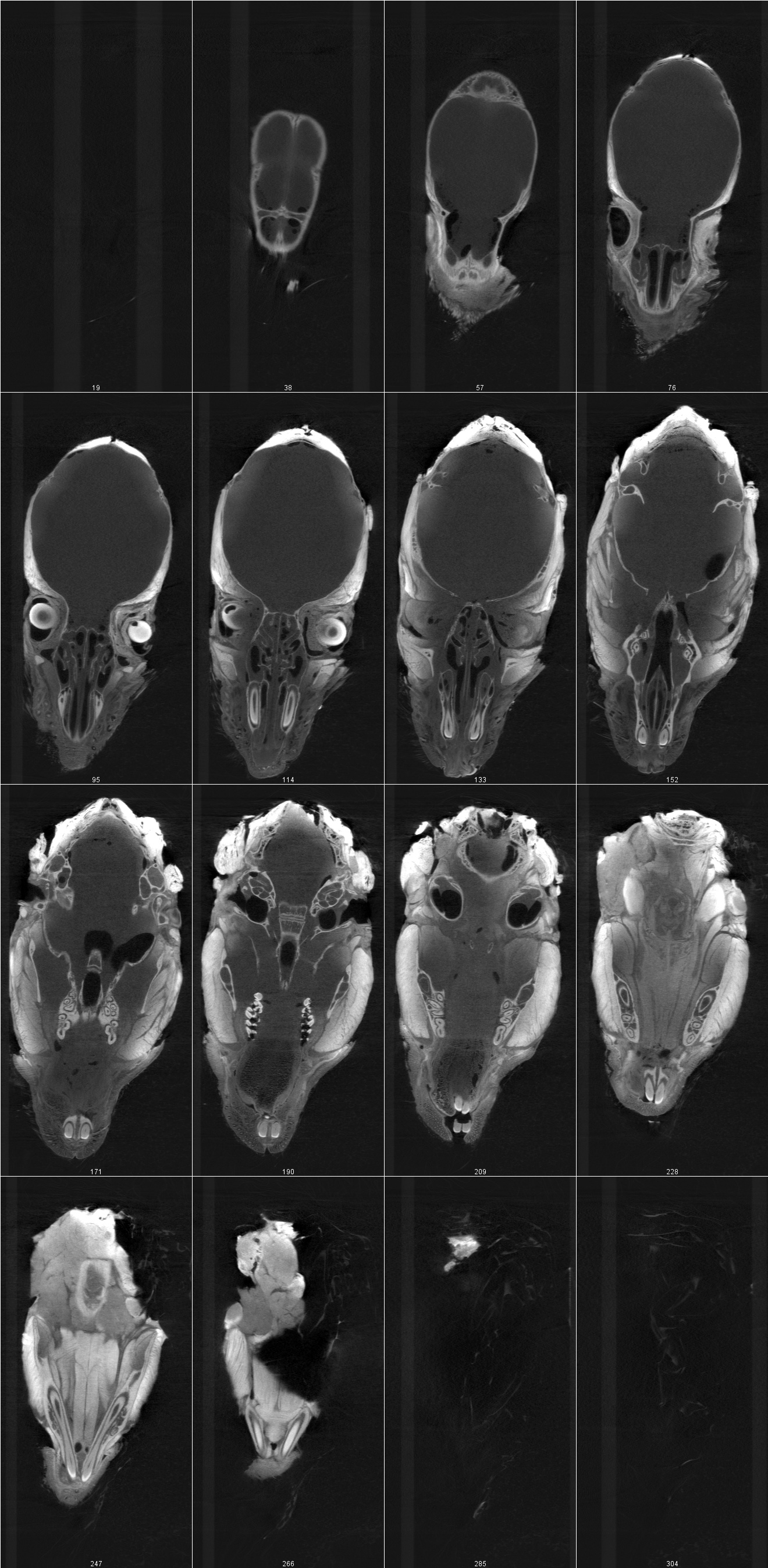
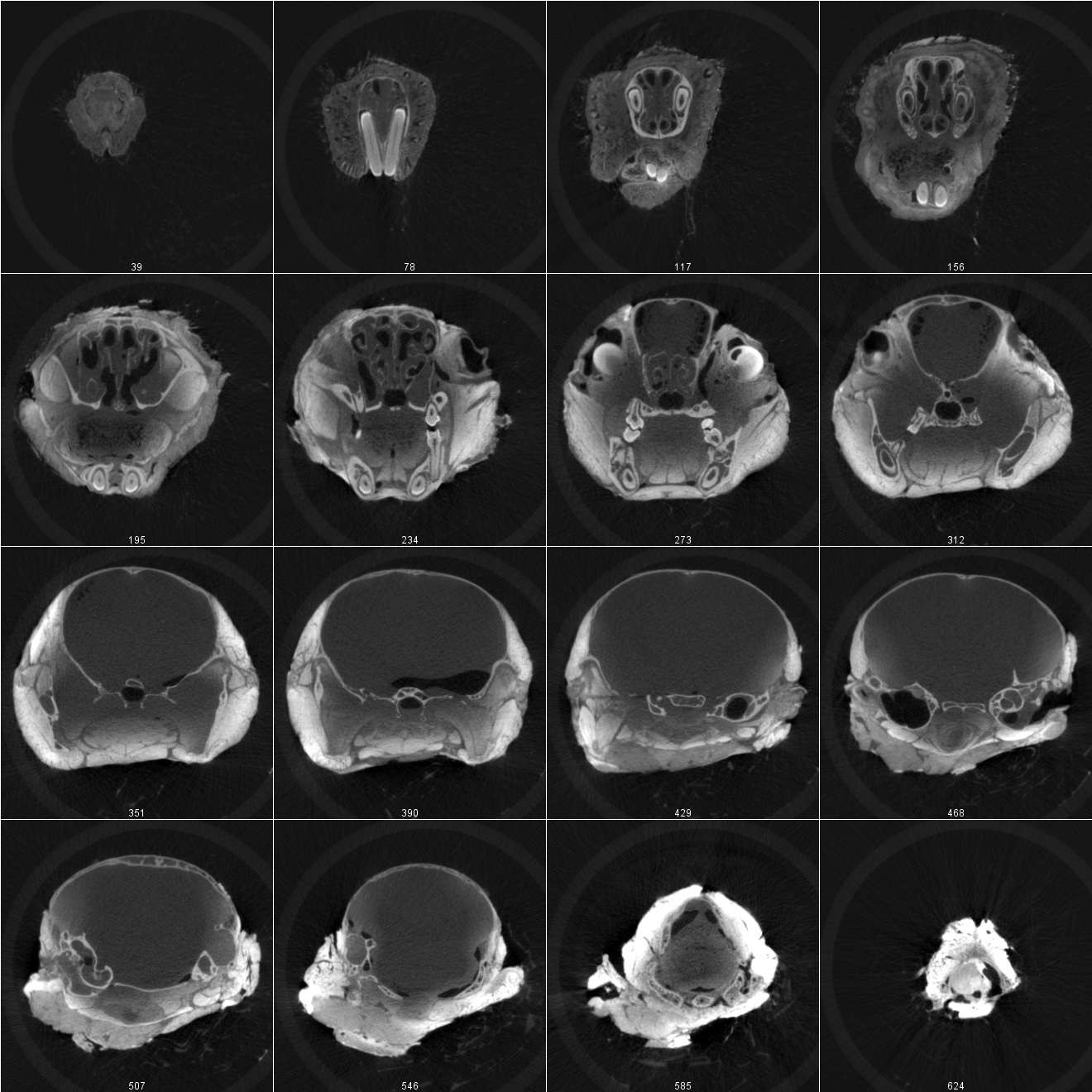
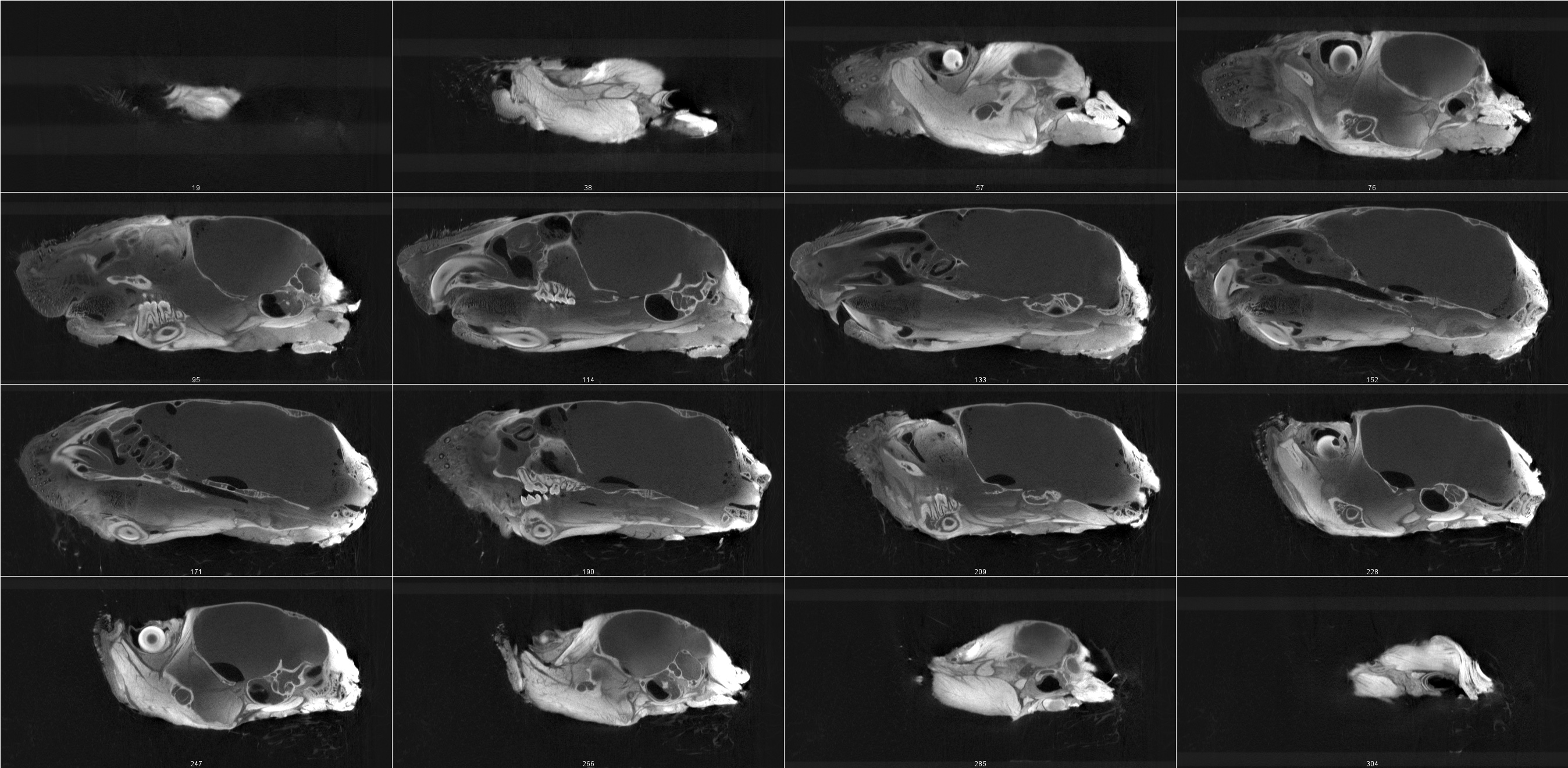
Return to Contents or Return to Main Page
Scanco Medical Windows System
[edit]Using the newer Scanco Windows system mostly follows the same workflow as the OpenVMS system, with some improvements.
Return to Contents or Return to Main Page
Applications
[edit]An overall software guide can be found on the Scanco site. Opening Scanco applications on the Windows system happens from the ‘SCANCO Application Center”

This should be found at C:\Program Files\SCANCO Medical\ApplicationCenter on the workstation.
You can also search for this in the windows start screen:

Regardless of the application, if you are unsure of the functionality of a button, you can hover over it with your mouse to get a short description:

On first opening the application center, you will be prompted to log in. Make sure you ask your supervisor which Scanco account you need to take scans or run evaluations under.
You will also need to select a project. This gives the applications access to the correct samples associated with the imaging technology they used.
Return to Contents or Return to Main Page
Sample Registration
[edit]The sample registration process is largely the same as on VMS, with an interface upgrade:

To copy and paste sample names, you can now easily highlight the name with your cursor and click Ctrl + C to copy and Ctrl + V to paste.
This application also now allows you to view and edit Scan Groups.
Return to Contents or Return to Main Page
Scan Program
[edit]The Scan Program would be the equivalent to the µCT Tomography Program from VMS. Again, the scan process follows from the VMS version, with a newer look:

The user manual can be found here.
Return to Contents or Return to Main Page
Evaluation
[edit]The evaluation application on the new system provides the same functionality, but in a different layout. To select which file to evaluate, click File > Load Image from Server. From here, select the project, sample and measurement to populate the associated ISQ file. You may also choose to filter the list of files by Scan Group if you had created one for your samples (Samples) or search by sample name (filter).

There are three windows: Viewing, Contouring and Tasks.

Return to Contents or Return to Main Page
Viewing
[edit]To load the slices of your image, click the ‘Load’ button in the bottom right corner. This will start loading any slices after the current viewpoint that have not been loaded yet. Press ‘Cancel’ to stop loading slices from the server. The viewing window populates the buttons in the bottom half of the screen from VMS Evaluation.

These allow you to measure pixel values, distances and view histograms. You can view any of the three planes (XY, XZ, YZ) and scroll through the slices. You can also select the 3D tab, which displays all three planes together. The top right corner of the left viewing window has options to hide contours, orientation labels, patient info, colour gradient, slice number, scale bar, or reset orientation.
Tools > Image Header allows you to see the ISQ header information and processing log (if processing has been done on the loaded image).
Options allows you to change the pixel units and colour gradient type.
Return to Contents or Return to Main Page
Contouring
[edit]The second window is where you can draw the contours for your evaluation. All of the functionality from contouring in VMS is still there, just organized more compactly:

These new buttons map to the old ones:

To view what is segmented within the drawn contours (white for bone, blue for non-bone), switch to the Tasks window and select a script to see its specific thresholding.
Return to Contents or Return to Main Page
Tasks
[edit]This is the window where you can run your analysis scripts, after you have drawn the appropriate contours. By clicking the buttons next to the parameter box (or F5), you can view the segmented parts of the image within the contours.

Some scripts have different segmentation types (for example, trabecular bone with air-hole filling will have a red section for soft tissue, white for bone and black for air).

Return to Contents or Return to Main Page
Ray Tracer
[edit]Scanco provides a reference manual for the Ray Tracer Windows application.
Return to Contents or Return to Main Page
Tools
[edit]To access the following tools, simply click ‘Tools’ in the top bar of the Scanco Application Center.
Return to Contents or Return to Main Page
File Browser
[edit]The file browser tool allows you to view all the files stored on the Scanco Server. It works similarly to the File Explorer from Windows. There are 4 main tabs: Measurements, Projects, Files and Mappings. To open, edit or view file properties, simply right-click over the name of the file. For image files, you can select to open them in either the Visualizer or the Ray Tracer programs.
The application lists the dates created/modified, file size and the file's virtual and physical locations on the Scanco Server.
Measurements
[edit]This tab is where you can find all the files related to a specific measurement/sample. ISQ, RSQ, RAD, AIM, GOBJ and sample-specific script results can all be found here.
You are able to filter by name in the Filter text-box, as well as by Scan Group using the Samples drop-down box.

Projects
[edit]This tab displays the other files in the system, associated by project (scanner) and user (bonelab/BH). See Data Storage and Management for more details on this structure. Script files, script result/log files and scout views can all be found here.
Mappings
[edit]This tab displays the virtual-physical path mappings from the workstations to the Scanco Server. You can enter a virtual path into the Virtual Path text box to search for its associated physical path.
All of the files origin is from the Scanco Server. The physical path relates to their location on that server. Their virtual path is the access point that the workstations use to retrieve those files remotely from the server. When running scripts and when logged into the Scanco Server directly, it is best to use the physical path. If accessing the files remotely from a workstation, the virtual path should be used.
Files
[edit]This tab works the most similarly to Windows File Explorer. It allows you to traverse the file system to search for essentially any file you would like to find.
Return to Contents or Return to Main Page
Job Queue
[edit]The Job Queue tool allows you to keep track of running Jobs (generally scripts you have run). Any task run from the Evaluation application will have an associated listed job in the queue. Images evaluated from a scan or scheduled scans will also have a job in the task list. This entry tells you its status (Running, Successful, Aborted, Failed), its job number and the type of job (IPL script, GPU evaluation, batch scan... etc). To see the job's associated log, you can right-click on its name in the queue list. The job queue can also be viewed from the Evaluation application under Tasks -> History -> Job Queue

You are able to filter the job list by any of its information: description, status, type... etc.
Console
[edit]The console tool is a shortcut to access the computer's command-line. From here, you can run command-line scripts. When working directly on the Scanco Server, you are able to use the ipl command to run IPL as well as run IPL scripts.
Scan Groups
[edit]One new feature on the Windows system is Scan Groups. They allow you to group samples together (e.g all samples from one study). This is useful for searching for your study samples later.
Return to Contents or Return to Main Page
Creating a Scan Group
[edit]To create a scan group, click Groups -> Scan Groups… from the Sample Registration application or the Evaluation application.

You will see a list of existing scan groups populate. In the text box at the bottom, choose a unique (different from any in previous groups) code and name for your scan group. Click ‘Add’ to register it to the current selected project.

To hide or show a scan group in filter options in any Windows Scanco applications, select the scan group from the list by clicking it. Then, click ‘Hide’ or ‘Unhide’. If the scan group is currently hidden from the applications, it will be marked with ‘Hidden’ in the list of scan groups.
Return to Contents or Return to Main Page
Adding/Removing Samples from Scan Groups
[edit]Adding Samples
[edit]To edit the samples that a scan group includes, navigate to Groups -> Scan Group Members… from the Sample Registration application or the Evaluation application.
From here you will see two side-by side windows listing sample names. The left window will be your 'source' samples and the right window will be your 'destination' samples. In the left (source) window, fill the From drop-down to contain the group you would like to take samples from. This is likely the 'All' group, which includes all the samples in the selected project.
In the right window, fill the To drop-down with the scan group you would like to add samples to.

To actually add samples to your selected groups, simply select them in the left pane, then click Add to.
To select more than one sample at a time, hold Ctrl and click them with your mouse. To select many adjacent samples, hold Shift and click the first then the last sample of the adjacent ones you would like to select.
To narrow-down the sample selection, you can filter samples by name by typing in the Filter text box.
Note: samples in the left window are not removed from that group when added to the right window. They are only removed from a scan group when following the removal procedure outlined below.
Return to Contents or Return to Main Page
Removing Samples
[edit]To remove a sample from a scan group, simply fill the To drop-down with the desired group. Then, select the desired sample(s) to remove, and click Remove From... to remove them from the group.
Return to Contents or Return to Main Page
Scripting
[edit]Scripts can be modified and run from the Evaluation application. Go to Scripts -> Modify Scripts to view script details like python/ipl files and parameter values.
Scanco provides some basic analysis scripts already and script templates. The description for how to use these is found on the Scanco site.
Users are also able to write their own IPL scripts and python scripts. Generally, a python script sets up environment variables for an IPL script, and then runs it. These scripts can also be chosen to be run from the Evaluation application, so long as they are stored in the project's evalscript directory.
Return to Contents or Return to Main Page
Using an Existing Script
[edit]To run an existing script, navigate to the Tasks window in the Evaluation application. From there, make sure you have loaded the correct contour (if applicable). Select from the drop-down box which script you would like to run. Some manual parameter boxes will pop up to be filled: VOI, SEG (thresholding and sigma/support values) and possibly some other script-specific parameters. You can also click Select Script to populate a list of all the scripts to choose from.

Return to Contents or Return to Main Page
Modifying/Creating Scripts and Batch Scripting
[edit]User scripts (python and IPL) are stored at @sns/[project#]/evalscript. To use them in a custom script from the Evaluation Application Tasks window, click Scripts -> Modify Scripts. From here, you can either use a previous script template and change its variables or create a brand new script template. To use an old script as a template, select it from the list and click Modify. When copying an old script template, make sure to rename it to something new and click Save as New when you are done. To create a brand new script, click New.

Some important things to modify when editing a script is its name, shortname, category and parameters.

To modify a script's parameters, navigate to the Advanced window.
Advanced Script Parameters
[edit]These can be adjusted to edit the expected .gobj or .aim file names, or specify a default segmentation threshold value/units, or other script-specific variable changes. Notably, the autocontour script requires MISC0-MISC5 to be set for the images you would like to contour. See the Scanco website for more specific variable details.

Script Variables
[edit]We can think of variables as script parameters you can change in the GUI before running the script. These will be displayed to you in the bottom of the Tasks window below the dimension text boxes after you select your script.
To have these editable values populate in the tasks window, select the parameter group from the drop-down. Then, select which 'item' in that group you would like to show (i.e. '1' for the first listed parameter in the Advanced window, '2' for the second...). Under Label input the name you would like to display to the user for entry. Finally, choose which type the input data should be and (if applicable) enter any range limits for it.

As an exmaple, the in-house script for printing parameters for autocontouring allows users to edit the filename. The parameter group is MISC, the item varies based on how the script is set up (9 in the example below), and the type is text input.
It also has a boolean option that allows you to select between Trabecular and Cortical as the default saved .gobj file. These options are shown in the tasks window below.

Return to Contents or Return to Main Page
Command-Line Scripting and IPL
[edit]Any scripts stored on the Scanco server can be run from the command-line as well. To access the command-line on a Scanco workstation or the Scanco server,
1. Open the Scanco Application Center
2. Click Tools -> Console
NOTE: IPL is not installed on the workstations themselves and cannot be run from their command-line.
To use IPL scripts, you must connect remotely to Scanco-Server and use the command line from within your remote connection to the Server. This will be a remote connection through another remote connection if you are on the workstation through a connection to your personal computer.
The Windows system has a newer IPL version, currently v7. IPL scripts on the new system follow a very similar concept from VMS, except they now only contain IPL-specific commands. Any operating-system level operations (e.g. setting environment variables for the IPL script to use) should be done with a python or shell script. Shell scripts are handy for command-line batch scripting, but python can almost always provide the same functionality.
Return to Contents or Return to Main Page
Workstations and Scanco Server microCT Cluster
[edit]The filesystem and user interface are run on Windows in the new Scanco system. This means that navigation on the workstations and data storage is all synonymous with any other Windows System. Details on navigating the operating system can be found here.
Hierarchy
[edit]The group of scanners, workstations and the Scanco server are referred to as the ‘cluster’.

Remote Connection to Workstations
[edit]Remote access on Windows still requires VPN Connection, or a connection to the same network as the remote workstation.
Windows has a built-in remote service called Remote Desktop. This is a Windows-specific functionality that can be provided to Macs as well, through a separate application (see Remote Desktop from Mac). While ssh connections are still possible, Remote Desktop provides a much more user-friendly access point. Unlike VMS, only one entity can have access to a workstation at a time, whether in-person or remote. That means if someone is connected remotely to the computer and another person logs in, their remote connection will be terminated. There may be a google calendar set-up for access to a workstation: ask your supervisor if you can have access to this.
Note: it is recommended to remote access the Eval-GPU to run analysis, instead of the workstations connected to a scanner. This avoids in-person issues at the scanner or interrupting someone who is working physically at the workstation.
To access a workstation remotely you will need to know:
1. The workstation IP or computer name (ie Eval_GPU)
2. The workstation account name
3. The workstation account password
Remote Desktop from Mac
[edit]1. Install ‘Windows App’ from the mac App Store: here
2. Open the Windows App. Click the ‘+’ button in the top right corner
3. Click ‘Add PC’
4. Under ‘PC Name’ add the IP for the workstation you would like to remote to
5. Under ‘Credentials’ you can select ‘Add Credentials’ if you would like to save the account name and password so you don’t have to enter it every time you connect
6. Add the user name and password (ie scanco_user)
You can play around with other settings for the connection but the likely most important is “Devices & Audio” > clipboard mode > bidirectional, if you want to be able to copy and paste text/files between both remote and local.

Remote Desktop from Windows
[edit]To remotely access a Windows workstation from a Windows computer, there is a built-in application called Remote Desktop. If you are connecting from a Windows computer, simply enter the IP address of the workstation and the user credentials.

You also have the option of saving the connection details. Hit Save or Save As... to save to a destination of your choice (e.g. Desktop). From there, double-clicking the file will attempt to start the connection.
Return to Contents or Return to Main Page
Remote File Transfer
[edit]There are many ways to transfer files from the remote systems to your local computer. I will outline a few below that are more specific to the Scanco System. There are others like FileZilla that may work better, especially if you are used to using these methods. See FileZilla tutorial for how to use that. (NOTE: firewall restrictions on the system may block FileZilla connections currently.)
Once connected remotely to a workstation, any file can be transferred from the file browser to the workstation itself. From there, you can transfer the files to your local computer. The Process is as follows:
1. Connect remotely to the workstation.
2. Navigate to and open the File Browser (Scanco)
3. Locate the file(s) you would like to download
4. Select/highlight the files, and right-click on your selection
5. Click 'Download' from the drop-down and choose a destination folder on the workstation (you may want to create your own)
6. Once the files are downloaded to the remote workstation, right-click the directory and click 'Copy' (or, select it and use the Ctrl + C keyboard shortcut)
7. Navigate back to your local computer, and paste the contents where you would like them stored

If connected to the Scanco Server, you are able to skip a few steps from above. This is because the files are stored physically on the server, whereas the workstations virtually access those files. The process for this is:
1. Repeat steps 1-3 above, connecting to the Scanco Server instead
2. Identify the physical path of the file(s) you would like to copy.
3. Navigate to Windows File Explorer. Either copy the physical path of the file(s) you would like to copy or navigate to their location
4. Now repeat the last two steps above: right-click the directory and click 'Copy' (or, select it and use the Ctrl + C keyboard shortcut)
5. Navigate back to your local computer, and paste the contents where you would like them stored
Return to Contents or Return to Main Page
Batch File Transfer
[edit]This process also allows you to batch move/copy files on the Scanco Server. A useful pipeline for file transfer may be (once logged into the server):
1. Create a temporary file directory on the server (on the desktop or in the documents folder, for example).
2. Identify the locations of the files you would like to transfer (the file browser can help with this: right-click on the file and select 'Copy Physical Path')
3. Create a bash (.sh) script which iterates through those files, and copies them to the directory you made in step 1.
4. Run this script using the console or cmd.exe on the server
5. Locate the directory you made in step 1 in File explorer (or on your desktop if that's where it was created)
6. Right-click the directory and click 'Copy' (or, select it and use the Ctrl + C keyboard shortcut)
7. Navigate back to your local computer, and paste the contents where you would like them stored
You can also use the Data Manager to batch copy files to a directory on the workstation or an external drive that is connected. To do so (once logged in remotely):
1. Open the Data Manager application from the application center
2. Filter by Scan Group or sample name to find which files you would like
3. In the operation option buttons, select 'Copy To'.
4. Beside the 'Copy To' button, select 'Export To ...' to export the files to a folder on the computer, or select the drive to copy the files to.
5. If you would like associated files rather than image files (e.g. logs, csv results, result PDFs...):
Select 'IMA' under 'Selected Measurement'. Then, select which file types you would like to copy.
6. Click 'Start' to begin the copy

NOTE: an ssh server is not currently active on the Scanco server, and therefore file transfer using command-line ssh connections (e.g. sftp, scp, rsync) cannot currently be authorized.